Support

Classroom screen help center

Get the most out of MyClassScreen with step-by-step guides, widget tutorials, and troubleshooting tips.

Classroom screen help for the first day

Classroom screen help starts before widgets. Confirm the panel actually shows the teacher laptop. Confirm the browser is current enough to run a canvas. Then open the board. This hub is classroom screen help for people who already have a room, not a sales page.

Getting started long-form lives at getting started. This classroom screen help article does not copy that walkthrough. It answers the questions that hit the hub: permission, full-screen, save, PWA, embeds, and where to go when the tab dies.

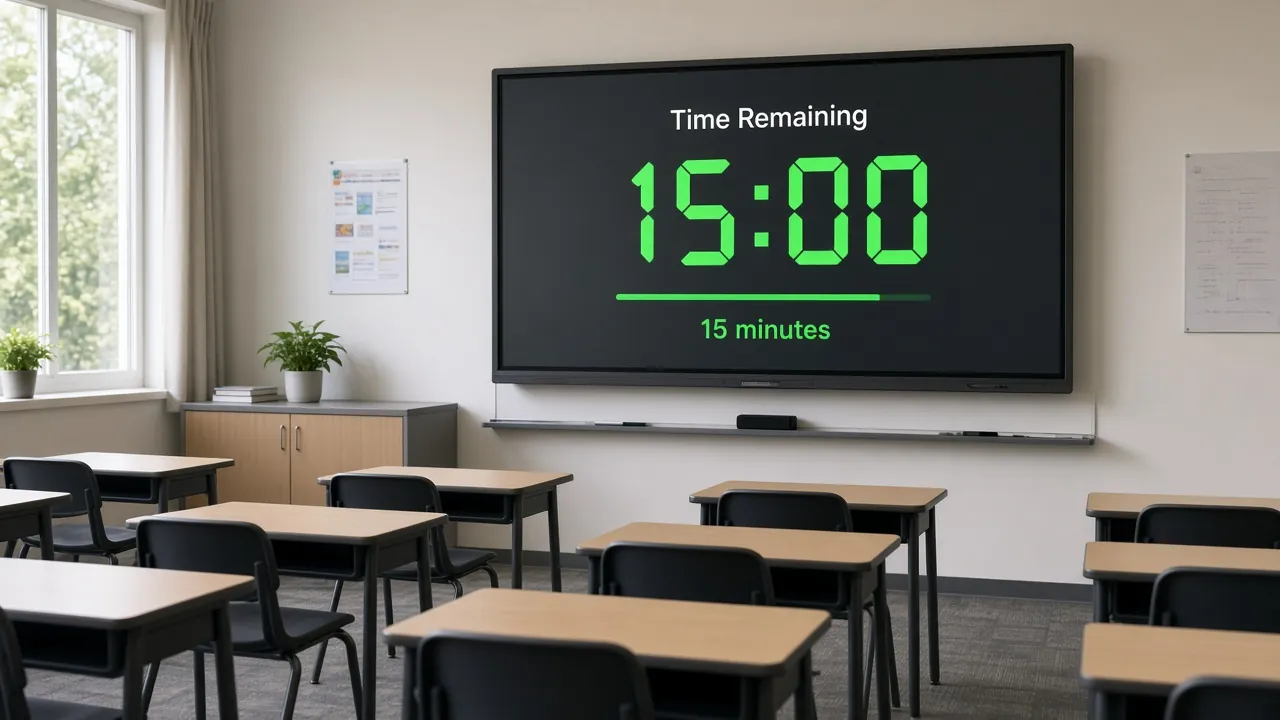
Classroom screen help establishing shot: empty carpet and a projected widget wall
First-day classroom screen help: project something simple before you decorate the wall.

Full-screen classroom screen help

Windows boards: F11 or the browser’s full-screen control. Chromebooks: the full-screen button in the browser menu. iPad Safari: the full-screen icon if the PWA is installed; otherwise rotate and hide the toolbar. Classroom screen help that says “just press the green button” without naming the OS wastes a planning period.

HDMI lag is a panel issue. If the cursor trails, lower resolution on the laptop or use the panel’s native browser. Classroom screen help cannot fix a ten-year-old scaler. It can tell you not to run two full-screen videos behind the board.
Classroom screen help for HDMI: teacher laptop cable into the classroom panel
Classroom screen help for projection: one cable, one full-screen tab, no extra presentation software.

Microphone permission (noise meter)

The noise meter is the only common classroom screen help topic that involves a permission prompt. Allow the mic so the bar can move. Audio is not recorded or uploaded. If you deny it, the meter cannot see volume — it is not broken.

To revoke: site settings in Chrome or Edge, then microphone. Classroom screen help for locked-down campus browsers: ask IT whether mic access is blocked by policy. We cannot override a group policy from this page.
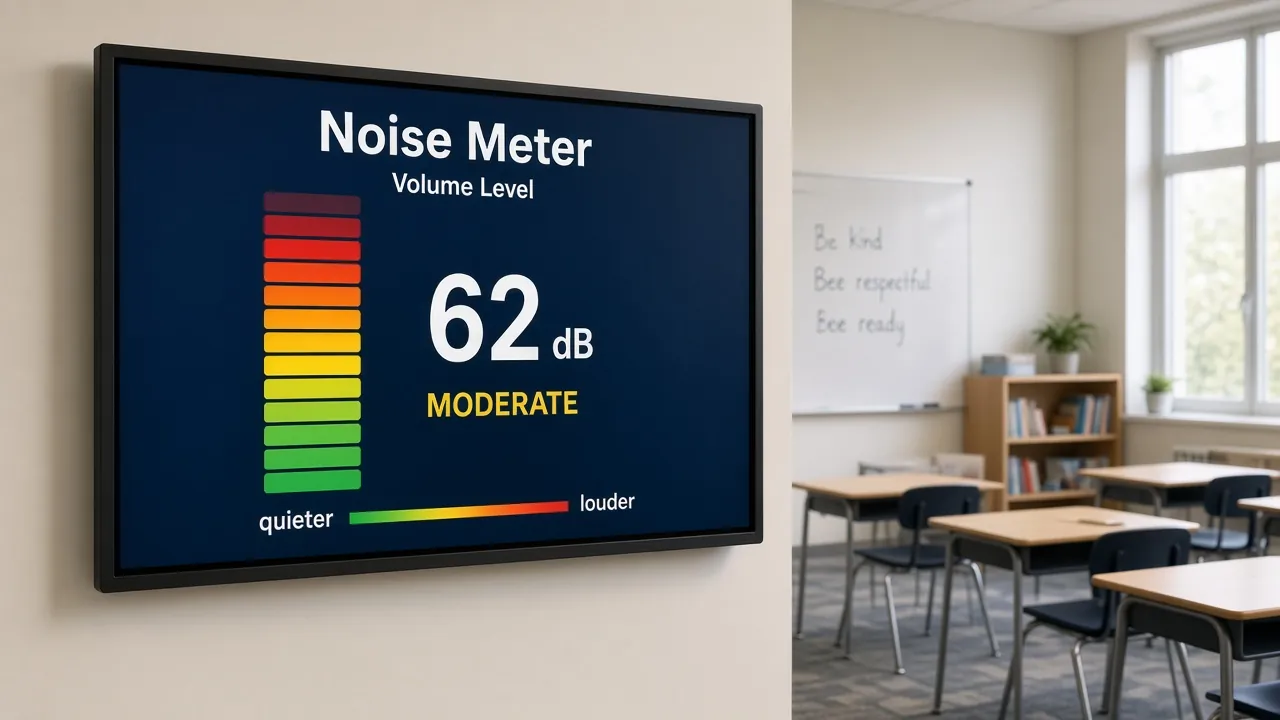
Classroom screen help for the noise meter on a middle-school panel
If the meter is flat, classroom screen help is usually a denied microphone, not a missing widget.

Save vs local classroom screen help

Unsaved classroom screen help reality: closing the tab can drop unsaved widget positions depending on the browser. If the layout matters tomorrow, save. If it was a one-off brain break, skip the account.

Full click path: saving boards. Login intercept (no login to project): classroom screen login.

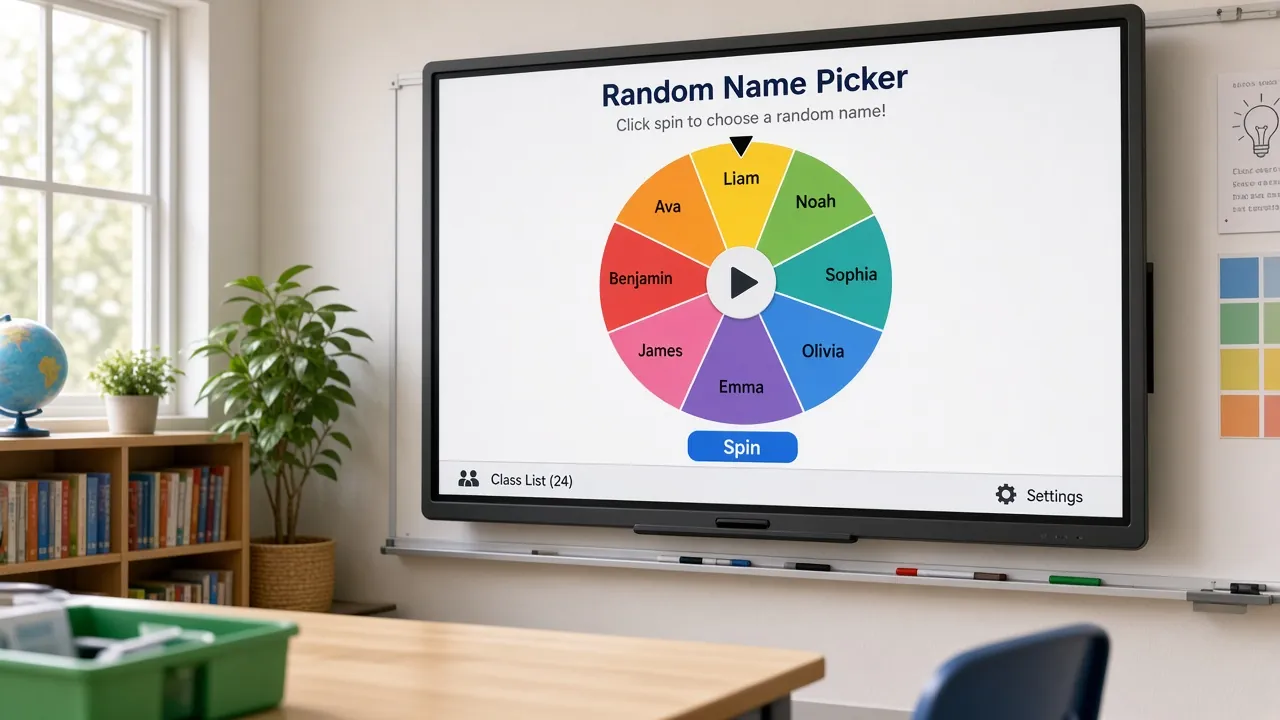
Classroom screen help for saving a name-picker layout on laptop and panel
Classroom screen help on save: the panel and the laptop should show the same board before you walk away.

PWA classroom screen help

Install from Chrome or Edge (install icon in the address bar). That is classroom screen help for “is there an app.” There is not a native App Store package. Steps: classroom screen app.

iPad: Add to Home Screen in Safari is a related path, not identical to a desktop PWA. Test it on the actual cart iPad, not only your personal phone. Classroom screen help that skips the device you actually project from is fiction.

Embeds: Slides, PPT, YouTube

Classroom screen help for embeds is a dedicated article: embed Google Slides. Do not paste that walkthrough here. If YouTube autoplay is blocked, that is a browser autoplay policy, not a missing MyClassScreen toggle.

When classroom screen help means something is broken

Frozen tab: refresh once. Still frozen: another browser. Still frozen: troubleshooting. This classroom screen help hub will not duplicate that checklist. It exists so you can find 20+ widget guides without scrolling a novel.

Widget-specific classroom screen help is in the cards above. Timer shortcuts live on the timer help URL, not on the noise meter URL. Click the matching card.

Templates help: how to use templates and the library at /templates/.

Still stuck: email support@myclassscreen.org. Classroom screen help via email should include browser name, OS, and whether the panel is HDMI or a built-in browser. Screenshots of a black panel without that context cannot be diagnosed.

ViewSonic and similar panels sometimes ship locked browsers. Classroom screen help then becomes “use the teacher laptop.” We cannot unlock a vendor image from this site.

If ads or extensions inject over the board, disable them on that profile. Classroom screen help is not a promise that every campus filter will love a canvas app. Test on the same VLAN you teach on.

Campus networks, filters, and classroom screen help

Content filters sometimes block websockets or canvas. If the board loads as a blank frame, try a second network (teacher phone hotspot) to see whether the filter is the villain. Report the domain to IT with a timestamp. Classroom screen help tickets without a timestamp get lost.

Mixed content: the board is HTTPS. Do not paste HTTP image URLs into backgrounds and then ask why the browser blocked them. Upgrade the asset or pick another background.

Cache: a stuck old widget after a release is often a service worker or disk cache. Hard refresh. If a PWA is installed, update it or reinstall. Classroom screen help for “it looks different at home” is usually version skew.

Extensions that rewrite pages (grammar tools, dark-mode injectors, ad blockers) love to break canvases. Use a clean Chrome profile for the panel. Name it “Board” so you do not browse mail in it.

Time: if the clock widget is wrong, the device clock is wrong. Classroom screen help cannot invent a time zone the OS refuses to set. Fix Windows or ChromeOS date settings.

Audio on HDMI: some panels need the laptop set to output sound to the display. The noise meter still uses the mic, not HDMI audio. Two different pipes. Do not confuse them in a ticket.

Printing this hub: you can, but the widget cards are links. Classroom screen help that lives only on paper will rot. Bookmark the URL.

Translators: browser translate can mangle button labels. If a colleague needs another language, translate this article, not the live board, unless you have tested the layout.

Last step when nothing works: another device. If the phone browser shows the board and the panel does not, you have isolated the panel. That is 90% of classroom screen help.

Cookies and third-party storage: if save fails, check whether the browser blocks third-party cookies. Classroom screen help for “it saved at home” is often a school profile with strict cookie policy.

Pop-up blockers can swallow install prompts for the PWA. Allow pop-ups on the app origin if you are trying to install. Then deny them again if you like living simply.

Captive portals on guest Wi-Fi will interrupt the first load. Complete the portal on the same device that will project. Classroom screen help cannot login to a hotel-style splash page for you.

Stylus: some panels send palm rejection badly. If drawing jitters, use a mouse on the laptop. File a panel vendor ticket, not a MyClassScreen ticket, when the line tracks your sleeve.

Screenshot for IT: include the URL bar. Classroom screen help without a URL is a riddle.

Widget guides in the grid are 20+ on purpose. If your widget is missing from the grid, it may be new — check the changelog — or it may be a mode of another widget (clock and stopwatch live with the timer).

After you fix it, write the fix on a sticky near the panel. The next adult will not read this classroom screen help hub at 7:58 a.m.

How to shape a classroom screen help ticket

Include: browser, OS, HDMI vs panel browser, whether a PWA is installed, and the last action before failure. Classroom screen help that says “it doesn’t work” cannot be triaged.

Include whether names were saved or only local. Classroom screen help for a missing roster is usually a different profile, not a deleted product.

Include whether the mic prompt appeared. If it never appeared, campus policy may have blocked it. Classroom screen help cannot grant permissions the OS hid.

Include a photo of the whole panel, not a crop of one widget. Classroom screen help often lives in the OS chrome you cropped away. Panel firmware issues belong with the vendor, for example Promethean Support.

Do not send student names in the screenshot if you can avoid it. Classroom screen help can use dummy names. FERPA still applies to your inbox.

If you already tried another browser, say so. Duplicate classroom screen help steps waste everyone’s planning period.

If the issue is “I want a feature,” that is still welcome — mark it as a request. Classroom screen help and product ideas should not share a subject line if you can help it.

After a fix, reply that it worked. Future classroom screen help articles get written from closed loops, not from ghosts.

Recovering specific classroom screen help cases

Timer stuck at zero: start it again. If it never moves, another tab may own the interval. Classroom screen help for frozen time is usually two copies of the board.

Names empty after lunch: you opened a different save or a logged-out profile. Classroom screen help is to look at the save name, not to retype 32 names in a panic.

Meter pinned at zero: mic denied, muted OS input, or a physical mute on a headset. Classroom screen help order is OS mute, then site permission, then hardware.

Drawing will not mark: touch driver or palm rejection. Use the laptop. Classroom screen help should not begin with reinstalling the OS.

QR will not scan from the back: enlarge the widget and increase contrast. Classroom screen help is geometry, not a new generator.

Poll counts look wrong: you refreshed and lost the in-memory tally. Classroom screen help: polls are live, not a gradebook. Screenshot if you need a record.

Template opened blank: the query string was stripped by a filter. Classroom screen help: type the template id again or click the library card, do not paste through a link shortener that kills query params.

PWA opens an old board: the installed app cached an old shell. Classroom screen help: uninstall the PWA, reinstall from the live origin.

Full-screen black: the panel scaled a black tab. Alt-tab back, or move the window onto the panel before full-screen. Classroom screen help for black glass is often the wrong display selected in Windows.

Audio chime missing: the panel output is not the default playback device. Classroom screen help for sound is the same as “why does YouTube play on the laptop speaker.”

Widget missing from the grid: it may be a timer mode (clock/stopwatch) or a new tool listed under tools. Classroom screen help hubs cannot list every alias without becoming the directory.

Save button missing on a kiosk profile: the campus image may hide it. Classroom screen help then is local-only layouts plus a written recipe.

Board slow: close games you are not playing. Classroom screen help for lag is fewer animations, not a new laptop on a Tuesday morning.

Wrong roster after a shared cart: check which Chrome profile is signed in. Classroom screen help for “my names vanished” is often the student profile auto-opened after a reboot.

Board cropped on a 4:3 projector: the canvas is 16:9. Classroom screen help is to letterbox, not to smash widgets into the cut-off. Sit in the back and check.

Language pack extensions translating the board live: disable them on the panel profile. Classroom screen help for scrambled buttons is almost always a translator.

Time zone jumps after daylight saving: restart the OS clock. Classroom screen help will not patch Windows for you.

Duplicate widgets: you clicked add twice. Close one. Classroom screen help is not a merge tool.

Cannot find the help card for clock: it lives under timer. Classroom screen help grids group modes on purpose.

Embed shows a login wall: that is Google’s wall, not ours. Classroom screen help: sign into Slides on that machine first, or pick a link that allows anyone with the link to view.

File too large as a background: compress the photo. Classroom screen help for a hung tab after upload is usually a 20 MB classroom picture of a pumpkin.

If you have read this far, bookmark getting started and troubleshooting. This classroom screen help hub is the map, not every procedure.

Widget how-tos live on the tools guides and hubs — classroom timer, more widgets, and classroom games. This hub will not paste every shortcut. Open the card that matches the widget that failed.

Login confusion: you can project without an account. Classroom screen help tickets that start with “I can’t log in” often need the login intercept page, not a password reset we do not offer as a school SSO.

App store confusion: there is no native iOS/Android package. Classroom screen help is PWA or browser. Sending people to a store listing we do not operate is how support loops start.

Embed autoplay blocked: that is the browser. Classroom screen help cannot override autoplay policies for YouTube. Click play on the panel.

Names showing from last year: you opened an old save. Classroom screen help: rename saves with the school year in the title.

Still here? Open the board on this machine now. Classroom screen help you only read is not help. Click app.myclassscreen.org/board and see whether the timer starts. If it does, you are done.

If it does not, try a second browser, then a second device, then email support with those results. That is the entire classroom screen help ladder.

Print this classroom screen help hub if your filter blocks the site — ironic, but it happens. Keep the getting-started URL on paper either way.

New hires: pair them with this hub on day one, not with a verbal tour of 40 widgets. Classroom screen help scales when it is a URL.

You now have 20+ widget guides, first-day steps, mic and save notes, PWA truth, embed links, and a ticket shape. Use them. Classroom screen help that sits unread does not project a timer.

Send this classroom screen help hub to a teammate who keeps rebuilding boards from memory. One URL is cheaper than another faculty-meeting demo.

Getting Started

Learn the basics of setting up your digital classroom board, arranging widgets, and troubleshooting browser permissions.

Getting Started Guides

Template Library

Guides on finding pre-built teacher templates, customizing layouts, and building custom start layouts.

Template Resources

Account & Saving

How to create a free teacher profile, save your screen layouts, and upload custom backgrounds.

Open Saved Boards

Interactive Widget Guides

Click on any widget card below to read detailed setups, keyboard shortcuts, pro strategies, and configurations.

Need More Help?

Can't find what you are looking for? Send us your suggestions, feature requests, or technical issues directly.

Contact Teacher Support