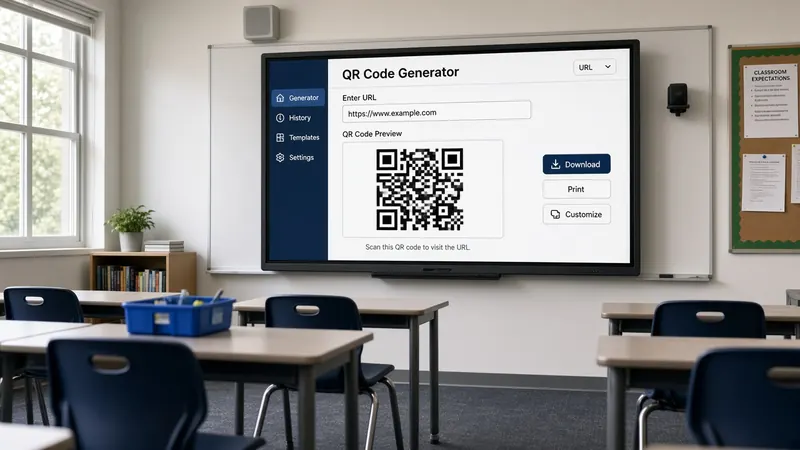
Free QR Code Generator for Teachers
Share links, digital worksheets, and educational activities instantly. No more spelling out long URLs — just project and scan.
Stop dictating URLs at the speed of typos
You write a Google Form link on the board. Someone misreads a lowercase L as a one. Three students raise their hands before anyone reaches question two. You repeat the URL. The class loses four minutes you planned for actual feedback.
A classroom QR code generator pasted into your projected board fixes that in one step. Copy the link, drop it in the widget, enlarge the code, and let cameras do the work. Chromebooks, iPads, borrowed phones—most devices scan from a reasonable distance when the code fills enough screen space.
Privacy matters in schools, and this workflow stays simple: students open your resource without creating MyClassScreen accounts. You are not building a roster inside our tool. You are not asking kids to log into another platform just to reach a reading passage. The QR code is a pointer—projected, scanned, done. That makes it friendly for COPPA-conscious buildings and teachers who already juggle too many sign-in cards.
Where QR codes earn their spot on the board
Station rotations are the classic use. Each table gets a different task link over the week, but only one code shows at a time on the main screen. Update the URL when the rotation changes— the graphic refreshes instantly. Pair with the classroom timer so groups know when to scan the next station's code.
Exit tickets and quick checks via Google Forms work better when entry friction disappears. Project the code five minutes before pack-up. Students submit on their way out while you glance at responses later—no account setup through MyClassScreen required.
Share reference PDFs, YouTube clips, or Slides presentations without emailing attachments. Parent night? Display a code for the syllabus or volunteer sign-up. Sub folder? One saved board with codes for the video and worksheet they need.
Sharing without another student login
Plenty of tools want every learner in a class roster before sharing a link. That is fine until you are a guest teacher, running a club, or working in a district that limits new apps mid-year. QR codes bridge the gap: you control the destination, students only need camera access to a link you already approved.
Combine with the drawing board when instructions need a sketch plus a link—diagram on the canvas, code in the corner. Use the text widget to spell out what they should do after scanning so fewer hands go up.
Practical tips from the floor
Test from the back row once. Bright projectors wash out thin codes; resize the widget until scan is reliable. Short URLs still work—long Google links encode fine, but a bit.ly or district short link can reduce dense patterns if your panel is small.
Change links on the fly when a site crashes or you pivot to plan B. Edit the field, new code, keep teaching. Save Monday's layout with a free account so recurring forms load before students arrive.
Librarians and specialists rotating between rooms love carrying one saved board per grade band—codes for catalog search, research databases, or audiobook links without retyping URLs in each space. Media specialists project a code for the day's read-aloud companion site while the cover image shows on another part of the screen.
When QR beats email or classroom chat
Pushing links through LMS messages works if every family monitors the portal. In practice, younger students lose the thread, and chat apps blur school boundaries. A projected code keeps distribution public inside your room—scan now, work now—without adding another inbox you must monitor during instruction.
Hybrid and flipped setups benefit when in-person students scan while remote learners receive the same URL in chat—you maintain one canonical link on the board for the room. Guest speakers can share a feedback form without collecting emails aloud.
Anchor charts photographed elsewhere can link through a code when you want students reviewing at home—project the same code during class so school and home paths match without retyping.
Security-minded sharing in 2026
IT departments rightfully ask where data goes. MyClassScreen's generator encodes the URL you supply—it does not require a roster of student emails to function. Scanning opens your district-approved destination; our widget does not track who scanned or force account creation on this site.
Still follow your local policy: only link resources you would have emailed to families anyway. Avoid shortened links from unknown domains if your filter blocks them. Test on a student Chromebook before the lesson block when you can.
Print a backup tiny URL on handouts for students whose cameras fail—QR first, typed link second—so accessibility needs do not stall the whole class.
Display the code full-width during transitions so stragglers entering the room can scan without you stopping instruction to dictate letters again.
For younger grades, practice scanning as its own mini-lesson once a month—point the camera, wait for the chime, celebrate the first successful open. Routine reduces panic when you later depend on codes for assessments.
MyClassScreen keeps the generator beside your other widgets—timer, traffic light, poll—so you are not alt-tabbing between five tabs while thirty kids wait. One projected screen, one workflow, fewer typos on the board.
Popular classroom applications
Share Worksheets Instantly
Convert PDF worksheets or digital handouts into QR codes so students access resources in seconds.
Link to Polls & Quizzes
Create a QR code for your exit tickets, Google Forms, Kahoot, or Quizlet games to start assessments fast.
Reference Materials
Provide reference links, background videos, or reading assignments next to the daily task list.
Independent Centers
Set up station rotations where each center has a distinct QR code for instructions or research links.
How to generate a classroom QR code
- 1 Open MyClassScreen and place the QR Code widget on your digital board.
- 2 Copy the link to the resource you want to share (e.g. Google Slides, Kahoot link).
- 3 Paste the URL directly into the input text box inside the widget.
- 4 The QR code graphic updates in real-time on your screen.
- 5 Project the board full-screen so students can scan the code from their desks.
Build a digital resource board
Add a QR code widget next to a drawing board, transition timer, and traffic light behavior signal for total class structure.
Start Sharing Free