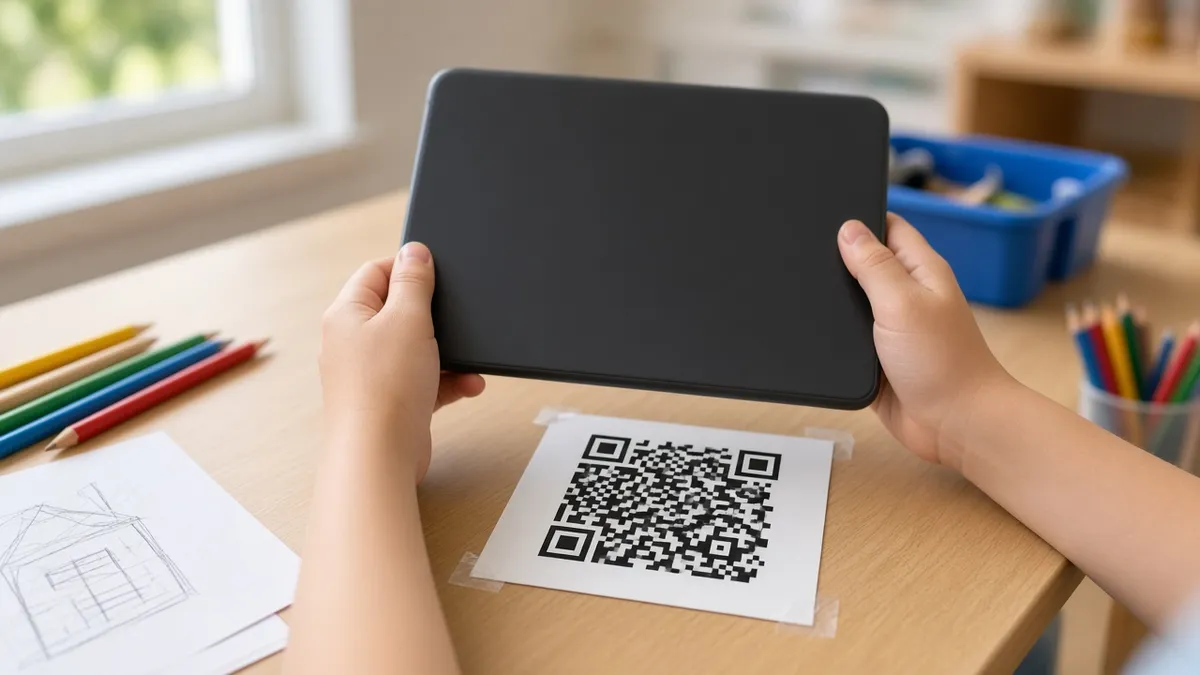
Using QR codes in the classroom saves the slowest minute of any lesson: getting 25 students to the same web page. Instead of spelling out a long link, you show one square on the board, students point a camera at it, and everyone lands in the right place. QR codes are just as useful on paper, for stations, scavenger hunts and family handouts. This guide gives 15 practical ideas, how to make a code in seconds, and the safety and access checks to do before you say "everyone scan."
QR codes are older than most of your students. They were invented in 1994 by a team at DENSO led by Masahiro Hara, according to DENSO WAVE, and phone cameras now read them without an extra app; the iPhone camera has done so since iOS 11 in 2017, and most Android cameras do too.
How to make a QR code for class
- Copy the link you want students to open, such as a form, a reading or a video.
- Open the QR code generator for class on your board and paste the link into the box.
- Make the code large enough to scan from the back row.
- Scan it yourself with your phone before students try.
- Tell students what the link is before they scan it.
The tool can also encode plain text, so a code can show a short message or join code instead of a link. It does not host forms or collect answers; the link points to tools you already use.
15 ideas for QR codes in the classroom
Starting and running lessons
1. Bell-ringer link. Show a code for the day's warm-up question or video as students walk in. Add a classroom timer next to it so they know how long they have.
2. Reading or video link. Share the article or clip everyone needs. Take the code down when reading starts so phones go away.
3. Join codes for class tools. Encode the join code or link for your quiz or poll tool, so nobody mistypes it.
4. Differentiated choices. Post two or three codes for different levels of the same task: "start here," "challenge," "extra practice." Students choose without anyone else seeing which link they picked.
Stations and centers
5. Station instructions. Tape a code at each station that opens instructions, an audio recording or a demo video. Students can replay it instead of asking you again.
6. Self-checking answers. Put a code on the back of a task card that reveals the answer as plain text. Students check their own work before moving on.
7. Audio for young readers. Link to a recording of a story or the directions read aloud. This helps early readers and English learners work independently.
Games and movement
8. QR code scavenger hunt. Hide codes around the room or school. Each scan reveals a question; the answer tells students where the next code is. In December, a winter-themed hunt makes the last week before break productive.
9. Gallery walk. Hang student work on the walls with a code beside each piece linking to a short reflection, a slide or a recording.
10. Brain break link. Keep a code on the board for a movement video. For no-screen alternatives, see our no-prep brain breaks.
Checking for understanding
11. QR code exit ticket. Show a code that opens your exit ticket form beside the prompt on the board. Our exit ticket board has space for the question and a code.
12. Quick survey. Ask "How confident are you with today's topic?" through a short form linked by a code. For a fast in-room vote without phones, use the live poll instead.
13. Peer feedback. Each group posts a code to their project; classmates scan it to leave a comment on a shared form.
Families and the community
14. Conference and event sign-ups. Print a code on the newsletter or project it at back-to-school night so families can open a sign-up or feedback form. Our parent-teacher conference slides show where it fits.
15. Class website or supply list. A code on the classroom door or welcome letter takes families straight to the class page.
QR code ideas by subject
The same trick works across the timetable. A few subject-specific starters:
- Reading and ELA: link each book in the class library to a short student-made review or a read-aloud recording. A code on a vocabulary wall can open an example sentence or a picture.
- Math: put a code on each task card that opens a worked example or a hint video, so students who are stuck can help themselves before asking you. Self-checking answer codes suit practice sets well.
- Science: link lab stations to a safety reminder or a demo video, and add a code beside each specimen or poster that opens a short fact page.
- Social studies: build a timeline on the wall where each date has a code linking to a primary source image or a short clip.
- World languages: link codes to audio of native pronunciation so students can hear a word as many times as they need.
- Art and music: hang a code beside each artwork or instrument picture that links to an artist statement or a sound sample.
Start with one idea, use it for a week, and keep what saves you time. A good QR code routine should feel invisible: students scan, start and get on with the work.
Before you say "everyone scan"
A failed scan in front of the class costs the minute you were trying to save. A short checklist:
- Test from the back row. Scan the code on the board from the farthest seat. If it fails, make it bigger or reduce glare.
- Check the link is public and finished. If students need to sign in, make sure their accounts work. Do not share links to private documents.
- Use short, stable links. A code printed on paper keeps working only as long as the link does.
- Give a backup. Write a short version of the link on the board, or use the text widget, for anyone whose device will not scan.
- Keep it open long enough. Leave the code up until everyone has scanned, then remove it.
Safety and privacy
QR codes hide the destination until you scan, so model good habits:
- Only scan codes from the teacher, the school or a trusted source.
- Check the link preview on the phone before opening it.
- Follow your school's rules on student devices, apps and data. Use school-approved tools for anything that collects student information.
- Do not put personal information about students inside a QR code.
Teaching students to pause and check a link before opening it is a useful digital citizenship lesson in itself.
What if students do not have phones?
Not every class has one device per student, and that is fine:
- Shared devices. Use classroom tablets or laptops with a camera, one per group.
- One scanner per group. The group leader scans and shares the screen.
- Projected link. You scan or click the link and project the page for everyone.
- Printed alternative. For stations, print the instructions behind the code.
If students have no devices at all, skip the code and write the short link on the board.
Printing tips
- Print codes at least 2 to 3 cm (about an inch) across for close-up scanning, larger for walls.
- Use black on white for the best contrast. Fancy colors can stop scanners reading the code.
- Leave a white margin around the code.
- Laminate codes for stations you will reuse.
- Label each code with a short description, such as "Station 3: video," so students know what to expect.
A sample board layout
For a lesson that uses a QR code, try this layout on your classroom screen:
- Left: the QR code, large.
- Right: the task in a text box, with a short link underneath.
- Top: a timer counting down the scan-and-start time.
Save it as a board so you can reuse it with a new link every day. For more layouts, see our classroom screen ideas.