Free Tool

Free Drawing Board and Whiteboard for Teachers

A clean, resizable digital canvas for your smart board. Sketch diagrams, map out formulas, or let students illustrate concepts live.

Canvas

Scratch space that every seat can read

Dry-erase markers run dry mid-lesson. Chart paper tears when you move it. Slide annotations disappear when you advance to the next deck. Meanwhile a student in row four still asks what the diagram looked like two minutes ago because they were sharpening a pencil.

A digital whiteboard widget on your classroom screen gives you a resizable canvas that stays visible while you teach. Drag a corner to fill half the board. Pick a pen color thick enough for the back row. Sketch a food web, underline a thesis sentence, or circle the mistake in a worked example—then erase just that line without wiping your whole agenda.

Since Google Jamboard went away, a lot of us looked for a Jamboard alternative that did not require another login maze. MyClassScreen's drawing board is lighter than a full collaborative suite: you project, you draw, students watch or come up to touch the panel. No student accounts, no shared links, no "request access" emails at 7:58 a.m.

Live teaching moves I use weekly

Math blocks eat whiteboard space fast. Long division with remainders, fraction bars, number lines—the drawing board becomes the scratch pad while your slides stay clean. Science diagrams benefit the same way: label a cell, draw arrows for energy transfer, swap pen colors when you add a second pathway. Social studies maps get quick annotations when a textbook page is too small to project clearly.

Invite a student to the board for vocabulary. They sketch a word's meaning while classmates guess. Spelling practice gets a visual hook when someone underlines the silent letter in a color you reserve for "tricky parts." Keep sessions short so the line at the panel does not eat your transition time.

Layer the canvas over a template or text widget showing today's objective. Your schedule stays readable while you annotate beside it. During writers' workshop, jot conference notes in a corner box without opening a separate app.

Brainstorms, exit tickets, and quick checks

Brainstorming without sticky notes? Draw a T-chart and add ideas as students call them out. Snapshot the screen if you want a record for your planning folder. For a fast exit ticket, leave space at the bottom of the canvas and ask volunteers to add one thing they learned—a single word or a tiny sketch—before they line up.

Pair the board with a live poll when you want structured responses after an open sketch. Students explain their drawing verbally while you tally understanding on the poll widget next door.

Touch, stylus, and the substitute test

Promethean pens, Smart Board fingers, cheap capacitive styluses—they all work because the canvas is standard web drawing, not a proprietary app install. Chromebook trackpads work in a pinch when the document camera is tied up elsewhere.

Layouts save widget size and position when you use a free account. Strokes clear on reload so you start fresh each period—usually what you want. Screenshot anything worth keeping for portfolios or parent conferences.

PE and art colleagues borrow the same approach when they project from a laptop: diagram a play in the gym, sketch perspective lines in the studio, mark stages on a timeline during a history recap. The tool is generic on purpose—it becomes whatever your lesson needs in the moment.

Keeping it simple after Jamboard

Full collaborative whiteboards still have their place when every student has a device and time to join. Many of us only need thirty seconds of ink on glass: underline a word, draw an arrow, show a quick graph. The drawing board widget covers that daily itch without migrating slide decks or retraining students on a new interface.

Music teachers sketch rhythm patterns. World language teachers write characters large enough for choral repetition. Primary teachers model letter formation while students air-write at desks. The canvas scales to the moment instead of demanding a full lesson built around it.

Annotating without losing your slide deck

Slide software often traps you in presenter view while students want you to mark a detail on the still image behind you. Float the drawing board over your projected browser window, trace the path of a river or highlight a verb tense, then erase and return to scrolling without exporting PNGs between apps.

Document cameras compete for the same job but require repositioning physical papers and good lighting. The digital canvas is faster when the content already lives on screen—or when you need a blank space fast.

Color-code pens by subject if you teach multiple preps from one saved layout—green for science vocabulary, blue for grammar cues—so students learn your system quickly across periods.

When admin walks in during a discussion, a live diagram beats a blank slide every time. You look prepared because you are responding to student questions visibly, not clicking backward through a deck searching for the right image.

Subs appreciate one browser tab with a drawing board already placed next to the timer and traffic light. Instructions in the text widget, sketches on the canvas, no mystery login. That simplicity is why this tool stays on my morning board even when fancy slide decks are ready to go.

Popular use cases

Diagram Sketching

Draw quick diagrams, arrows, or labels next to slides or lessons during live lectures on your smart board.

Student Illustrations

Invite students to the board to write answers, circle key terms, or sketch illustrations for spelling or vocabulary.

Handwritten Worksheets

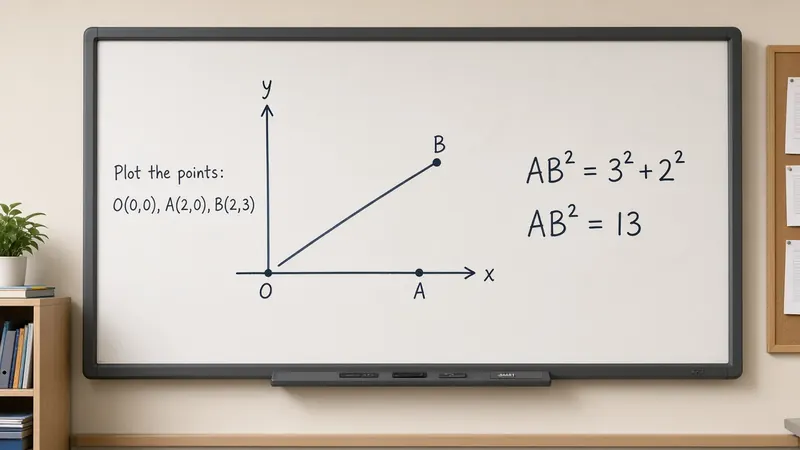
Work out mathematical formulas, fraction breakdowns, or sentence structures by hand in front of the class.

Exit Tickets & Ideas

Doodle concepts, capture immediate student ideas, or use it as a scratch space during brainstorming.

How to use the drawing board

  1. 1 Open MyClassScreen and drag the Draw widget onto your board.
  2. 2 Resize the widget by pulling the corner handle to create your custom drawing canvas.
  3. 3 Select the Pen tool and pick a color (black, gray, teal, red, yellow, blue, etc.).
  4. 4 Draw using your smart board touchscreen, stylus, or standard trackpad/mouse.
  5. 5 Use the Eraser tool to clean up specific segments, or clear the entire canvas to start fresh.

Build your digital classroom whiteboard

Keep your drawing board next to a timer, random name picker, and a text box for your full morning warm-up list.

Start Drawing Free

Try More Free Classroom Tools:

Frequently Asked Questions

Yes. The drawing board widget is free on MyClassScreen with no ads, signup walls, or feature locks.