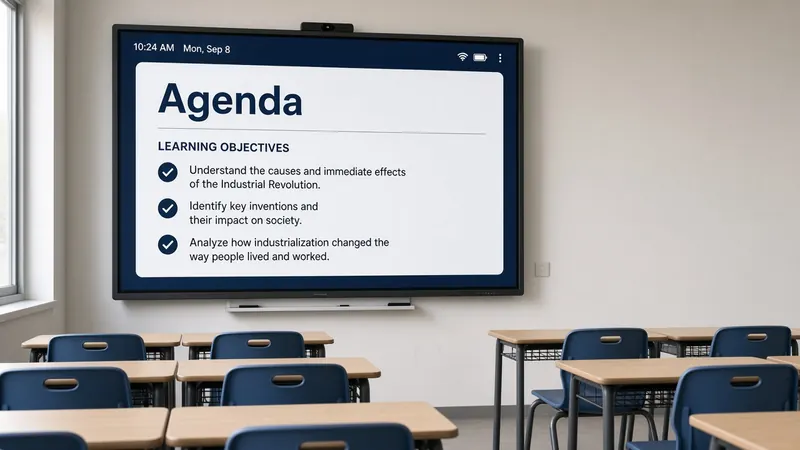
Free Text Display Tool for Classroom
Write out step-by-step instructions, display learning objectives, and list schedules. Keep your daily guidelines projected clearly.
Today's Objective
We will analyze food chains and explain energy transfer between producers and consumers.
The answer to "What are we doing?"
Independent work starts and within ninety seconds someone asks for directions you just gave. Twice. Writing steps on chart paper helps until you need that same space for a diagram. Slides hide instructions when you advance. Sticky notes fall off the podium.
A classroom text widget keeps expectations on the projected board all period. Type the warm-up, center rotation, materials list, or learning target once. Resize the box. Bump the font until row five can read it. Students glance up instead of interrupting your conference with a struggling reader.
Multiple text boxes let you split content without cluttering one paragraph: objectives on the left, schedule down the middle, "finish paragraph two if you are stuck" on the right. Colors and alignment live in the settings gear—no design degree required.
Morning boards that set the tone
I open with a short welcome line, today's date, and one sentence about what success looks like. Pair that with the classroom clock and a timer for silent entry tasks. Students learn to read the screen instead of asking how long they have.
Exit ticket prompts belong here too—"Before you leave, be ready to name one vocabulary word you used correctly." When the text stays visible, closure questions do not surprise anyone at 2:54 p.m.
Centers, subs, and behavior cues
Literacy and math centers need step lists that do not change when you turn your back. Spell out what "done" looks like at each station. Swap text between periods without rebuilding slides. Subs get a fighting chance when directions sit next to the traffic light color you expect for voice level.
Behavior expectations read clearer when they are static text, not your repeated sigh. "Green light = partner voice" in a box beats nagging after lunch. Update wording when the class earns a change— they notice the screen changed, not just your mood.
Objectives administrators actually see
Learning targets in large type satisfy walk-through looks without a separate standards poster wall. Rewrite the objective in kid-friendly language, leave it up during work time, and point when someone asks why an activity matters. Align with your drawing board when you annotate examples beside the target sentence.
Save layouts with a free account and Monday's agenda loads before coffee cools. Tweak one line between sections instead of retyping the whole board. That consistency matters on weeks when grading piles up and creativity is thin.
Accessibility and language supports
Extra-large font sizes help visually impaired learners and students sitting far from the panel. High-contrast colors—dark text on light boxes or the reverse on dark templates—reduce squinting during long blocks. ESL students benefit when directions stay on screen while you verbally clarify; they can match spoken words to printed steps.
Copy paste from your lesson plan instead of retyping if your district template already phrases objectives well. Update only the verbs that change from "identify" to "explain" as the week progresses. Small edits beat blank-box paralysis on busy mornings.
What not to put on the text widget
Walls of text defeat the purpose. If instructions exceed six short lines, split into two widgets or link a PDF with the QR generator. Keep the text box for what students need at a glance—materials, time, task, success criteria—not the entire rubric.
Rotate student jobs by listing roles on the text widget—materials captain, timer watcher, noise monitor—so responsibilities stay public and fair. Change names daily without rewriting a poster.
Sample layouts that survive the week
Top band: date and warm-up question. Middle band: learning target in student-friendly language. Bottom band: materials and homework one-liner. Side column: timer and traffic light widgets from the same board. You rebuild this skeleton once, then swap sentences.
For workshop models, duplicate text widgets per rotation—Station A steps, Station B steps— and hide inactive boxes behind others or shrink them off-screen until needed. Less erasing between groups.
Bell work prompts can live in the same box as your objective—just change the heading from "Do Now" to "Objective" when you shift phases. Students learn to watch the label, not only the words underneath.
Substitute folders pair well with saved text: the sub reads the board, not a sticky note that fell behind the desk. Include your name, plan period times, and one sentence about how students ask for help.
End-of-day reminders—bus notes, gym clothes, permission slips—deserve their own small text box so they do not clutter the objective students still need during the final activity.
When fire drills or assemblies compress your block, shrink the agenda text to three lines—what we are doing, what you need, when we stop—so the board stays honest about the shortened schedule and nobody claims they did not know time changed.
Counselors and co-teachers appreciate a visible agenda when they push in; they know the block structure without interrupting you mid-sentence. Related service providers scan the board and join the right group faster.
The text widget is not flashy. It is the spine of a organized classroom screen—directions visible, voice preserved for teaching, fewer repeat questions from students who actually would have read the board if the letters were big enough.
Popular ways to use text widgets
Learning Objectives
Keep the day's standard, objectives, and goals visible on the board throughout the entire lesson period.
Daily agendas & Schedules
List schedule times, warm-up reminders, or instructions for materials check so students know what to expect.
Task Instructions
Write out step-by-step directions for independent work or literacy centers to prevent repetitive questions.
Morning Message Hub
Welcome students with a custom morning message, feelings prompt, or exit ticket details.
How to write text on your screen
- 1 Start MyClassScreen and drag the Text widget onto your board canvas.
- 2 Resize the widget by dragging the corner handle to fit your preferred layout.
- 3 Click inside the text box to start writing objectives, agendas, or instructions.
- 4 Open the settings gear to adjust font sizes, change alignments, or select custom colors.
- 5 Create a free account to save your text layouts so they load automatically tomorrow morning.
Build a structured classroom agenda
Arrange the text widget alongside a digital clock display, a transition timer, and a traffic light behavior cue.
Open Your Board Free