Free Tool

Free Classroom Scoreboard Online

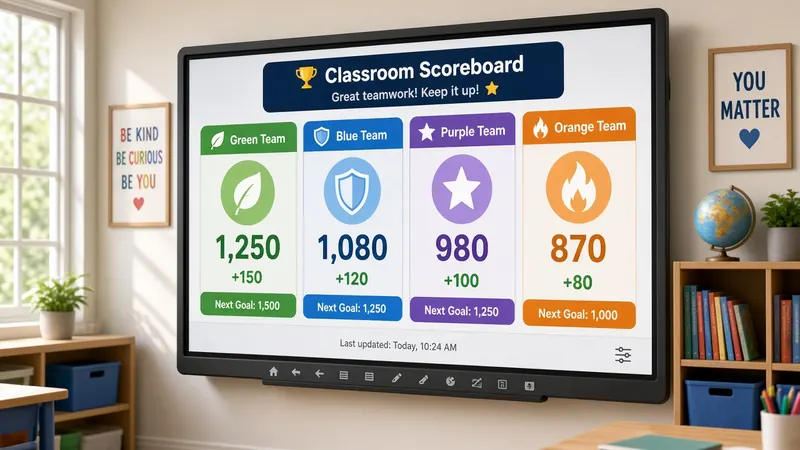
Track team points during reviews and group challenges. Customize labels and display scores clearly on your smart board.

Team A

14

Team B

12

Open Scoreboard Free

Looking for a classroom scoreboard online you can project in seconds? MyClassScreen's free scoreboard widget tracks up to four teams with large, back-row-readable numbers — add or subtract points with a tap, rename columns for table groups or house teams, and keep review games fair without scribbling totals on the board. No student accounts, no app install: open it in any browser and project.

Points on the board, arguments off the table

Review games fall apart when scores live in your head. You forget whether table three answered last round. Someone insists they were at eight points, not six. You stop teaching and start negotiating while the clock eats your closure activity.

A projected classroom scoreboard puts totals where everyone can see them. Tap plus when a team earns a point. Tap minus when they blurt an answer out of turn. Numbers update large and instantly. Students monitor themselves; you keep facilitating.

MyClassScreen supports up to four columns—enough for table groups, house colors, or parallel classes during an after-school club. Rename labels inside the widget so "Team A" becomes "Maple" and "Birch" on Monday, then swap to science group names on Tuesday.

Review days that stay on rails

Trivia before a unit test works best with structure. Pair the scoreboard with the virtual dice roller to pick question counts and the random name picker to choose speakers fairly. Add a timer per round so teams do not stall.

Spelling bees and math fact sprints benefit from visible increments—students see progress even when they miss a word. Celebrate streaks without making losers feel singled out; reset scores between rounds if competition gets too hot.

Jeopardy-style boards on slides plus a live scoreboard mean you never touch the chalk tray mid-game. Keep answer slides ready; let the widget handle arithmetic.

Positive points beyond games

Not every scoreboard session is trivia. Table points for quiet transitions, quick cleanup, or collaborative problem solving build community when you define criteria clearly at the start of the week. Friday reward might go to the highest total—or to the team that improved most from Monday.

Younger grades respond to simple increments during line-up practice or hallway readiness drills. Older students tolerate competitive framing when points tie to review content, not personality.

Brain breaks and project milestones

Would-you-rather debates, Pictionary rounds, or vocabulary charades need a scorekeeper. Project the widget during a five-minute brain break so energy releases without side arguments. Clear totals when you return to instruction so the game does not bleed into lecture tone.

Multi-day projects can track milestone completion—each checkpoint earns a column point while groups present progress. It is lightweight gamification without building a full LMS rubric for a two-day lab.

House systems, clubs, and field day

Schools running color houses or advisory competitions can rename columns each quarter and reset numbers after assemblies. Field day stations add points without clipboards blowing away on windy playgrounds—project the board indoors and send runners to report results you tap in live.

After-school clubs with mixed grade levels use the same widget for trivia nights or vocabulary bowls. Keep expectations light: the scoreboard motivates participation, not identity. Clear totals when the bell rings so the next class does not inherit someone else's rivalry.

Avoiding scoreboard fatigue

Constant competition wears thin. Rotate weeks where points track collaboration instead of winning—every table earns a point when all members contribute during a discussion. Alternate with non-competitive layouts so students do not associate the board only with stress.

Display the scoreboard only during designated game segments if your class gets overstimulated easily. Hide it behind other widgets or shrink it when you transition to independent work so points do not distract from quiet focus.

Making points feel fair

Before the game starts, post rules in the text widget: how to earn a point, how to lose one, maximum swing per round. Refer back when disputes appear— the board shows numbers, the text box shows law.

Mix individual and team scoring by swapping column labels between rounds. First round tracks tables; second round tracks volunteer speakers chosen by the name picker. Variety keeps more students invested.

End games with a visible reset—click clear in settings, narrate "scores back to zero"—so nobody carries yesterday's loss into today's fresh start. Celebration matters too: pause on the final totals before clearing so winners feel seen without gloating time dragging on.

Athletic coaches borrowing the gym projector use the same widget for scrimmage drills—defense versus offense reps, practice squad splits—without chalk on the floor. Numbers stay legible under bright gym lights when you maximize column width.

Speech and debate teams track round wins during practice scrimmages. Model UN clubs score delegation votes during simulations. The widget travels anywhere you have a browser and a display.

Keep a practice layout with generic team names saved—Red, Blue, Green, Gold—and rename on the fly when a class walks in. You skip setup friction on shortened bell schedules.

Project the scoreboard high on the screen during games so students standing in the back of lab groups still see totals without crowding the front.

Narrate why points change—"Table two earned one for including evidence from the text"—so scoring ties to learning behaviors, not mystery teacher mood. Students accept competition when the rules feel transparent.

Scores reset on refresh by design so Monday starts clean. Save your layout with a free account and team labels return instantly; only the numbers zero out. One browser tab alongside your other MyClassScreen widgets—no separate scorekeeping app fighting for screen space.

Popular scoreboard use cases

Review Day Games

Organize trivia reviews, spelling bees, or math challenges and track scores live on the board.

Positive Reinforcement

Reward table groups or sections with points for demonstrating good listening, quick cleanups, or teamwork.

Fun Competitive Breaks

Run quick games (like Pictionary or would-you-rather debates) during class brain breaks.

Track Group Progress

Create healthy competition by displaying group scores for project milestones throughout the week.

How to use the scoreboard

  1. 1 Start MyClassScreen and place the Scoreboard widget on your board.
  2. 2 Open widget settings to set the number of columns (up to four) to track.
  3. 3 Change labels directly inside the columns to name your teams, groups, or students.
  4. 4 Click the Plus button to add points, or the Minus button to decrement points.
  5. 5 Clear the scoreboard values in settings to start a new game instantly.

Build a complete gamified layout

Combine the scoreboard with a virtual dice roller, random name picker, and transition timer for a perfect game day setup.

Start Games Free

Try More Free Classroom Tools:

Frequently Asked Questions

Yes. Track team points with no ads, signup requirement, or premium cap.