How the Classroom Timer works
The timer does one job: show how much time is left, large enough for the back row. The widget has a countdown, a stopwatch, and a clock. You type the minutes, press Set Timer, and the board counts down. When it hits zero it shows Time's up!
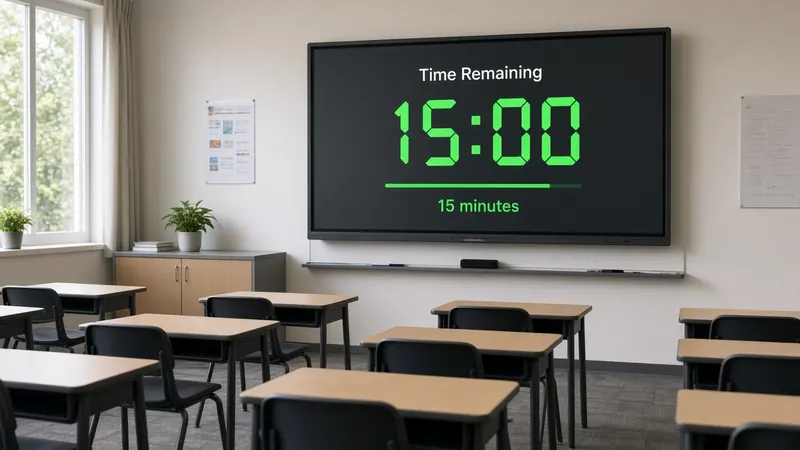
- Open the board and click Timer in the dock.
- Choose Countdown, Stopwatch, or Clock.
- For a countdown, type the minutes and press Set Timer.
- Use +30s if the class needs a little more time. Press Reset to start that interval again.
- Press Test Sound once before class so you know whether the room will hear the end chime. Press Save Board so this layout stays in this browser.
Settings and features
These are the controls on the Timer widget.
| Control | What it does | When to change it |
|---|---|---|
| Set Timer | Starts the countdown from the minutes you typed. | Start of a station, quiz, or clean-up. |
| +30s | Adds thirty seconds to the running countdown. | A group is one step from done and the rest of the room is ready. |
| Reset | Returns the countdown to the last interval you set. | The next station uses the same length. |
| Test Sound | Plays the end chime so you can check volume. | Before students arrive, not during the activity. |
| Stopwatch | Counts up from zero. | You are timing how long a routine actually takes. |
| Clock | Shows the current time. | You want the wall clock on the same screen as the agenda. |
Ways to use it in class
Station rotation
Set a 12-minute countdown beside the station list. When it shows Time's up!, every group moves. Use +30s only if one station is blocked, then return to the original length on Reset. Pair it with the station-rotation template so the timer is already on the board.
Quiet work block
A 20-minute countdown next to the traffic light set to green tells the room both the voice level and the end time. Do not narrate the minutes. The point of projecting the timer is that you stop being the clock.
Clean-up
A 3-minute countdown is long enough to put materials away and short enough that dawdling is obvious. Start it the same way every day so the class learns the signal without a speech.
Stopwatch for a routine
Use the stopwatch the first week you try a new transition. Write down how long it actually took. Next week set the countdown to that number instead of a guess.
Clock during a test
Switch to Clock when students need the time of day, not a countdown. A countdown on a test makes some students rush. The clock does not.
Online quiz day
See how to run a test day with Pear Assessment and a timer on screen.
Indoor recess stations
Run indoor recess stations with a timer so every group rotates on time.
Ready-made boards
Timer
A board that already has the countdown on it.
Open this boardStation rotation
Timer plus the station list.
Open this boardBell ringer
A short countdown next to the opening task.
Open this board
When not to use it
- A test where a visible countdown raises anxiety. Use the Clock tab instead, or no timer.
- A discussion you want to follow. A ticking tile pulls eyes off the speaker.
- Any moment you would need a sound the class has not heard yet. Test Sound before they arrive.
Accessibility and privacy
The digits are the signal. Do not rely on the chime alone for students who cannot hear it. There is no account. Press Save Board and the layout stays in this browser. Copy link opens the same layout on another computer. The board does not load ads.
Frequently asked questions
How do I start a countdown?
Open Timer, stay on Countdown, type the minutes, and press Set Timer. +30s adds half a minute. Reset returns to the interval you set.
What does the board show at zero?
It shows Time's up! Test the chime with Test Sound before class if you want sound as well as the words.
Can I show a clock instead?
Yes. The same widget has Clock and Stopwatch tabs. Clock shows the time of day. Stopwatch counts up.
Does the timer sync to other computers?
No. Save Board keeps it in this browser. Copy link is how you open it on another device.