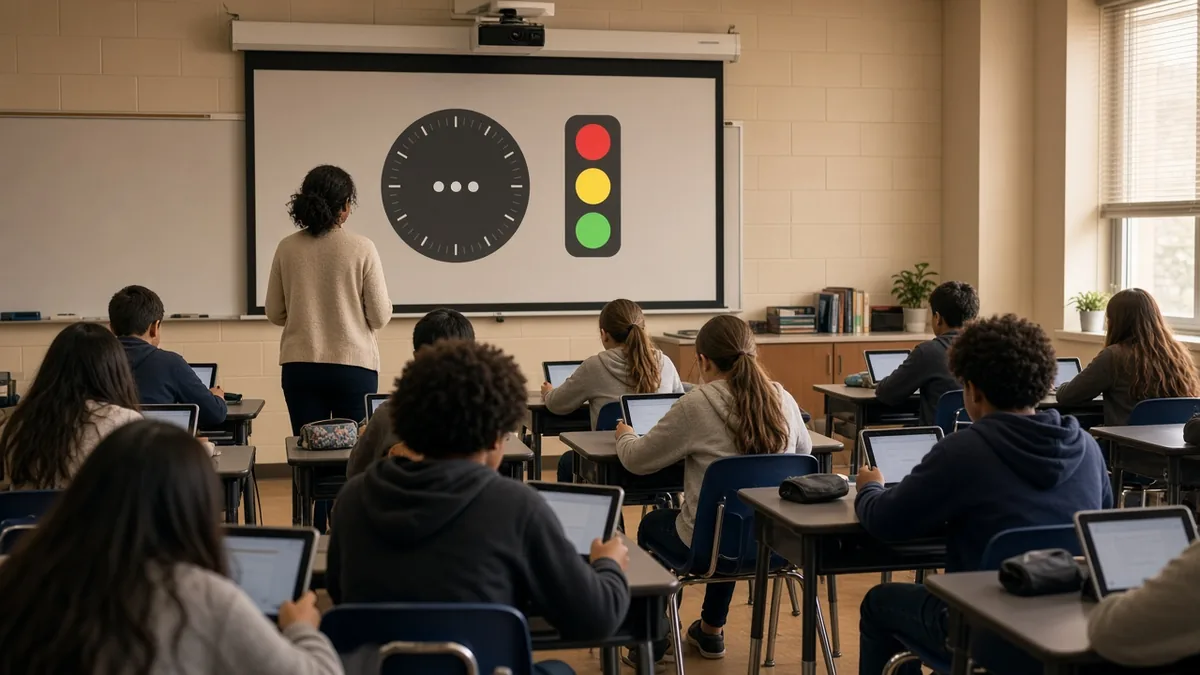
Pear Assessment is an online assessment platform for K–12 teachers. You may know it by its old name, Edulastic. It lets you build or borrow quizzes and tests, deliver them on student devices, score many question types automatically and see results by student and by standard. Many teachers search for it as "pearassessment" or "pear assesment". This guide explains what it is, how it relates to Pear Deck, and how to run a calm, organised test day by pairing it with a classroom screen.
MyClassScreen is not affiliated with Pear Assessment, Pear Deck Learning or GoGuardian. Features and plans change, so check the official Pear Assessment page for the current details.
What is Pear Assessment?
Pear Assessment started life as Edulastic, an assessment company founded in 2014. GoGuardian acquired Edulastic in 2021, and in January 2024 it was renamed Pear Assessment as part of the Pear Deck Learning family of tools.
In practice it does four jobs:
- Build assessments from scratch or from a bank of questions aligned to standards.
- Borrow ready-made assessments from a large free library; the company lists more than 23,000.
- Deliver tests online with a range of question types, from multiple choice to drag-and-drop, graphing and other tech-enhanced items.
- Report results, with automatic scoring and views by student, question and standard.
Teachers can sign up for free. Schools and districts can buy paid plans with extra features. Check the official pricing page for what each tier includes.
Pear Assessment vs Pear Deck
The names are similar, so teachers often mix them up.
| Pear Assessment | Pear Deck | |
|---|---|---|
| Main use | quizzes and tests | interactive lessons and slides |
| When | checking understanding, unit tests | during instruction |
| Formerly | Edulastic | Pear Deck |
| Output | scores and standards reports | live student responses during a lesson |
Both belong to Pear Deck Learning. You might teach with Pear Deck on Tuesday and give a short Pear Assessment quiz on Friday.
Why pair an online test with a classroom screen?
An online test still needs a well-run room. Students ask the same questions every time: how long do we have, can I talk, what do I do when I finish? A projected classroom screen answers those questions once, for everyone, so you can circulate and help.
A free MyClassScreen board can show a timer, a traffic light, a noise meter, instructions and a QR code side by side, all without logging in.
A test-day board in five widgets
Set this up before students arrive:
- Text widget with the instructions. Write the steps: "1. Open the link or scan the QR code. 2. Log in with your school account. 3. Start the test. 4. When finished, read quietly." Use the text widget.
- QR code for the test link. Paste the student link into the QR code generator so students on tablets can scan instead of typing.
- Countdown timer. Set the classroom timer to the test length. A visible timer reduces "how long is left?" interruptions.
- Traffic light. Red means silent work, amber means whisper, green means talk. The traffic light makes expectations obvious.
- Noise meter. For younger classes, the noise meter gives a gentle visual cue when the room gets loud.
Save the layout once and reuse it for every test. Our saving boards help page shows how.
Planning your first quiz
If you are new to the platform, start small. A short first quiz teaches you the settings without risking a big unit grade.
- Choose five to eight questions. Search the library for your topic and standard, or write your own.
- Mix question types. Two multiple-choice items, one short answer and one drag-and-drop or matching item give you a feel for the options.
- Check every question. Borrowed items are a starting point; make sure the wording and difficulty fit your class.
- Decide what students see afterwards. For practice, showing scores straight away helps learning. For a unit test, you may prefer to release scores later.
- Run it as a low-stakes warm-up. Use a ten-minute timer on the board and tell students it is practice.
After one or two practice quizzes, students will know the log-in steps and the screen layout, and real test days will run more smoothly.
Before the test
- Check the assignment settings in Pear Assessment: open and close times, how many attempts are allowed, whether students see their scores straight away, and any accommodations such as extra time.
- Test the link yourself on a student-style account or preview, so you know what students will see.
- Charge devices and have a backup plan, such as a paper copy, for anyone whose device fails.
- Prepare the board with the five widgets above.
During the test
- Start the timer when the class begins, not when the first student logs in.
- Keep the traffic light on red.
- Circulate. Your board answers routine questions, so you can deal with log-in problems and accommodations.
- Add a "When you finish" box to the text widget: read a book, start a sketch, or work on a quiet task.
If you need to pause the class, switch the board to a calm screen. Our classroom transitions with timers post has ideas.
After the test
Pear Assessment's reports show how each student did and which questions or standards caused trouble. Use that to plan the next lesson:
- Pick the two most-missed questions and project them, without names, for a whole-class discussion.
- Run a quick re-teach using a live poll to check understanding again.
- Close with an exit ticket. The exit ticket tool asks one question so you can see who has it now.
- Group students for follow-up work with the group maker.
Quick formative checks without a full test
You do not need a full test every time. Short checks work well:
- A three-question Pear Assessment quiz at the start of class, with a five-minute timer on screen.
- A this or that choice on the board to warm up.
- A random name picker to call on students during review, so everyone stays ready.
Tips for smooth online testing
- Same routine every time. Students relax when the board and steps look the same each test.
- Short instructions. Five steps or fewer on the screen.
- Bigger text. Make the timer and steps readable from the back of the room.
- Plan for early finishers. Put the quiet task on the board before the test begins.
- Protect privacy. Do not project live scores or student names during a test.
Accessibility and accommodations
Online tests can make accommodations easier, but they still need planning. Before the test, check which settings the platform offers for individual students, such as extra time or read-aloud, and apply them in advance. On the classroom screen, avoid flashing colors, use large, high-contrast text and keep audio alerts off for students who are sensitive to sound. If a student has a separate time allowance, give them a personal timer on their device rather than changing the shared one.
Common problems and fixes
| Problem | Fix |
|---|---|
| Students cannot find the test | Show the QR code and the short link on the board |
| Log-in errors | Have a printed list of usernames ready; check with your IT team in advance |
| Noise when students finish | Write the early-finisher task in the text widget |
| Timer confusion | Use one visible timer for the class |
| Device runs out of battery | Keep a charging station or a paper backup |
For screen problems, see our troubleshooting help.
Using Pear Assessment with Google Classroom
Many schools share Pear Assessment tests through Google Classroom so students find them in their usual stream. The integration options depend on your school's setup and plan, so check with your administrator. Either way, the test-day board works the same: the QR code and timer sit on the projector while students open the test from their device.
Is Pear Assessment right for your class?
It suits teachers who want auto-scored quizzes, standards reports and a large library of ready-made assessments. If you only need quick yes/no checks during a lesson, a live poll or exit ticket on your classroom screen may be enough. Many teachers use both: Pear Assessment for scored tests, the classroom screen for everything around them.
For more free tools, see the best free ed-tech tools for teachers.