On this page
- How the exit ticket works
- 10 exit ticket prompts by subject
- Reading results in 2 minutes
- When not to use it
- Accessibility and privacy
- FAQ
How the exit ticket works
An exit ticket is a short check at the end of a lesson. It asks about the one thing you taught today and tells you who is ready to move on. Edutopia describes it as a quick, ungraded snapshot that teachers use to adjust the next day's plan [1].
On MyClassScreen you can run it two ways. Both are on the projected board, and neither asks students to sign in.
Option 1: the Exit Ticket template
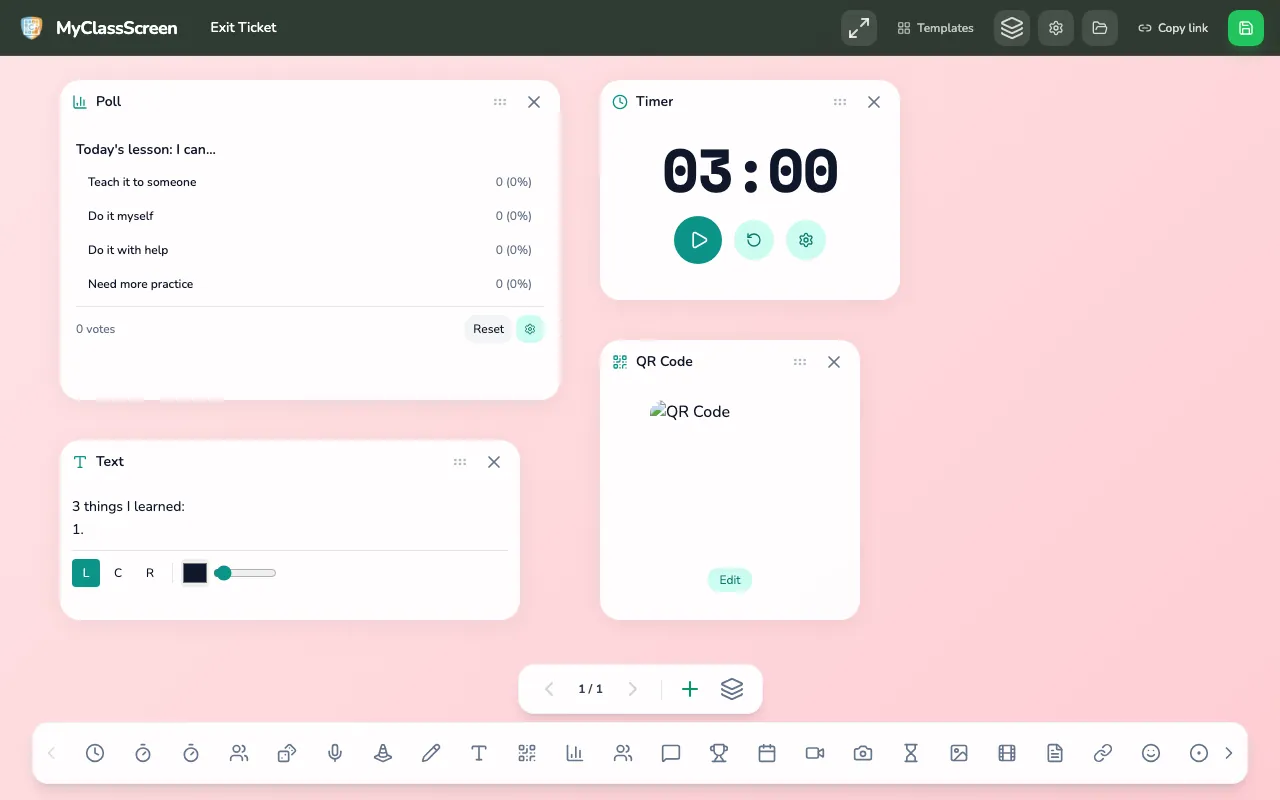
Open the Exit Ticket template. It loads four widgets on a dotted background:
| Widget | What it holds | What to change |
|---|---|---|
| Poll | "Today's lesson: I can..." with four self-rating choices | Rewrite the question to match today's target |
| Timer | 3 minutes, not started | Shorten it for a one-question check |
| QR Code | A link for students with devices | Replace it with your own form link (see the warning below) |
| Text | "3 things I learned" and "1 question I still have" | Keep it as a written prompt for paper or notebooks |
Add your own form before class. The Exit Ticket template starts with an empty QR code. Press Edit, paste the share link of your own Google Form or Microsoft Form, and press Generate. If you do not use a form, delete the QR widget.
Option 2: the Exit Ticket widget
Open the free board and choose Exit Ticket from the widget menu. It starts with "How well did you understand today's lesson?" and three buttons: Got it, Almost and Need help.
- Press the pencil button. A box for the prompt and a box for the choices appear.
- Type your question, then type one choice per line.
- Press Save. The old counts are cleared.
- When students answer, tap each choice once per student. The count and its percentage appear on the right.
- Press Reset to zero the counts for the next class.
How students answer. Nothing is typed on student devices. Pick one routine and use it every time:
- Students hold up one, two or three fingers against their chest, and you tap the totals.
- Students write A, B or C on a sticky note and drop it in a tray by the door, and a helper taps the tallies.
- Students with laptops scan the QR code and answer your form, while the board shows the quick self-rating.
Template or widget? Use the template when you want a timer, a written prompt and a form on one screen. Use the widget when you want a single, fast question that fits next to whatever is already on your board.
Ways to use an exit ticket in class
A good prompt checks one skill, has answers you can tally, and points to a specific next step. Paste the question into the prompt box and each choice on its own line.
- Math, fractions. Which is larger: 3/5 or 5/8? Choices: 3/5 · 5/8 · They are equal · Not sure.
- Math, equations. In 4x + 3 = 19, what is the first step? Choices: Subtract 3 · Divide by 4 · Add 3 · Not sure.
- ELA, evidence. Which kind of quote best supports today's claim? Choices: A direct statement · A character's action · A description of setting · I can't decide yet.
- ELA, grammar. "Its" or "it's" in "The dog wagged ___ tail"? Choices: its · it's · Not sure.
- Science, states of matter. When water vapour cools on a cold window, it... Choices: Condenses · Evaporates · Freezes · Not sure.
- Science, forces. A ball rolls more slowly on carpet than on tile because of... Choices: Friction · Gravity · Magnetism · Not sure.
- Social studies, sources. A diary written during the event is a... Choices: Primary source · Secondary source · Not sure.
- World languages. Pick the correct form for "we eat" in today's verb. List three conjugations plus Not sure.
- Art or music. Which element did today's piece use most? Choices: Line · Colour · Rhythm · Texture.
- Any class, self-rating. How ready are you for tomorrow's task? Choices: I could teach it · I can do it alone · I need an example · I need it re-taught.
Prompts 1 to 9 check the skill itself. Prompt 10 asks students to judge their own readiness, which is useful but less reliable than a question with a right answer. Mix both across the week.
Always include a "Not sure" or "I need help" choice. Without it, students who are lost guess, and your counts look better than the room really is.
Reading results in 2 minutes
The point of an exit ticket is the decision it leads to. Edutopia's formative assessment guidance warns that results left on a desk for days stop being useful [2]. On the board the numbers are ready as soon as the last student answers.
A two-minute routine:
- Look at the "not yet" choices first. Add up Not sure, Need help or Need more practice.
- Check the most popular wrong answer. On a question with one right answer, the wrong choice that drew the most votes tells you which misconception to tackle.
- Choose tomorrow's opening. Decide before class what share of "not yet" answers means a whole-class reteach. Below that, plan a small group while others start the next task.
- Write it down. Type the result and your plan into a Text widget, or into your planner. Then press Reset.
| What you see | A sensible next step |
|---|---|
| Nearly everyone chose the right answer | Move on; give a stretch task to early finishers |
| A clear group chose one wrong answer | Open tomorrow with that misconception as the bell ringer |
| Answers are spread across every choice | Reteach the core idea with a fresh example |
| Many students chose Not sure | Check whether the question itself was unclear |
The counts show the whole class, not individuals. If you need to know who is struggling, use paper slips or a form behind the QR code. The board tells you what to plan; the names come from somewhere else.
You can also use yesterday's result as today's warm-up. The Bell Ringer template has a Timer and a Text box ready for a follow-up question.
Settings and features
Reset clears the round. The QR uses whatever URL you paste. The board does not host the form.
| Control | What it does | When to change it |
|---|---|---|
| Reset | Clears the current exit-ticket round. | The next class is about to start. |
| QR text | The link encoded in the code. Paste your own form URL. | You want students to open a form you already own. |
Ready-made boards
Exit ticket
A prompt with room for a QR you fill in yourself.
Open this board
When not to use it
- When the answer reveals something personal. A public tally of "I feel lost" can embarrass students in a small class. Use private paper slips for anything sensitive.
- For grades. Exit tickets are a planning tool. Recording them as scores changes how honestly students answer.
- When the lesson ran over. A rushed check at the door gives noisy data. Skip it and open tomorrow with the question instead.
- For long written answers. The widget counts choices. Put open questions on paper, in the Text widget prompt, or in your own form.
- When one question cannot capture the target. If today's goal has several parts, check the most important one and leave the rest for later in the week.
Accessibility and privacy
Accessibility. Read the prompt and every choice aloud, then leave it on screen while students think. Make the widget large enough to read from the back row; WCAG's contrast guidance is a useful reminder to keep dark text on a light background [3]. Offer more than one way to answer, such as fingers, cards or a form, so students with motor, language or anxiety needs can respond comfortably. Short choices help multilingual learners; one sentence each is plenty.
Privacy. The board does not collect anything from students. Counts are numbers you tap, saved only if you press Save Board, and stored in your browser on that computer. Press Reset before you save or share a board, because a copied link carries the counts with the layout.
The QR Code widget creates its picture by sending the text you type to an outside QR image service. Use it for form links only, never for names or other personal details. Responses typed into a Google Form or Microsoft Form are handled by that service under your school's agreement with it.
Related articles
Sources
- Edutopia, "Gaining Understanding of What Your Students Know": https://www.edutopia.org/practice/exit-tickets-checking-understanding
- Edutopia, Pauline Zdonek, "Putting the FORM in Formative Assessment": https://www.edutopia.org/blog/putting-form-in-formative-assessment-pauline-zdonek
- W3C, "Understanding Success Criterion 1.4.3: Contrast (Minimum)": https://www.w3.org/WAI/WCAG22/Understanding/contrast-minimum.html
- Google Docs Editors Help, "Publish & share your form with responders": https://support.google.com/docs/answer/2839588
Try one question at the end of today's lesson. A three-choice exit ticket and a two-minute timer are enough to plan tomorrow's opening.