On this page
- What classroom screen tools are
- How to build a board in four steps
- Widgets by job
- Widget comparison table
- Saving, full screen and install
- No student accounts by design
- Four-widget starter sets per period
- When a screen tool is the wrong choice
- Accessibility
- FAQ
- Related articles
- Sources
What classroom screen tools are
A classroom screen tool is a small, single-purpose display that you put on the projector or interactive panel while you teach. Each one answers a question students would otherwise ask you: how long is left, who is next, how loud is too loud, which group am I in, what should I be doing right now.
The difference from a slide deck is that these tools are live. A timer counts down, a noise meter reacts to the room, a name picker chooses at random in front of everyone. The difference from a learning platform is that nothing is assigned to students. There are no logins, no class rosters to import and no student devices involved. One computer drives one screen, and the whole class reads it.
On MyClassScreen every tool is a widget. You place as many as you need on a single board, move and resize them, and switch between them during the lesson without opening new tabs.
How to build a board in four steps
- Open the board. Go to the free board in any modern browser. It opens straight away with an empty canvas and a widget bar along the bottom.
- Add widgets. Click a widget in the bar, for example Timer, Sound or Names. It appears on the canvas. Use the arrows at the end of the bar to see more widgets.
- Arrange and edit. Drag a widget by its header to move it and pull its corner to resize it. Most widgets have an edit button for their content, such as the timer's minutes or the list of names. Select a widget and press Delete to remove it.
- Project and save. Press the full-screen button, then save the board with a name so it reopens exactly the same way tomorrow.
If you would rather start from a finished layout, every template on the templates page opens directly on your board.
Every widget, by job
Time
Volume
Choosing
Checking
Showing
Widgets by job
The quickest way to choose a widget is to start with the classroom job you need done. Each heading below links to the full guide for that tool.
Time
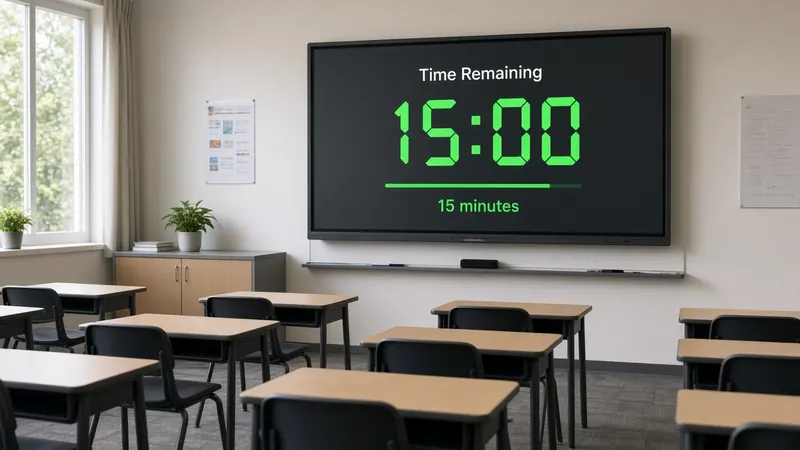
- Timer: set minutes and seconds up to 99:59, then start, pause or reset. At zero it shows "Time's up!" with a short confetti burst.
- Countdown: a second countdown with quick plus and minus 30-second buttons, a mirror mode and an end sound you can test before class.
- Stopwatch and Clock: count up for timed challenges, or keep the current time on screen.
- Visual timetable: a list of times and activities for the day.
Volume and behaviour
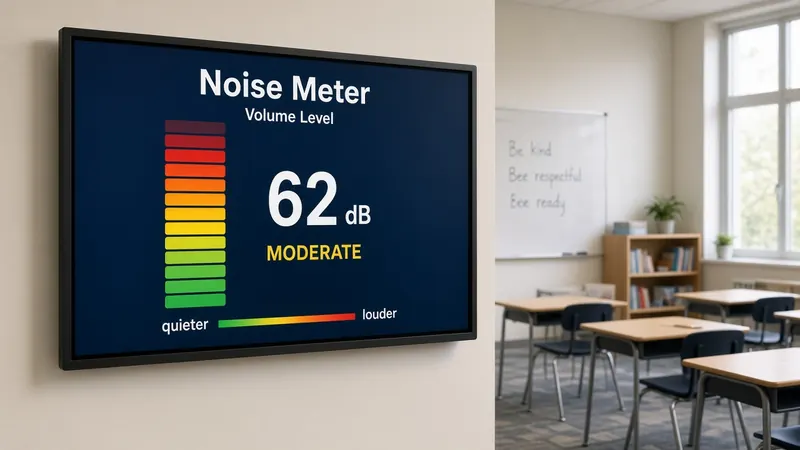
- Noise meter: the Sound widget shows a live green, amber and red bar from the microphone, processed in the browser.
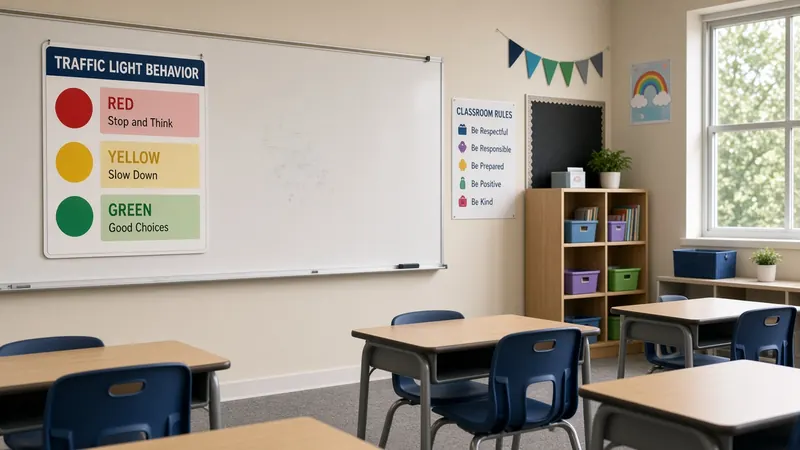
- Traffic light: click to cycle through green, yellow and red as a simple work-mode signal.
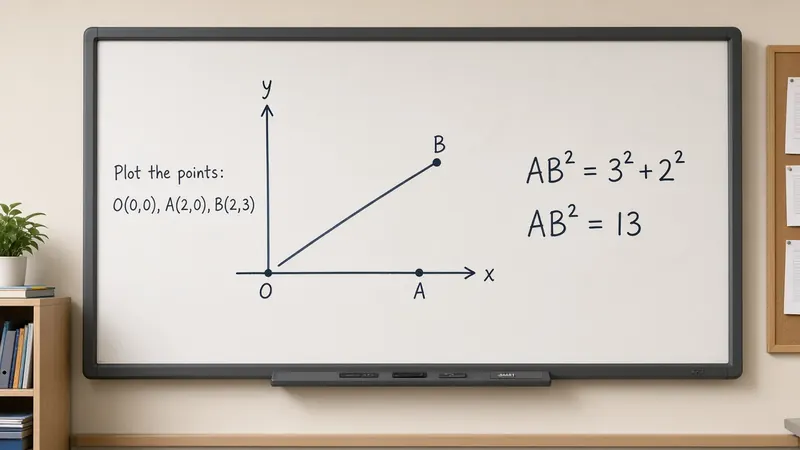
- Work Symbols: shows Silence, Whisper, Ask Neighbor or Work Together as a large symbol and label.
- Attention signal: plays a chime, bell or clap to call the room back.
Choosing and grouping
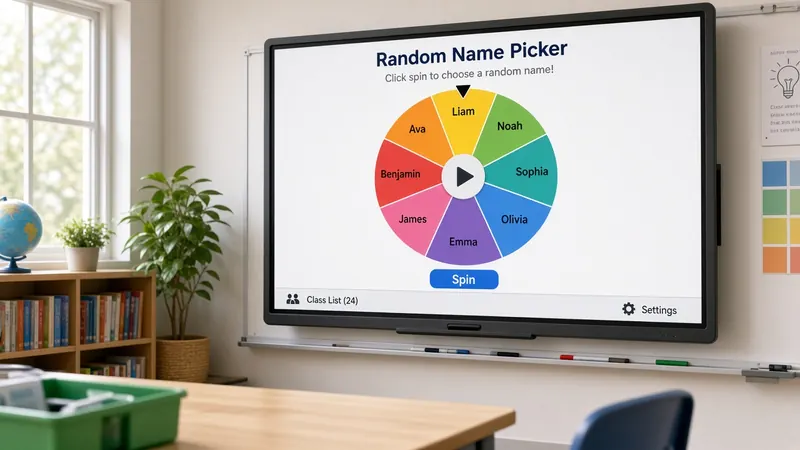
- Random name picker: paste names one per line and let the board pick with a short animation.
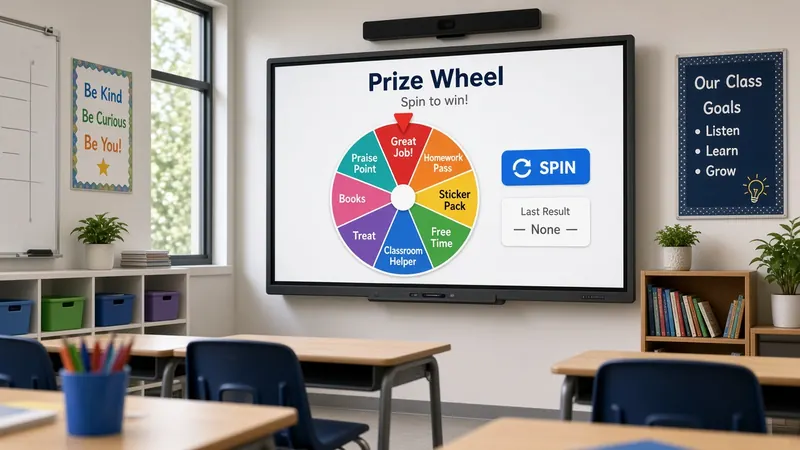
- Wheel spinner: the same idea as a spinning wheel, which younger classes often prefer.
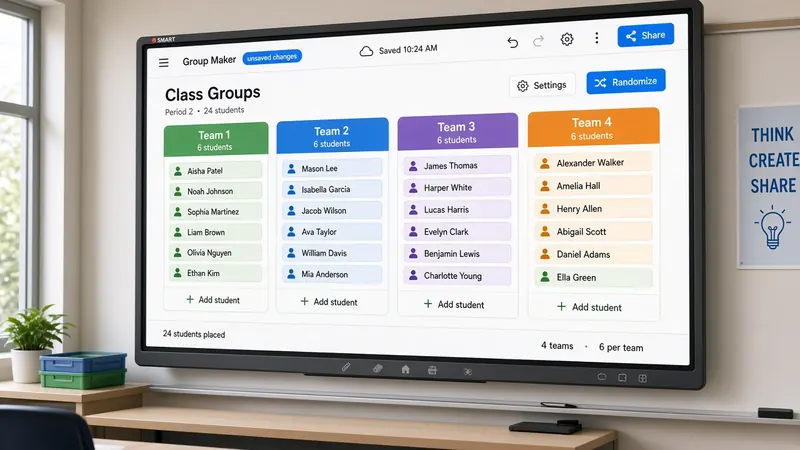
- Group maker: paste a class list, choose a group size from 2 to 10 and shuffle into coloured groups.
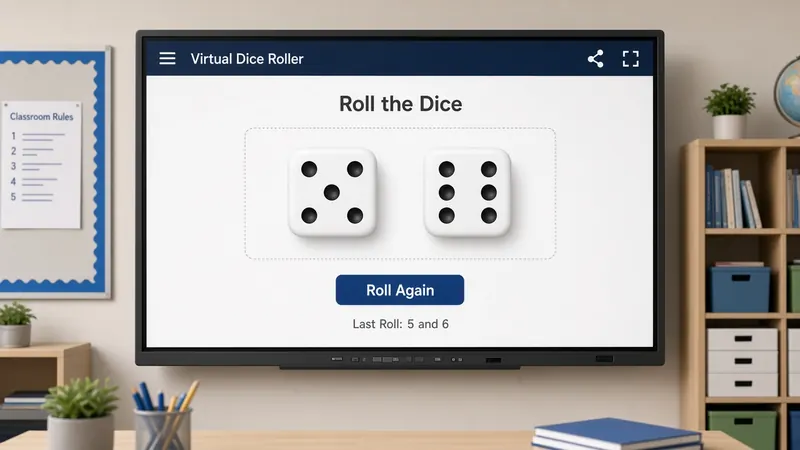
- Dice roller: roll one to four dice with 6, 8, 10, 12 or 20 sides.
Check-ins and questions
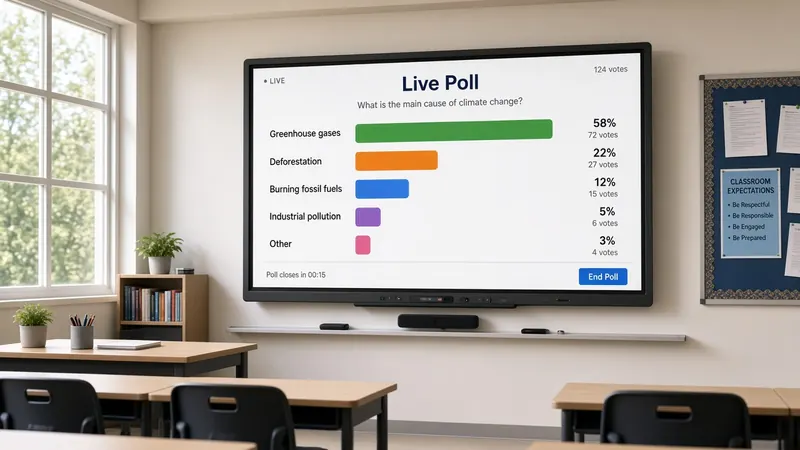
- Live poll: write a question and options, then students tap their choice on the panel and the bars update.
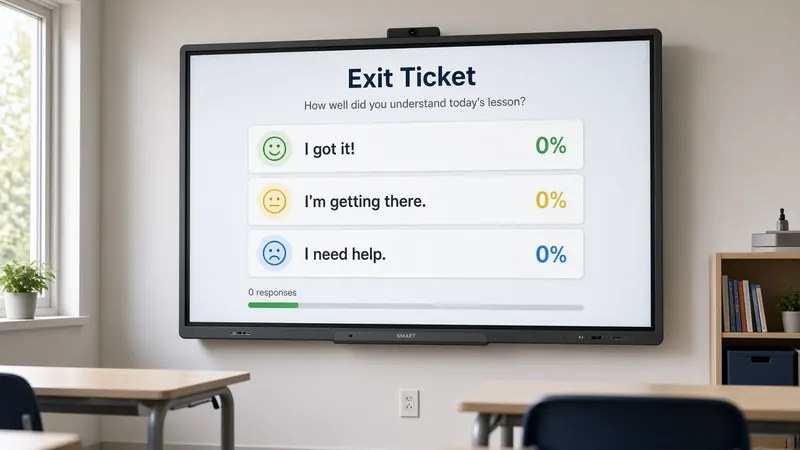
- Exit ticket: a one-question check at the end of a lesson, with options such as "Got it", "Almost" and "Need help", and a count for each.
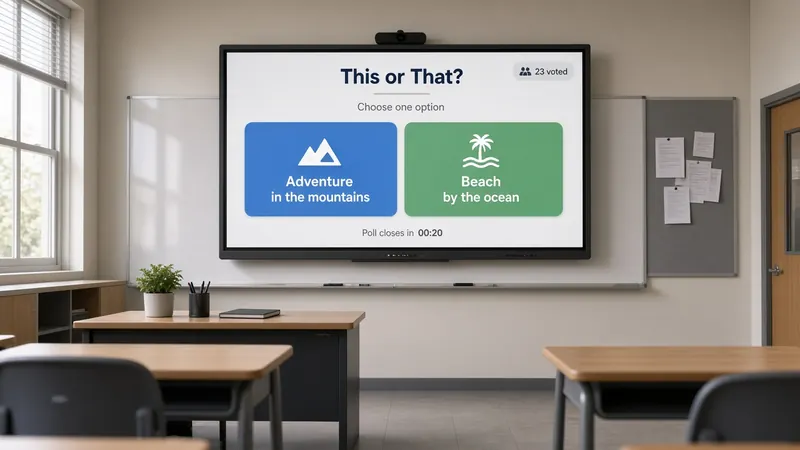
- This or that: two choices for quick warm-ups and debates.
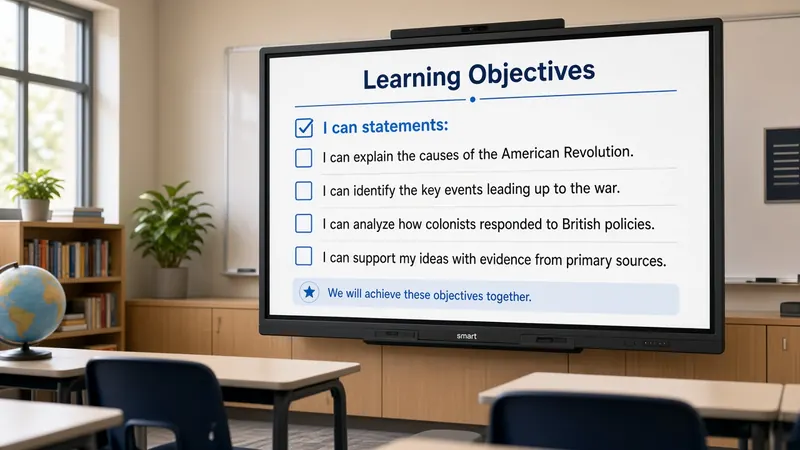
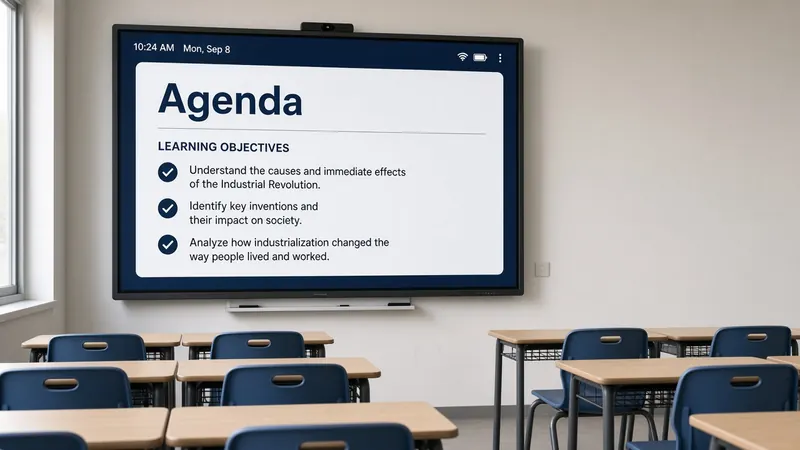
- Learning objectives and Text: keep the goal, the agenda or the instructions on screen.
Games and review
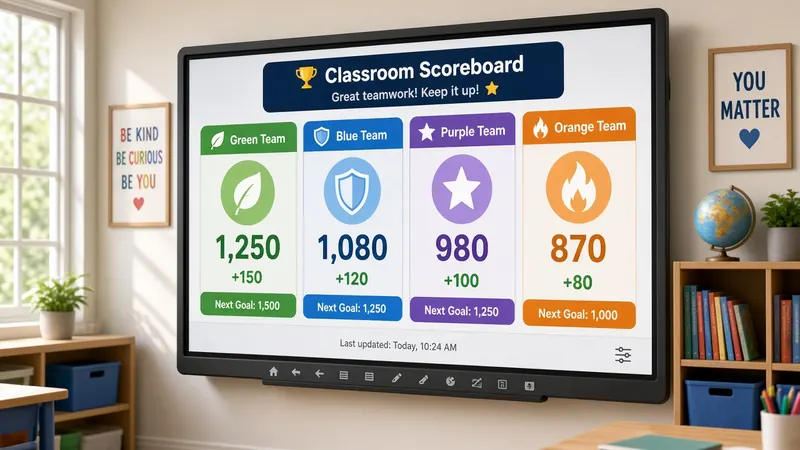
- Scoreboard: up to six named teams with plus and minus buttons.
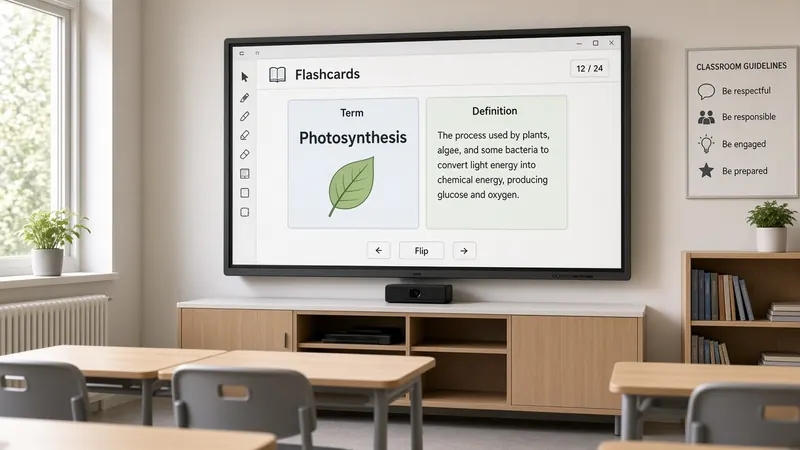
- Class points, flashcards, vocabulary builder and classroom quiz: review and reward widgets.
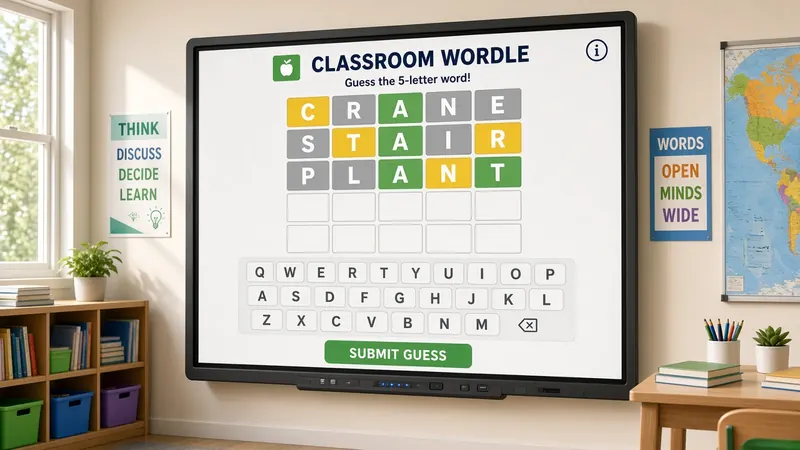
- Game widgets: Wordle, Word Search, Crossword, Memory, Math Blaster, Snake, Typing, Trivia, Tetris and Breakout. The classroom games guide explains how to run each one with a whole class.
Display and media
- Drawing board: a pen and eraser for quick sketches and worked examples.
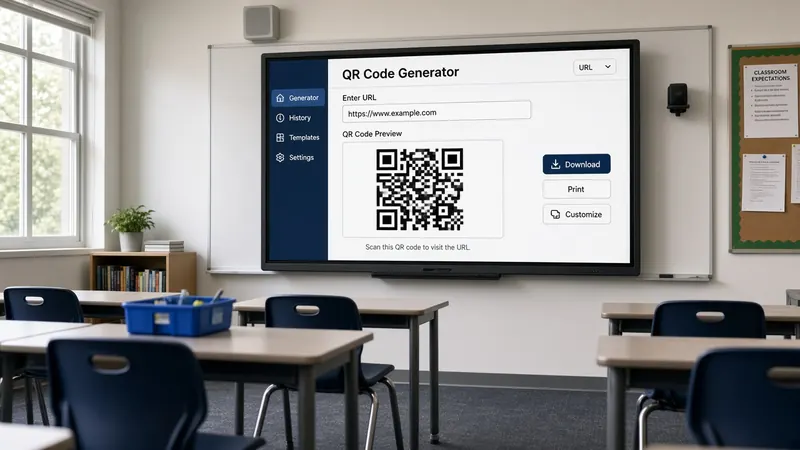
- QR code generator: turn a link into a code students can scan.
- Image, PDF Viewer, Video Player, Embed, Link Button, Webcam, Calendar and Stickers: put your own material next to the live tools.
Widget comparison table
Use this table to match a problem in your room with the widget that solves it. The grade bands are our suggestion for where each tool usually fits best, not a limit.
| Widget | The problem it solves | Best grade band | Pairs well with |
|---|---|---|---|
| Timer | "How long do we have?" asked again and again | K–12 | Traffic light, Text |
| Noise meter (Sound) | Volume creeping up during group work | K–8 | Traffic light, Work Symbols |
| Traffic light | Unclear expectations about talking | K–5 | Noise meter, Timer |
| Work Symbols | Students unsure whether they may talk or ask for help | 3–8 | Timer |
| Random name picker | The same few hands answering every question | 2–12 | Timer, Scoreboard |
| Wheel spinner | Picking turns in a way young students accept as fair | K–5 | Dice |
| Group maker | Slow, awkward grouping and repeated pairs | 3–12 | Timer, Text |
| Live poll | No quick read of what the class thinks | 3–12 | Names |
| Exit ticket | Not knowing who understood the lesson | 2–12 | QR code |
| Scoreboard | Keeping score during team review games | K–12 | Dice, Names |
| QR code | Typing long links on student devices | 4–12 | Exit ticket, Text |
| Text and Objectives | Students missing the goal or the steps | K–12 | Timer |
Most periods need three or four of these at once, not all of them. If a widget is not doing a job you can name, take it off the board.
Saving, full screen and install
Saving. Press Save Board and give the board a name. It is stored in your browser's local storage on that computer, and it appears under My Boards the next time you open the board on the same browser. Because saved boards live in the browser, clearing your browsing data deletes them, and a board saved on your laptop will not appear on the classroom panel by itself.
Sharing and moving boards. To move a layout to another device, use "Copy a link that restores this layout". The link carries the widgets and their positions, so opening it on the panel rebuilds the same board. You can also use it to share a layout with a colleague. The layout is packed into the link itself rather than stored on a server, so the link also contains anything typed into the widgets, such as a list of names. Share it only with people who should see that content.
Several screens in one board. A board can hold more than one screen, like slides. Use the Screens drawer to add a screen, then step through them with the previous and next buttons, for example a starter screen, a work screen and an exit screen.
Backgrounds. Choose Dots, Lines, Grid or a plain colour (Cream, Teal, Sky, Navy, Rose or Dark), or upload your own image. Plain, light backgrounds keep widgets easiest to read from the back of the room.
Full screen. The full-screen button hides the browser's address bar and tabs so the widgets get the whole display. Press Esc to leave full screen.
Install as an app. The board is a web app, so Chrome and Edge can install it from the browser menu or the install icon in the address bar. It then opens in its own window from the taskbar, dock or app launcher. On an iPad, use Add to Home Screen from Safari's share menu. Step-by-step instructions for each device are in the getting started guide.
No student accounts by design
Students never sign in to MyClassScreen, and you do not need an account to use or save a board. Nothing is assigned to students, so there is no roster to upload and no student work stored online. That keeps the board simple to use with a substitute and simple to approve for school use.
Here is what each kind of widget does with information, based on the board's current code:
| Widget | What it uses | What leaves the device |
|---|---|---|
| Noise meter | Microphone, turned into a loudness number in the browser | Nothing. No audio is recorded or uploaded |
| Webcam | Camera, shown live on the board | Nothing is recorded by the board |
| Names, Groups, Wheel | The names you type | Nothing. Saved only in your browser if you save the board |
| Image and custom background | Files you upload | Nothing. The file is read in the browser and saved with the board |
| QR code | The link or text you enter | The text is sent to a QR image service (api.qrserver.com) to draw the code |
| Video Player and Embed | The YouTube, Vimeo or web address you enter | The video or page loads from that site, under its own privacy terms |
The board page itself carries no ads. Ads appear only on the articles and guides that pay for the site.
Two practical rules follow from this. Use first names or initials in name lists on shared computers, because anyone using the same browser can open the saved board. And do not put student names or private information into a QR code, because that text goes to the QR service.
Four-widget starter sets per period
These are example layouts, not reports from particular classrooms. Each uses four widgets, which fits comfortably on a projector without crowding.
| Part of the day | Four widgets | Ready-made template |
|---|---|---|
| Morning arrival | Clock, Text (morning tasks), Timer, Traffic light | Soft Start |
| Bell ringer, first 5 minutes | Timer, Text (the question), Clock, Sound | Bell Ringer |
| Station rotation | Group maker, Timer, Text (station list), Names | Station Rotation |
| Science lab | Text (safety steps), Timer, Group maker, Stopwatch | Science Lab |
| Whole-class review | Names, Timer, Text, Traffic light (plus Dice) | Quiz Time |
| Last 5 minutes | Poll, Timer, QR code, Text | Exit Ticket |
A typical example for a 50-minute middle school period: open on the Bell Ringer board while students arrive, switch to a second screen with Group maker and Timer for practice, and finish on the Exit Ticket layout. Saving these three as screens in one board means one click between phases.
Try one now: open the Station Rotation board, replace the sample names with your own and save it.
When a screen tool is the wrong choice
Projected widgets are good at shared, visible, whole-class information. They are a poor fit when:
- The task is individual. If each student needs their own timer, quiz or reading level, use a tool on their own device. A shared screen shows one thing to everyone.
- You need records. Polls and exit tickets on the board count taps for the moment. They do not store results per student, so use your school's learning platform when you need marks or evidence over time.
- The board becomes the lesson. Ten widgets competing for attention slow a class down. If students are watching the confetti instead of the work, remove widgets until only the essential ones remain.
- A tool replaces a conversation. A name picker cannot tell that a student is upset, and a noise meter cannot tell who is talking. Use them to support relationships, not to stand in for them.
- Privacy rules forbid it. If your school does not allow microphones or cameras in class, leave the Sound and Webcam widgets off the board. Everything else works without them.
Accessibility
Good classroom displays help every student, including those who find spoken instructions hard to follow. A visible timer, the day's objective and a voice-level signal give students a second way to take in what you said, which fits the Universal Design for Learning idea of offering information in more than one form.
- Do not rely on colour alone. The noise meter adds a face icon, a number and a limit line to its colours, and the traffic light has a label under it saying which light is on. When you set up a colour code of your own, add a word next to it.
- Make text large. From the back of a room, small text disappears. Resize widgets generously and use the Text widget's font size and alignment settings.
- Keep motion calm. The timer and name picker finish with a short confetti burst. If a student is sensitive to movement, choose layouts with fewer animated widgets.
- Sound cues have a visual partner. The attention signal and countdown sound are useful, but always pair them with something on screen for students who are deaf or hard of hearing.
- Touch and mouse. Widget controls are ordinary buttons and fields, so they respond to a mouse or to touch on an interactive panel. Students with motor needs may find a large widget on the panel easier to use than a laptop trackpad.
Frequently asked questions
What are classroom screen tools?
They are small live displays that a teacher projects for the whole class, such as a timer, noise meter, name picker, group maker or poll. They answer routine questions so students can see the answer instead of asking.
Are all the MyClassScreen tools free?
Yes. All 43 widgets on the board are free, with no paid tier, no trial and no account needed. The board itself shows no ads.
Do students need accounts or devices?
No. One teacher computer drives the projector or panel and the whole class reads it. Students do not sign in, and no student data is uploaded by the widgets.
How do I save a board for tomorrow?
Press Save Board and give it a name. It is stored in your browser on that computer and appears under My Boards next time. To open it on another device, copy the layout link and open it there.
Which tools work best together?
A practical first board is a timer, a voice-level signal such as the noise meter or traffic light, a name picker and a text box for instructions. Change one widget at a time as your routines grow.
Does the board work on a smart board or Chromebook?
Yes. It runs in the browser, so it works on Chromebooks, Windows and Mac computers, iPads and interactive panels with a modern browser. The noise meter also needs microphone permission.
Related articles
- Classroom management tools that actually get used
- Classroom screen ideas for every part of the day
- What a classroom screen is and how to run one
Sources
- CAST, "Universal Design for Learning Guidelines": https://udlguidelines.cast.org/
- W3C, "Understanding Success Criterion 1.4.1: Use of Color" (WCAG 2.2): https://www.w3.org/WAI/WCAG22/Understanding/use-of-color.html
- MDN Web Docs, "Window: localStorage property": https://developer.mozilla.org/en-US/docs/Web/API/Window/localStorage
- Google Chrome Help, "Use web apps": https://support.google.com/chrome/answer/9658361
Build your board
Pick the three or four tools your next lesson needs, put them on one board and save it. It takes a couple of minutes, and it is free.