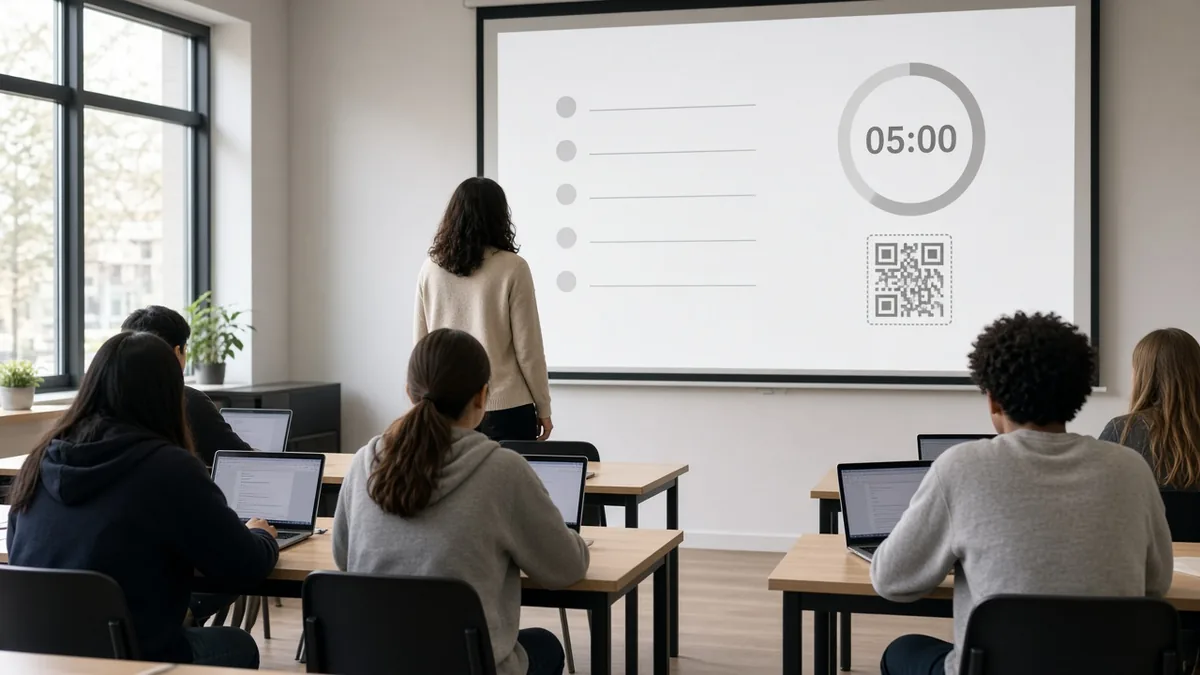
A Google Classroom screen setup means using two tools together: Google Classroom on students' devices for assignments, and a projected classroom screen at the front of the room for everything else, such as the agenda, a timer, a QR code and quick checks. Google Classroom is excellent at holding work; it is not designed to run the room. A free classroom screen fills that gap. This guide gives you a simple daily workflow, with board layouts for the start, middle and end of a lesson.
MyClassScreen is independent and is not affiliated with Google. Google Classroom features vary by school and account type; see Google's Classroom help centre for the official details.
What each tool does best
| Job | Google Classroom | Classroom screen |
|---|---|---|
| Post assignments and materials | yes | no |
| Collect and grade work | yes | no |
| Show today's agenda to the whole room | partly, via the Stream | yes, large and visible |
| Time an activity | no | yes, with a big countdown |
| Set noise and talk expectations | no | yes, traffic light or noise meter |
| Get students to the right link fast | class code or link | QR code on the board |
| Quick whole-class checks | questions and quizzes | live poll, exit ticket, name picker |
Use Google Classroom as the filing cabinet and the classroom screen as the whiteboard.
Why "Google Classroom on the projector" is not enough
Many teachers project their Google Classroom page. It works, but it has drawbacks:
- The Stream and Classwork pages are dense and hard to read from the back.
- Student names and private comments can show by accident.
- There is no built-in timer, noise cue or picker for the room.
A classroom screen shows only what you choose, in large type. You can keep Google Classroom open on your own device and switch the projector to the board.
The daily workflow
1. Before class: post, then build the board
- In Google Classroom, post the day's assignment or material and copy its link.
- On your MyClassScreen board, add a text widget with the agenda: "Do now, mini-lesson, work time, exit ticket".
- Paste the assignment link into the QR code generator so students can scan from a tablet or Chromebook camera.
- Add a classroom timer and a traffic light.
- Save the board so you can reuse the layout tomorrow. See saving boards.
2. Start of class: the "do now"
Project the board as students arrive. The text widget tells them what to do; the QR code takes them straight to the right Google Classroom post; the timer counts down five minutes. You take attendance while the room settles.
3. Mini-lesson
Switch the projector to your slides. If you teach from Google Slides, you can embed Google Slides on the board so your timer and traffic light stay visible beside them.
Use the random name picker for questions, so every student stays ready.
4. Work time
Set the timer for the work block and change the traffic light to show whether students may talk. If students will work in groups, use the group maker and leave the groups on screen. A short "When you finish" note in the text widget handles early finishers: "Turn in on Google Classroom, then start the extension task."
5. End of class: exit ticket and turn-in reminder
Five minutes before the bell, switch to an exit ticket with one question about the lesson. Add a line to the board: "Click Turn in on Google Classroom before you leave." It is a small reminder that saves many missing assignments.
Three board layouts to copy
Do-now board - Agenda in a text widget - QR code for today's Google Classroom post - 5-minute timer
Work-time board - Timer for the work block - Traffic light - Groups from the group maker - "When you finish" note
Wrap-up board - Exit ticket question - "Turn in on Google Classroom" reminder - Homework or next-lesson note
Save each as a separate board and switch between them during the lesson.
Google Classroom activities that work well with a screen
Trends show many teachers search for "Google Classroom activities". These combine well with a projected board:
- Question of the day: post a question in Google Classroom; show a live poll of the same question on screen to discuss results.
- Timed reading: share the text in Google Classroom; run a 15-minute timer with the traffic light on red.
- Gallery walk: students post work to a Classroom assignment; project examples (with permission) and use the name picker for feedback.
- Choice board: post three task options in Classroom; show this or that on screen to vote on the whole-class task.
- Brain break: after a long work block, project a short no-prep brain break.
Getting students into the class quickly
At the start of the year or with a new group, getting everyone into Google Classroom can take a whole lesson. Project the class code or invite link as a big QR code with a short text instruction: "Scan, sign in with your school account, click Join." Keep it on screen for the first week for anyone who is absent.
A sample week
Here is how the workflow might look across a normal week in a middle school class:
- Monday: post the week's overview in Google Classroom. Project an agenda board listing the week's goals and a QR code to the overview post. Use the name picker to review last week's key idea.
- Tuesday: post a short reading. Run a 15-minute timed reading with the traffic light on red, then a two-question live poll.
- Wednesday: group task. Use the group maker on screen, post one shared document per group in Classroom, and run a 20-minute timer for work time.
- Thursday: practice quiz in Google Forms or Classroom. Show the QR code, the timer and a "When you finish" note.
- Friday: review and reflection. Project an exit ticket asking students what they learned, and remind them to turn in any missing work.
The board layouts stay the same all week. Only the text and links change, which takes a minute or two each morning.
Substitute days
A saved board makes cover lessons easier. Before you are away, post the work in Google Classroom and build a board with the agenda, QR code and timers for each part of the lesson. Leave the board link in your sub plans. The substitute only needs to open the board and press start on each timer; students know the routine because they see the same layout every day.
Hybrid and absent students
Students who are absent or learning from home cannot see your projector, so keep Google Classroom as the source of truth. Post the agenda in the Stream as well as on the board, and attach any slides you showed. If you use the same headings on both, such as "Do now", "Work time" and "Exit ticket", students at home can follow along with what the room is doing.
Making the routine stick
Routines work because they are predictable. Use the same three boards in the same order every lesson for the first few weeks, and narrate them: "The timer is on, the light is red, scan the code for today's task." After a while students will check the board before they ask you, which frees you to help the students who need it most.
Privacy tips
- Do not project your Google Classroom grade book or private comments.
- Close other tabs before switching the projector to your computer.
- Use a classroom screen for anything the whole room should see, so student data stays on your device.
- Ask permission before projecting student work.
Troubleshooting
| Problem | Fix |
|---|---|
| QR code will not scan | Make it larger and check the projector focus; also show a short link |
| Students land on the wrong post | Copy the link to the specific assignment, not the class Stream |
| Screen text too small | Increase widget size and use fewer widgets per board |
| Embedded slides do not load | See troubleshooting and check sharing settings |
Elementary, middle and high school tips
- Elementary: keep one or two widgets on screen and use icons as well as words. See classroom screen for elementary.
- Middle school: the traffic light and timer do the heavy lifting during work time. See middle school ideas.
- High school: focus on the agenda, QR links and exit tickets. See high school ideas.