On this page
- What works in K-2 vs 3-5
- Minute-by-minute morning board
- Voice levels and visual timers for young learners
- Centers and rotations
- Accessibility and sensory notes
- FAQ
What works in K-2 vs 3-5
A classroom screen for elementary is a projected board that tells children what is happening right now: the task, the time left, the voice level and whose turn it is. The same free board can serve a kindergarten carpet and a fifth-grade science table, but the content should grow up with the children.
In kindergarten through second grade, many children are still learning to read, so the board should lean on pictures, colour and one big moving number. By grades three to five, students can follow a short written agenda, read a rotation chart and run a classroom job without prompting. Use this table as a starting point rather than a rule.
| K-2 | Grades 3-5 | |
|---|---|---|
| Words on screen | One to three words per line, ideally with a picture | A short agenda of four to six lines |
| Time | One large timer in the same corner every day | A timer plus a clock, so students practise reading both |
| Voice cue | Traffic light, taught with a hand signal | Work Symbols naming the mode: Silence, Whisper, Ask Neighbor, Work Together |
| Helpers and turns | Random Name for jobs, read aloud by you | Random Name or Wheel for jobs, readers and share-outs |
| Widgets at once | Three or four | Four or five |
| Who touches the board | The teacher, or one helper with you | A trained "tech helper" can press Start on the timer |
K-2: show, then say
- Add an Image widget for each step of a routine, such as a backpack photo for "unpack" or a book for "read". An uploaded picture is read by the browser and kept with the saved board on that computer.
- Read every word on the screen aloud for the first few weeks. The display backs up your voice; it does not replace it.
- Keep the layout identical from Monday to Friday. Moving the timer to the other side of the screen is enough to confuse a five-year-old.
- Use one moving thing at a time. A ticking timer is plenty; save dice and wheels for games.
Grades 3-5: hand over the routine
- Put the day's plan in a Text widget so students check the wall before they ask you.
- Add a Timetable with one line per subject. It highlights the slot that matches the computer's clock, which gives older children daily practice in reading a real schedule.
- Give jobs real responsibility: a student can start the timer, spin for the next reader or reset the traffic light.
- For longer lessons, an Objectives checklist lets the class tick off each "I can" statement together at the end.
Many elementary teachers keep separate boards for separate routines, such as mornings, centers and the end of the day, rather than one crowded board for everything. The screens drawer helps here: press Add New Screen to keep all three inside a single saved board and click between them.
Minute-by-minute morning board
The first half hour sets the tone for the whole day. Two templates cover the typical elementary morning:
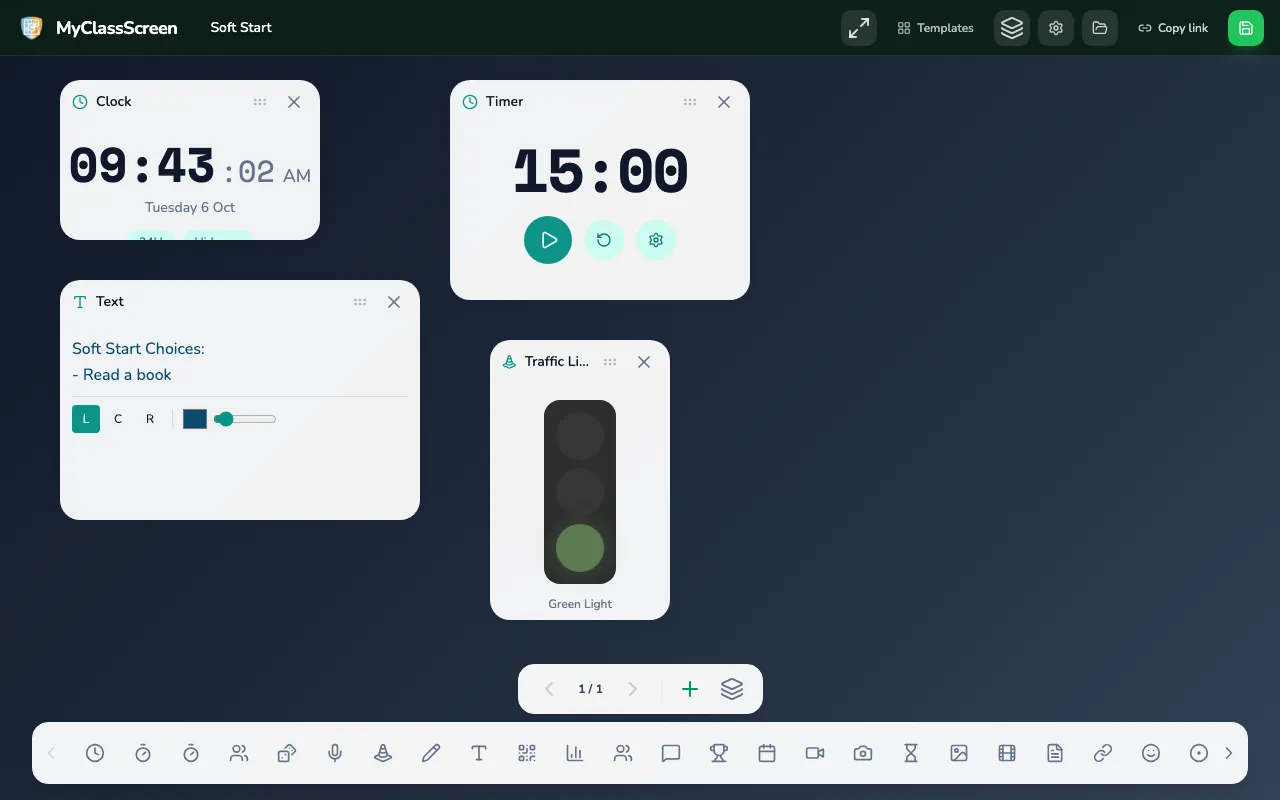
- The Soft Start template opens with a clock, a list of calm choices (read a book, draw in a journal, a puzzle station, build with blocks, quiet conversation), a 15-minute timer and a traffic light.
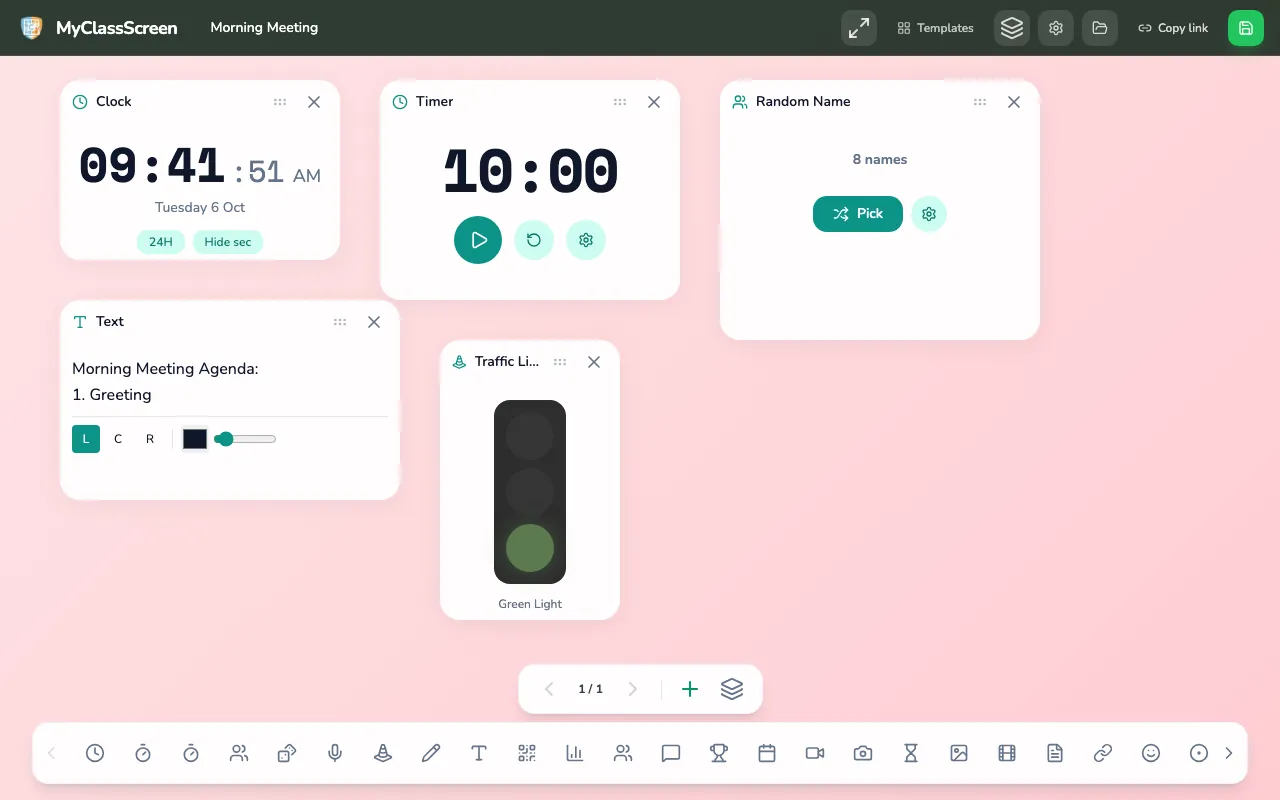
- The Morning Meeting template adds a four-part agenda (Greeting, Share, Activity, Message), a 10-minute timer, a Random Name picker filled with sample names, and a traffic light.
Those four parts come from the Responsive Classroom approach to morning meeting [1]. The board does not run the meeting for you. It keeps the order visible so children know what comes next.
Example: a 30-minute morning in second or third grade
This is an illustration, not a report from a particular classroom. Move the minutes to fit your arrival window and first bell.
| Minutes | Screen | On the board | Students |
|---|---|---|---|
| 0–15 | Soft start | Clock, choices list, 15-minute Timer, Traffic light on yellow | Unpack, hang coats, choose a quiet activity |
| 15–17 | Soft start | Timer reaches zero, Traffic light switched to red | Tidy the activity and walk to the carpet |
| 17–20 | Morning meeting | Agenda on Greeting, Random Name chooses who starts | Greet the person beside them around the circle |
| 20–24 | Morning meeting | Random Name chooses two or three sharers | Share one thing; listeners ask one question |
| 24–28 | Morning meeting | Short Timer for a song, chant or quick game | Whole-group activity |
| 28–30 | Morning meeting | Message in Text: today's plan in two sentences | Read the message together, then go to desks |
Build it once, reuse it daily
- Open the Soft Start template and rewrite the choices list so it matches what your room actually offers.
- Open the screens drawer and press Add New Screen. On screen 2, add a Text agenda, a Timer, a Random Name picker and a Traffic light, following the Morning Meeting layout.
- Open the Random Name picker, replace the sample names under "Enter names (one per line)" with your students' first names, and press Save Names.
- Type tomorrow's Message into the Text widget before you leave school.
- Press Save Board and name it something you will recognise, such as "Room 12 mornings". It reopens from the saved list in the same browser on the same computer.
Substitute days are easier with a saved board. Leave a note with the board name and the instruction to open it from the saved list on the classroom computer. If the substitute will use a different device, press Copy link ahead of time and paste the link into your plans. The link holds the layout and text of the screen you are on, so check each screen you need.
Voice levels and visual timers for young learners
Young children find it hard to judge both how loud they are and how much time has passed. Putting both on the wall turns an abstract instruction into something they can see.
Voice levels
Many elementary schools teach a numbered voice-level scale, often running from 0 for silent to 4 for an outdoor voice, as part of schoolwide PBIS expectations. The Center on PBIS recommends teaching classroom expectations directly and acknowledging students when they meet them [2]. The board offers three ways to show the level you want:
- Traffic light. Click it to cycle through green, yellow and red. Agree on what each colour means with the class before you rely on it.
- Work Symbols. Displays a named mode: Silence, Whisper, Ask Neighbor or Work Together. The words suit confident readers; pair them with a hand signal for younger children.
- Sound (noise meter). A bar that climbs from green through amber to red as the room gets louder, using the computer's microphone once you allow it. It has no sensitivity control. To calibrate it, move the microphone nearer to or further from the children, or change the input level in the computer's sound settings. The noise meter guide explains the steps.
Pick one cue for your scale rather than switching between all three. One way to map a 0 to 3 scale:
| Voice level | Traffic light | Work Symbols |
|---|---|---|
| 0: silent | Red | Silence |
| 1: whisper | Yellow | Whisper |
| 2: partner voice | Green | Ask Neighbor |
| 3: group voice | Green | Work Together |
Teach the cue before an activity starts, not after the room is already loud. Model each level yourself, let the class try it for thirty seconds, then begin the work.
Visual timers
- The Timer is the quiet option. Set the minutes, press Start, and it shows a message at zero without a chime. It suits silent reading and independent writing.
- The Countdown Timer has one-tap presets for 1, 5, 10 and 15 minutes and buttons that add or remove 30 seconds. At zero it plays a short chime and shows confetti, which children enjoy at the end of a clean-up race or brain break. Press Test Sound before the class arrives so the volume is not a surprise.
Habits that help children use a timer well:
- Say the time aloud as you start it: "Five minutes. Check the board if you want to know how long is left."
- Start with short work blocks and lengthen them as the class builds stamina through the year.
- Point at the timer for the one-minute warning instead of calling it across the room.
- Keep the timer in the same place every day so children look there without thinking.
For movement breaks, the Red Light, Green Light template pairs a traffic light with game rules and a 5-minute timer, and the Dance Party template uses a 3-minute timer and a die that picks the move.
Centers and rotations
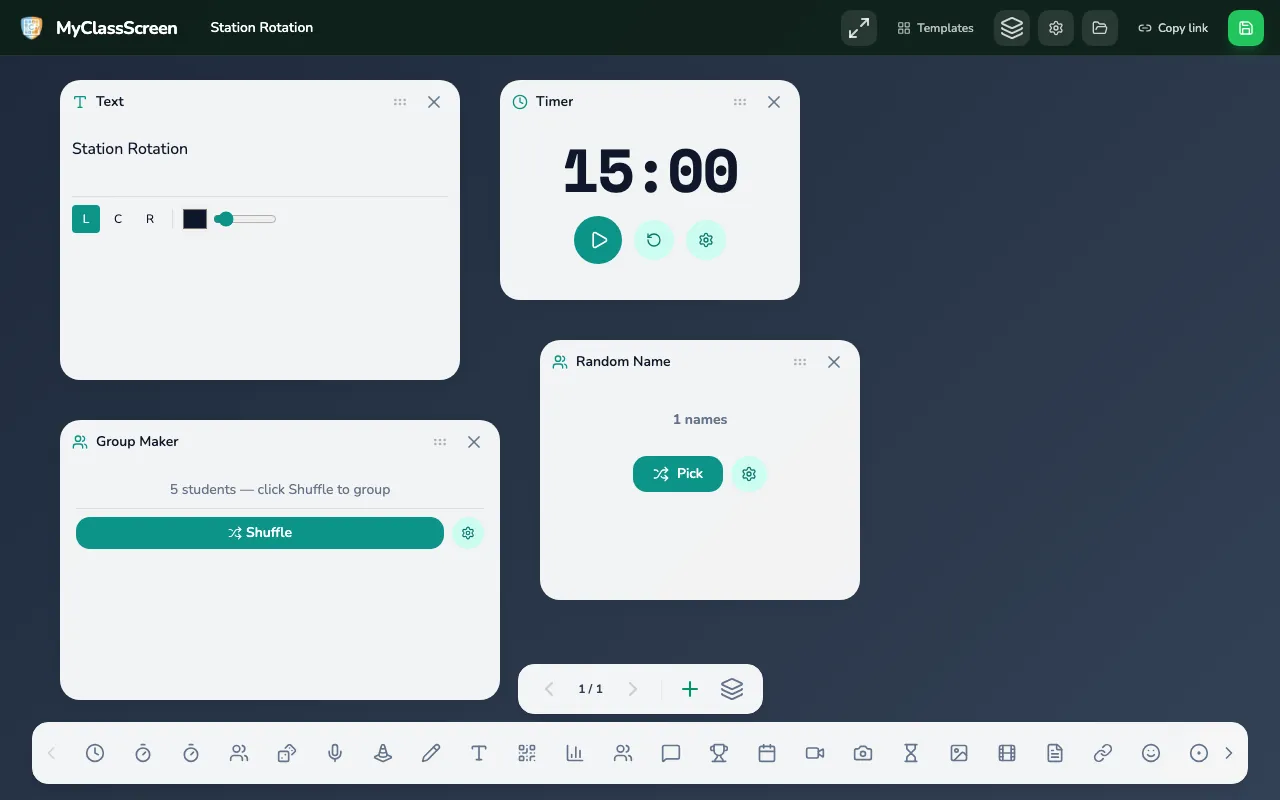
Centers run smoothly when every child can answer three questions from the wall: which group am I in, where does my group go now, and how long until we switch. The Station Rotation template starts with a list of five stations (independent reading, math games, writing center, science lab and art table), a 15-minute timer, a Group Maker holding Groups A to E, and a Random Name picker for a station helper.
Set up a rotation board
- Open the Station Rotation template and rename the stations to match your room. In K-2, add a picture beside each station name with the Image widget.
- Type your students' first names into the Group Maker under "Names (one per line)" and choose a number in "Per group". If you plan groups by reading level, type the fixed groups into a Text widget instead.
- Set the Timer to your rotation length.
- Drag the Timer's corner until it is the biggest thing on the screen.
- Press Save Board. Each day, change only the groups and station names.
A rotation chart children can read
For grades 3-5, type a chart like this into a Text widget, one round per line, and point to the current round each time the timer ends:
| Round | Group A | Group B | Group C | Group D |
|---|---|---|---|---|
| 1 | Reading | Math games | Writing | Teacher table |
| 2 | Math games | Writing | Teacher table | Reading |
| 3 | Writing | Teacher table | Reading | Math games |
| 4 | Teacher table | Reading | Math games | Writing |
For K-2, show only the current round. A full grid is a lot for an emergent reader to scan.
Practise the switch
The changeover is where centers usually fall apart. Rehearse it for a few days before you worry about the work at each table:
- The rotation Timer ends and you click the Traffic light to red: stop, tidy, stand up.
- Start the Countdown Timer's 1-minute preset for clean-up.
- Switch the Traffic light to green: walk to the next station.
- Restart the rotation Timer.
For math centers, try the Math Challenge template, which has two dice, an 8-minute timer and a list of things to do with each roll. For word work, Roll a Word uses three dice and a letter key. Edutopia's guide to classroom transitions has more changeover routines worth adapting [3].
Accessibility and sensory notes
An elementary class often includes children learning English, children with low vision or hearing loss, and children who find bright, busy screens hard to cope with. These habits help all of them.
- Size first. Resize widgets until the smallest word is readable from the seat furthest from the screen. Fewer, larger widgets work better than a full board.
- Contrast. Dark text on a pale background projects clearly. WCAG sets a minimum contrast of 4.5 to 1 for normal text [4], and a projector in a sunny room loses contrast, so check from the back.
- Colour plus something else. Pair every Traffic light colour with a word in a Text widget or a hand signal, so colour-blind children are not left guessing. WCAG's use-of-colour guidance explains the principle [5].
- Sudden sound. The Countdown Timer's chime and confetti can startle some children. Choose the silent Timer when a child is sensitive to unexpected sounds, or warn the class just before zero. The noise meter makes no sound of its own.
- Motion. Avoid several moving widgets at once, such as a spinning wheel, rolling dice and confetti together. One moving element is easier for children who are easily distracted.
- Listening. Noisy rooms make speech harder for young children to follow, and ASHA describes how classroom acoustics affect listening and learning [6]. A visual voice cue can cut down how often you raise your voice, but it is not a substitute for hearing support a child needs.
- More than one way in. Say it, show it and model it. Presenting information in several formats is a central Universal Design for Learning idea [7].
Feelings check-ins on a shared wall
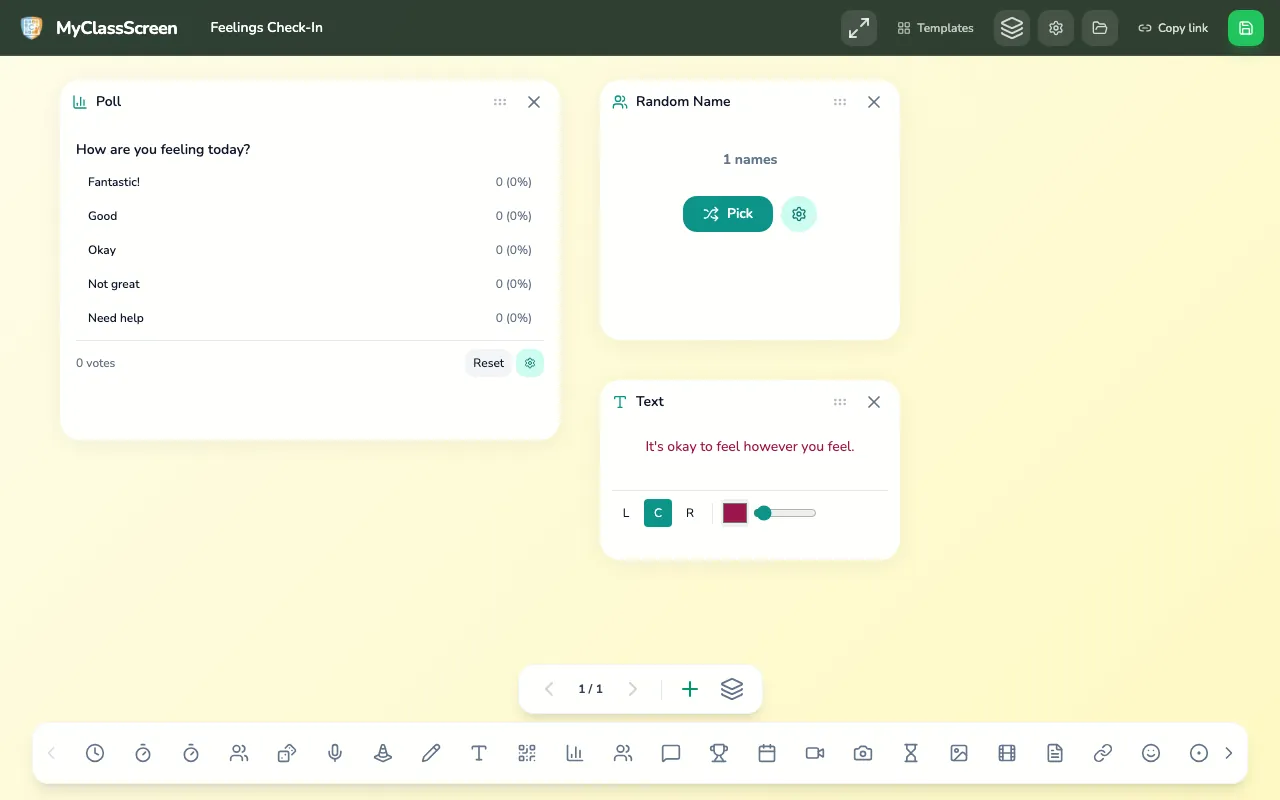
The Zones of Regulation template and the Feelings Check-In template each include a poll. That poll is a tally on the projected board: you tap an option to add a vote, and the whole room sees the totals. This works for "How was the game?" but needs more care when the question is about feelings.
- Ask children to show their choice with fingers while heads are down, and tap the totals yourself.
- Reset the poll before the next group comes in.
- Check in privately, away from the board, with any child who picks "Need help" or the red zone.
- Remember that the Zones of Regulation is a published framework with its own curriculum and training [8]. The template is a check-in prompt, not the program.
Children never sign in to the board, and saved boards stay in the browser's local storage on that computer. Use first names only in pickers and groups, because a copied link carries whatever names are on the screen.
Related articles
- Free classroom screen templates
- Morning meeting screen template
- Traffic light for classroom voice levels
- Classroom screen for middle school
Sources
- Responsive Classroom, "What Is Morning Meeting?": https://www.responsiveclassroom.org/what-is-morning-meeting/
- Center on PBIS, "Classroom PBIS": https://www.pbis.org/topics/classroom-pbis
- Edutopia, Todd Finley, "Mastering Classroom Transitions": https://www.edutopia.org/article/mastering-transitions-todd-finley/
- W3C, "Understanding Success Criterion 1.4.3: Contrast (Minimum)": https://www.w3.org/WAI/WCAG22/Understanding/contrast-minimum.html
- W3C, "Understanding Success Criterion 1.4.1: Use of Color": https://www.w3.org/WAI/WCAG22/Understanding/use-of-color.html
- American Speech-Language-Hearing Association, "Classroom Acoustics": https://www.asha.org/public/hearing/classroom-acoustics/
- CAST, "Universal Design for Learning Guidelines": https://udlguidelines.cast.org/
- The Zones of Regulation, official site: https://zonesofregulation.com/
Set up tomorrow morning tonight. Open the morning layout, type your class's first names and save it before you leave.