On this page
- Why middle school boards differ
- Bell-to-bell board for a 50-minute period
- Stations, exit tickets and focus
- Transitions between rooms
- FAQ
Why middle school boards differ
A classroom screen for middle school has a different job from the one in a third-grade room. Students in grades 6-8 arrive in waves from a crowded hallway, stay for a single period and then leave for someone else's class. You may teach the same lesson four or five times a day to groups with very different moods. The board has to get each group started without you, keep a short period moving, and reset cleanly for the next section.
Three things set the middle grades apart.
Students change rooms, so the first two minutes matter. In an elementary room the morning routine happens once. In middle school there is an entry routine every period. If the task is already on the screen when students walk in, the period starts at the bell rather than five minutes after it.
Young adolescents want independence and dislike being singled out. The Association for Middle Level Education describes effective middle schools as places where students have a voice and adults know them well [1]. On screen, that means giving the class information they can act on by themselves, and avoiding public displays that put one student on the spot.
You repeat the lesson, so the board should be reusable. A layout you build once for a lesson can run all day if you reset the timer, the poll and the scores between sections.
| Elementary board | Middle school board | |
|---|---|---|
| How often the routine starts | Once a day | Every period |
| Main question on arrival | "What are we doing this morning?" | "What do I do right now, before the bell?" |
| Tone | Pictures, colour and a lot of modelling | Short text, a clock and clear deadlines |
| Picking students | Fun and frequent | Fair, predictable and never a punishment |
| Reset between groups | Rarely needed | Timer, poll, scores and names every period |
Many middle school teachers find that a plain, consistent layout earns more trust than a busy one. The clock goes in the same corner every day; the task goes in the largest box; nothing moves unless it means something.
Bell-to-bell board for a 50-minute period
A bell-to-bell board covers the whole period on three screens: an opener students can start alone, a work screen and a closing screen. Two templates make a fast start:
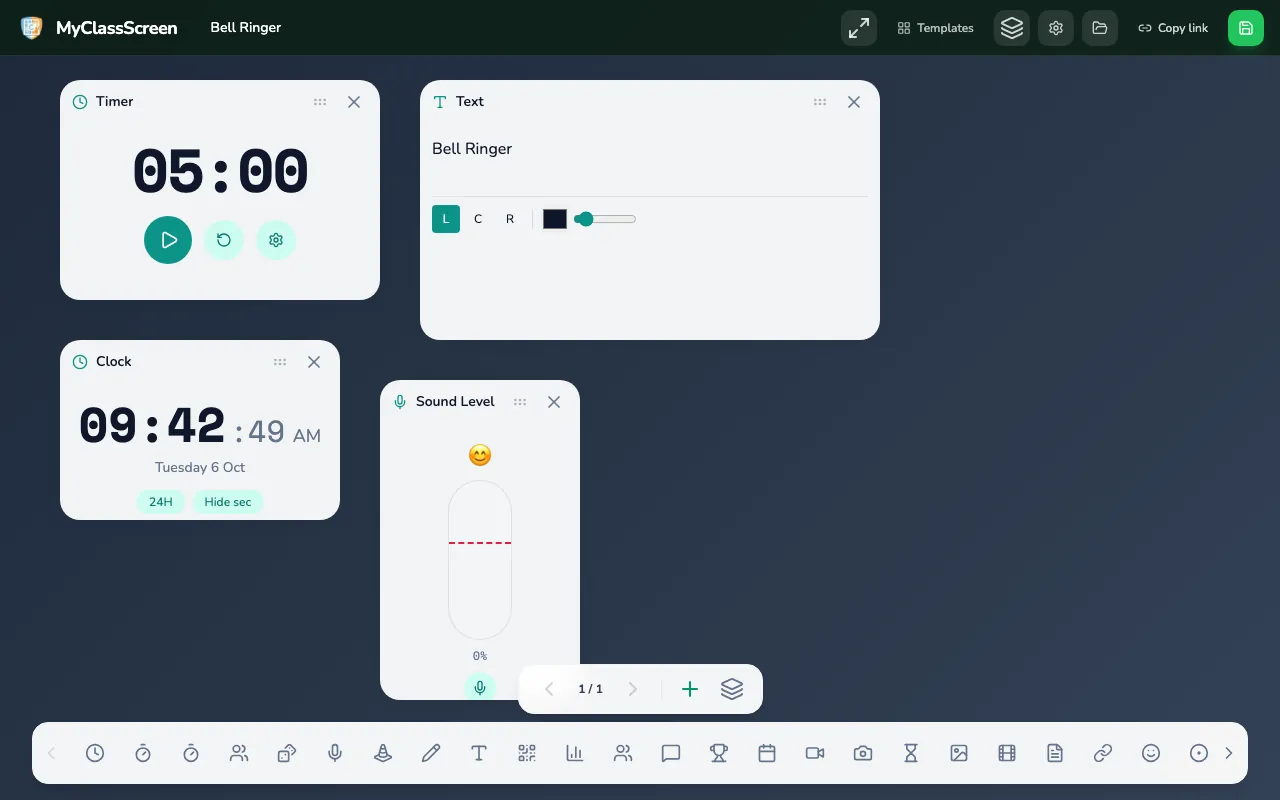
- The Bell Ringer template has a 5-minute timer, a prompt asking students to write three sentences with today's vocabulary, a clock and a Sound widget for the noise meter.
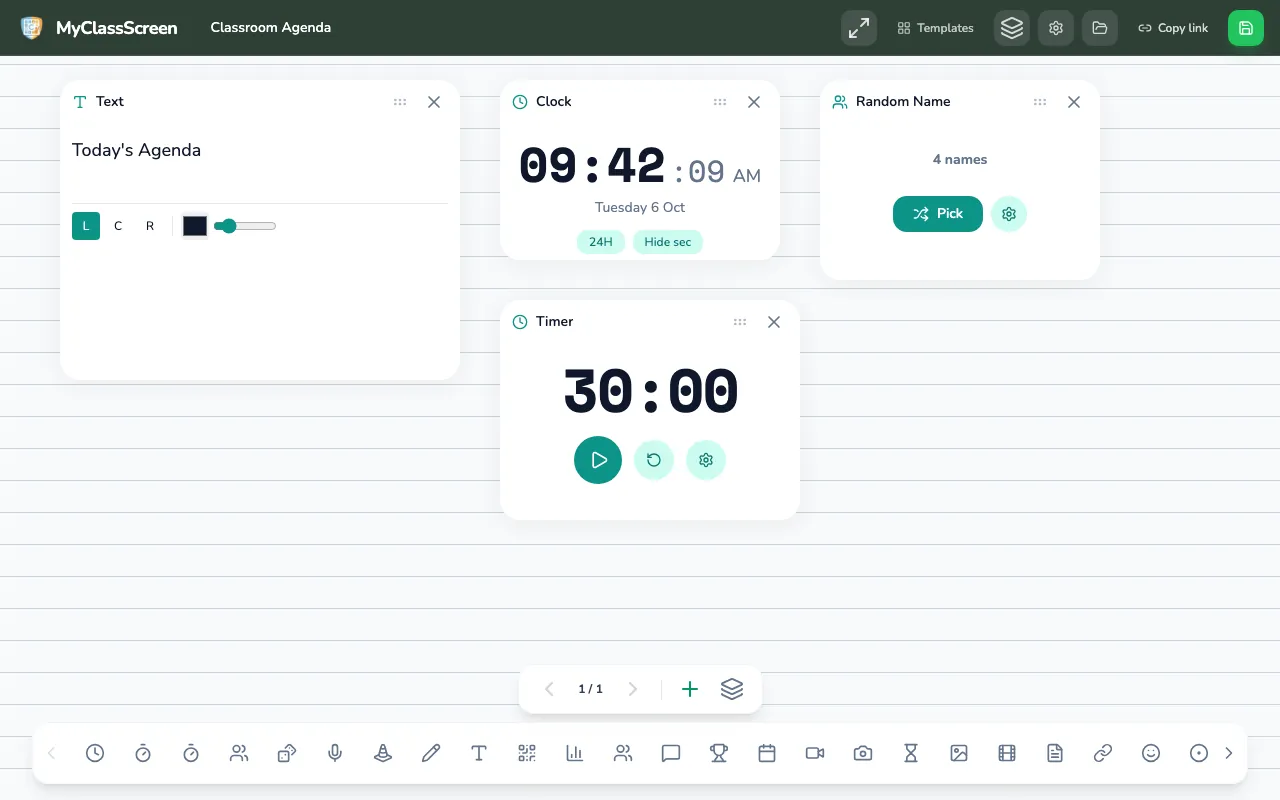
- The Classroom Agenda template has an agenda text box, a clock, a 30-minute timer and a Random Name picker loaded with classroom jobs. Swap the sample times for the parts of your lesson and swap the jobs for roles such as materials manager or timekeeper.
Example: a 50-minute science period
This shows how a seventh-grade teacher might lay out one period; it is not a record of a real class. Change the minutes to fit your bell schedule.
| Minutes | Screen | On the board | Students |
|---|---|---|---|
| Passing time | 1: Opener | Bell Ringer prompt, Timer set to 5 minutes but not started, clock | Enter, sit, read the prompt, get materials out |
| 0–5 | 1: Opener | Timer running, Work Symbols on Silence | Write the bell ringer on their own |
| 5–10 | 1: Opener | Random Name chooses two or three students to share | Share answers; others add or challenge |
| 10–15 | 2: Work | Agenda text with today's three parts, Objectives checklist | Listen to the mini-lesson |
| 15–40 | 2: Work | Group Maker groups, 25-minute Timer, Work Symbols on Work Together, Sound widget | Group investigation or practice |
| 40–45 | 3: Close | Countdown Timer on the 5-minute preset | Clean up and return to seats |
| 45–50 | 3: Close | Exit Ticket poll, 3-minute Timer, QR to your own form | Answer the exit ticket and leave on the bell |
Build the board in four steps
- Open the Bell Ringer template. Write a prompt students can start without any explanation from you. A question about yesterday's lesson works better than a brand-new concept.
- Add a second screen. In the screens drawer, press Add New Screen. Add a Text widget with the day's agenda, an Objectives widget with one "I can" statement per line, a Timer and a Group Maker.
- Add a closing screen. Press Add New Screen again and rebuild the Exit Ticket layout: a poll, a short Timer, a QR code that points to your own form and a Text prompt. You can also open the Exit Ticket template in another tab to copy its wording.
- Save it by course. Press Save Board and name it by subject and unit, such as "Sci 7 cells". The saved board stays in your browser on that computer, so you can reopen it every period.
Resetting between sections
- Reset the Timer before students enter so the opener starts at the full five minutes.
- Clear the poll so the next class does not see the last class's answers.
- Change the Random Name list if your class lists differ by section. Use first names only.
- If you run a points game, reset the Scoreboard. Section-versus-section competitions are fun, but keep the scores off the wall if one period always loses.
A visible agenda also helps students who were absent: they can glance at the board and see what they missed.
Stations, exit tickets and focus
Stations
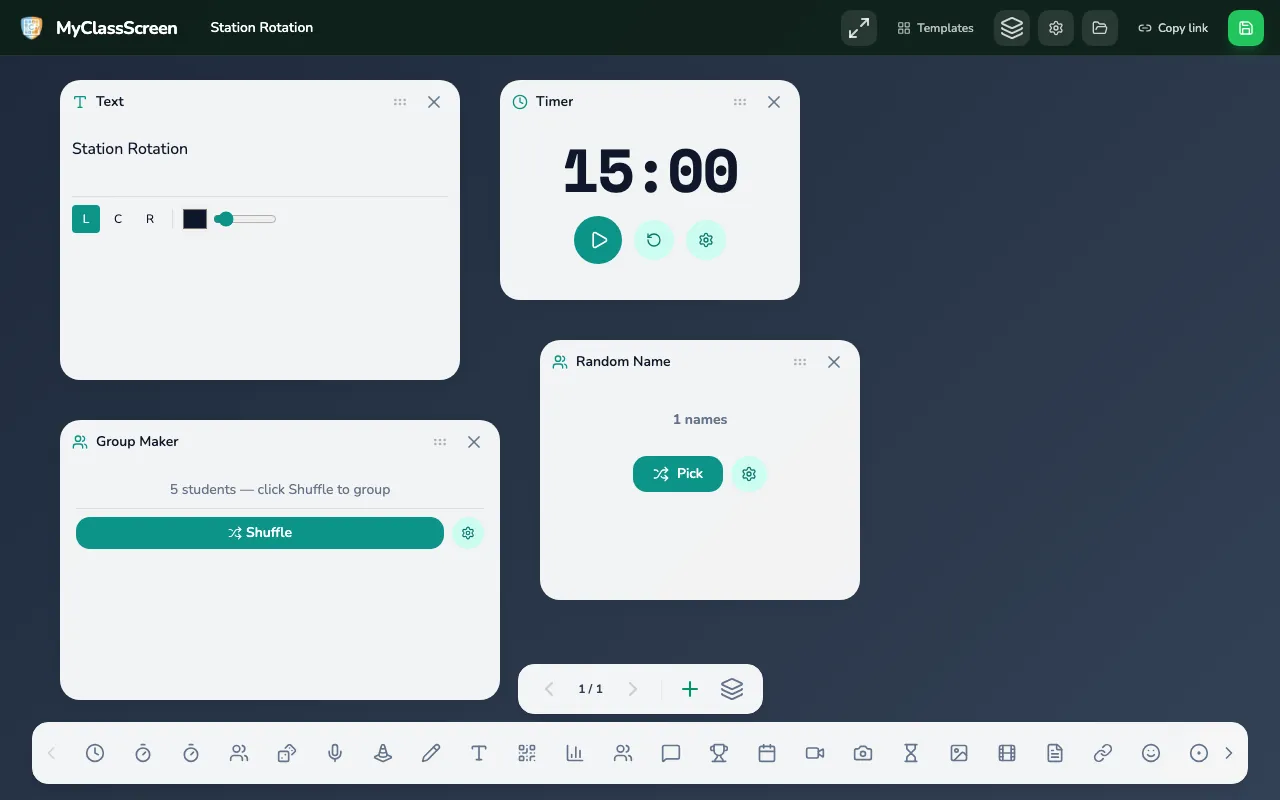
Rotations are common in middle school math, science and language classes. The Station Rotation template gives you a five-station list, a 15-minute timer, a Group Maker with Groups A to E and a Random Name picker for a station helper. In a 50-minute period, three stations of about 12 minutes plus transitions fit more comfortably than five.
- Rename the stations, for example "Teacher table", "Practice set", "Video and notes".
- In the Group Maker, type first names under "Names (one per line)", set "Per group" and generate groups. If groups are planned by skill, type them into a Text widget so the board does not reshuffle them.
- Set the Timer to the station length and press Start.
- When the timer ends, give a single instruction ("Stop, stack, stand") and point to the next station on the list.
Assigning one student per group as a timekeeper or materials manager gives adolescents responsibility, and the job list in the Classroom Agenda template already holds these roles.
Exit tickets
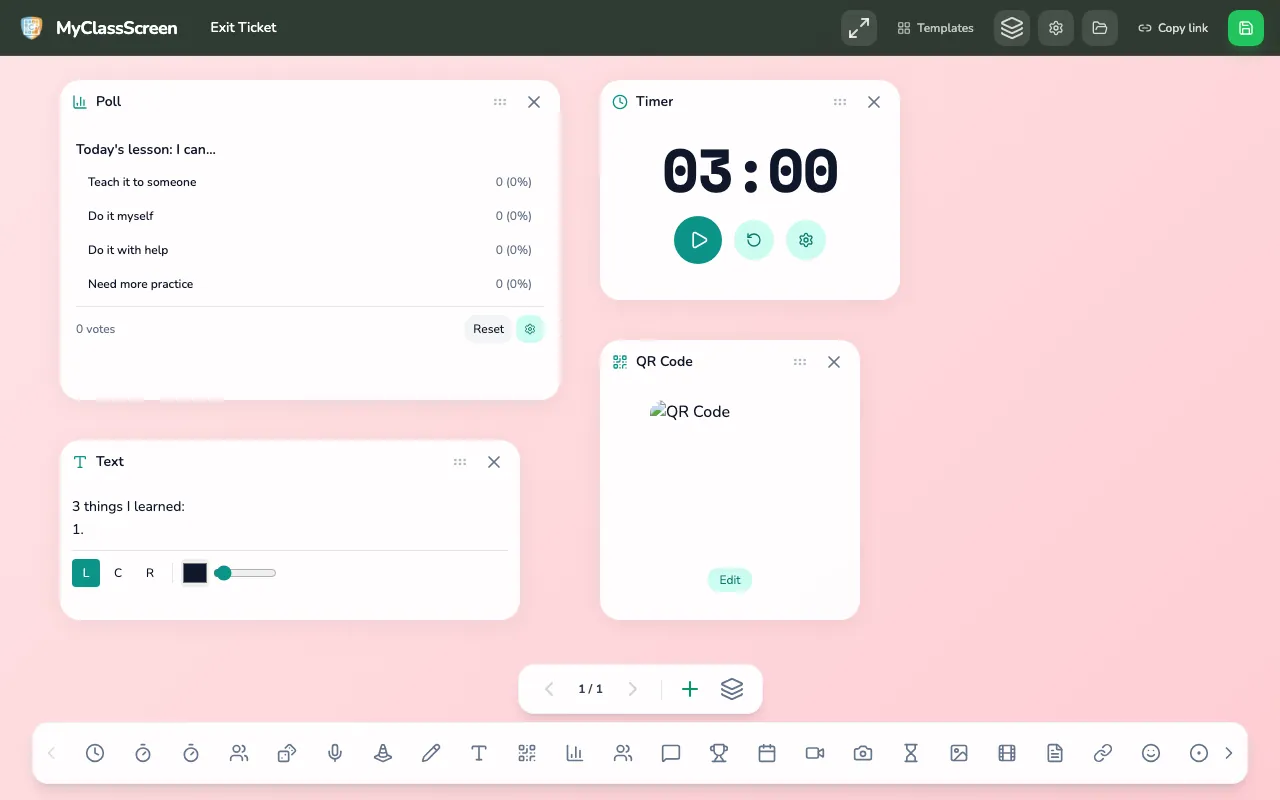
The Exit Ticket template has a self-assessment poll ("Today's lesson: I can...", with Teach it to someone, Do it myself, Do it with help and Need more practice), a 3-minute timer, a QR code and a "3 things I learned, 1 question I still have" prompt.
Before you use it, replace the QR link. The template's sample code points to a forms address that does not work. Open the QR widget, type the link to your own Google Form, Microsoft Form or learning platform quiz, press Generate and scan it with your phone to test it.
Two cautions:
- The poll is a public tally. You tap an option on the board to add a vote, so totals are visible to everyone. For a quick self-check, ask students to show one to four fingers against their chest and tap the counts yourself. Collect anything you need to keep through your own form.
- QR codes are drawn by an outside image service. The text you type is sent to that service to make the code, so use it for links, not for student names or private notes.
Focus during work time
- Work Symbols make the talk rule explicit: Silence, Whisper, Ask Neighbor or Work Together. Change the symbol every time the activity changes.
- The Sound widget shows a live volume bar for group work. It uses the computer's microphone and has no sensitivity control, so calibrate it by moving the microphone or changing the computer's input level. The noise meter guide covers the details.
- A timer for every chunk. Breaking the period into shorter timed parts gives students a clear finish line. Edutopia's article on transitions suggests concrete routines that tighten the gaps between activities [2].
- Review games for the last ten minutes. The Quiz Time template holds a name picker with four contestants, a 30-second timer for each answer, the game rules, a traffic light and one die. Swap "Contestant 1-4" for table names so teams answer rather than individuals. The Trivia and Scoreboard widgets work well alongside it.
Retrieval games are a useful check, but keep them low stakes. Never post individual wrong answers or use a game score as a grade.
Transitions between rooms
Room changes happen twice in middle school: students move between classes all day, and many teachers move between rooms too.
When students arrive
Passing time is noisy, and students walk in still talking about the last class. A board that is already running gives them somewhere to look.
- Have screen 1 showing before the bell: the task, the timer and the clock. The timer can start at the bell.
- Put the same three items in the same places every day, so students can start without reading instructions.
- Add one line for materials, such as "Need: notebook, pencil, calculator", so students do not have to ask.
- Greet at the door while the board explains the task. The screen handles the instructions so you can handle the people.
When students leave
- Use the Countdown Timer for a clean pack-up. Its presets run for 1, 5, 10 or 15 minutes and can be nudged by 30 seconds. At zero it chimes and shows confetti, so press Test Sound once at the start of the day.
- Keep the exit ticket on screen until the bell so students who finish early know the period is not over.
- Put tomorrow's reminder or homework in a Text widget for students to photograph if your school allows phones.
When you are the one moving
Teachers who share rooms or teach from a cart face a practical problem: saved boards live in the browser on the computer where you saved them, with no account or cloud sync to carry them for you.
- Use Copy link. It copies a link to the screen you are looking at, with its layout and text. Copy each screen you need and keep the links in your plans or a bookmark folder. Very large layouts may fall back to the original template link, so open each link once to check it.
- Save again on each computer. Open the link in the new room and press Save Board so it is in that browser's saved list for next time.
- Keep a fallback. If the room computer resets every night, start from a template link, which takes seconds to reopen.
- Check the basics in a new room. The board runs in a modern browser on Chromebooks, Windows, Mac and most interactive panels, but microphone and camera permissions can differ by computer. If the noise meter or webcam does not start, check the browser's site permissions or ask IT. The getting started guide walks through the first launch.
Substitutes can use the same links. Put the board link at the top of your sub plans, with one sentence on what each screen is for.
Related articles
- Classroom screen for elementary
- Classroom screen for high school
- Exit ticket tool for the classroom
- Classroom transitions with visual timers
Sources
- Association for Middle Level Education, "The Successful Middle School: This We Believe": https://www.amle.org/the-successful-middle-school-this-we-believe/
- Edutopia, Todd Finley, "Mastering Classroom Transitions": https://www.edutopia.org/article/mastering-transitions-todd-finley/
Have tomorrow's opener ready before the bell. Start from the Bell Ringer layout, write one prompt and save it under the course name.