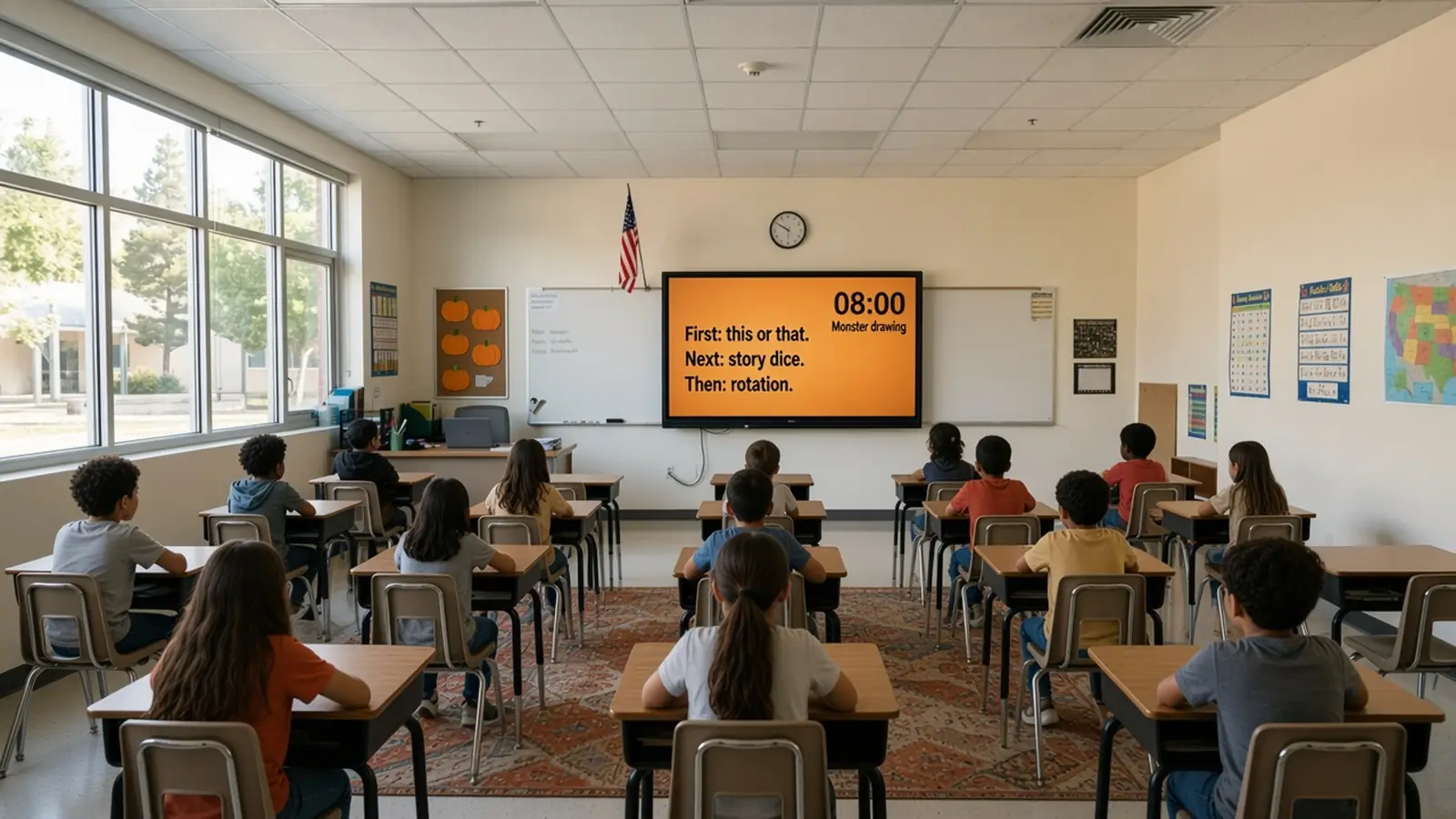
The best classroom Halloween activities are short, low-mess and easy to switch off. Halloween falls on a Saturday in 2026, so the last school day to celebrate is Friday 30 October. For ideas that work all season, see our fall classroom activities. Below are 12 classroom Halloween activities you can run from the free classroom screen, with a ready-made party rotation board and a few ways to keep the day calm. Every idea uses a tool the board already has, such as the timer, wheel spinner, dice, poll, scoreboard or a layout from the templates library.
Keep it inclusive and simple
Not every family celebrates Halloween, and schools set their own rules. Before you plan anything:
- Check your school or district policy on parties, costumes and food.
- Keep themes friendly. Silly monsters and pumpkins work for every age. Skip gore.
- Make the theme optional. A "fall" or "harvest" version of each idea works just as well.
- Handle food through your school's allergy rules, or skip it. Nothing below needs candy.
Most of the work is deciding what the screen shows and for how long. Pick a few activities, set a timer for each, and let the screen run the clock.
Set the scene before the day
A themed backdrop does half the work. Open the board settings and choose or upload a calm autumn background. Our post on classroom backgrounds for a smartboard covers how to pick one that does not make the text hard to read.
Then add a clock, a countdown timer and a text box with the plan for the hour. If students always know what is next, a party day stays much calmer.
12 classroom Halloween activities
Quick starters (5 minutes or less)
1. Halloween this or that. Put two choices on the board: "Pumpkin carving or pumpkin painting?" "Haunted house or haunted library?" Students move to a side of the room or vote with hands. The this or that widget sets it up in under a minute.
2. Would you rather. Launch the Would You Rather layout from the templates library and swap in silly, friendly questions. Ask each student to give one reason for their pick.
3. Spooky bell ringer. Post one question as students arrive: "What would a friendly ghost do on its day off?" A short prompt like that is enough to start class in five minutes.
4. Wheel of monster challenges. Add wheel spinner options such as "Walk like a mummy," "Whisper like a ghost" and "Roar like a monster." Spin one at a time when you need a brain break.
Writing and drawing
5. Spooky story dice. Open the dice roller and type a key in the text widget: 1 = a haunted library, 2 = a talking pumpkin, 3 = a missing shadow, and so on. Roll for setting and character, then give students ten minutes to write. The Story Starters layout is a good base.
6. Design a monster. Open the Drawing Prompts layout. Students draw a friendly monster and write two sentences about what it likes to eat. A five-minute timer keeps it moving.
7. Haunted adjective hunt. Show one sentence with a plain word, such as "The house was old." Students rewrite it with stronger words like creaky, shadowy or crooked. This is a quick vocabulary review disguised as a party game.
Movement and brain breaks
8. Monster freeze dance. Use the Dance Party layout with a timer. When the timer stops, everyone freezes like a statue. Keep the break to two or three minutes.
9. Ghost light, pumpkin light. Use the traffic light for a Red Light, Green Light twist. On green, students float like ghosts. On red, they freeze. The Red Light, Green Light layout in the templates library is a starting point. Our no-prep brain breaks post has more movement resets.
10. Stand, sit, hands on hips trivia. Show a trivia question with three answers. Students stand for A, sit for B and put hands on hips for C. Every student answers, not only the hand-raisers. Type your own questions into the Trivia widget, as described in our post on classroom games on a projector, or keep them in a text widget.
Team challenges
11. Pumpkin patch math. Use the Math Challenge layout. Teams roll dice, add or multiply the numbers, and race a visible timer. Track points with the scoreboard, and keep the scoring light so no team feels left out.
12. Mystery word relay. Use the Roll a Word layout. Teams roll for a letter or topic, then write as many spooky-themed words as they can before the timer ends. The team with the most words, after a quick check, wins the round.
These classroom Halloween activities all work again in November with a different theme, so the board you build now is not a one-day project.
Build the Halloween board in five minutes
- Open the free classroom screen and pick a calm autumn background in the settings.
- Add a large clock in one corner, so late arrivals and the whole class can see the time.
- Add a countdown timer and label it with the current activity, such as "Monster drawing."
- Add a text widget with the plan: "First: this or that. Next: story dice. Then: rotation."
- Save the board with a clear name, such as "Halloween Friday." Saved boards stay in the browser on the computer where you save them, in the browser's local storage, so save on the machine you teach from.
On the day, open the saved board and change only the words in the text widget as you move from one activity to the next.
Match classroom Halloween activities to the age
| Grade band | What works best | Keep it short |
|---|---|---|
| K-2 | Freeze dance, ghost light, pumpkin or monster drawing | 2-4 minutes per activity |
| 3-5 | Story dice, this or that, team math, trivia | 5-8 minutes |
| 6-8 | Vocabulary hunts, mystery word relay, writing prompts | 8-10 minutes |
| 9-12 | Would you rather debates, creative writing, trivia teams | 10 minutes or less |
Older students often enjoy a low-key party more when they have a choice. Offer two or three stations and let them pick the order. Keep the rules short and visible on the board, and put one student in charge of the timer at each station.
A party rotation board
A 45-minute party goes more smoothly with a rotation. Build one board and reuse it for every group. These classroom Halloween activities each fit in a single station, so no group waits long and nobody is left without a job.
| Station | What students do | Widgets on the board |
|---|---|---|
| 1. Draw | Design a friendly monster | Drawing Prompts layout, timer |
| 2. Write | Spooky story dice | Dice, text widget |
| 3. Move | Monster freeze dance | Dance Party layout |
| 4. Think | Halloween this or that | This or that widget |
- Split the class with the group maker.
- Set an 8-minute timer for each station.
- Add a text box that says "Rotate clockwise when the timer rings."
- Run three rounds if you have 45 minutes, and keep the last few minutes to settle the class.
The Station Rotation layout in the templates library is a ready-made starting point for this rotation.
Bring a loud room back down
Party days get loud. Plan your reset before you need it.
- Use one attention signal. The Attention Signal widget plays a chime, bell or clap sound. Teach the response beforehand.
- Put a calm timer on the board for a one-minute breathing break.
- Switch the background back to a plain board when it is time to work.
Halloween choice board for early finishers
If some students finish early, post a choice board:
- Draw a monster.
- Write a four-line spooky poem.
- Make up a riddle.
- Invent a new holiday treat that is not candy.
Keep the list short so students can start without asking you.
A sample schedule for Friday 30 October
| Time | Activity |
|---|---|
| 10 minutes | Bell ringer and Halloween this or that |
| 25 minutes | Core lesson with a spooky story-dice writing task |
| 5 minutes | Freeze dance brain break |
| 30 minutes | Party rotation board |
| 10 minutes | Calm reset, then clean-up |
Adjust this to your day, your school's party plan and the age of your students.
Red Ribbon Week starts the next day
Red Ribbon Week runs 23 to 31 October, so many schools mix it with Halloween week. If your school observes it, keep the two themes separate on the screen so students do not mix up the messages. Our Red Ribbon Week and Unity Day plan shows how to set up a daily prompt board.
Mistakes to avoid with classroom Halloween activities
- No plan for the last ten minutes. Students get loudest when the schedule runs out.
- Making costumes or candy part of an activity. Keep activities usable by everyone.
- Too many games. Pick four or five and give each one a timer.
- Scary content for young students. Keep it silly, not frightening.
- Forgetting the policy. Always check what your school allows.
Next up in early November: our Diwali classroom activities for one screen.
Next up in November: Thanksgiving classroom activities that reuse the same one-board routine.
After Halloween, a 40-minute Veterans Day lesson plan is ready to go.
Teaching about 1-2 November too? See our Day of the Dead classroom activities, which explain how the two differ.