Classroom screen widgets
One projected wall: drag widgets, go full-screen, save the layout. See every widget on the tools page.
MyClassScreen ships 40+ widgets on one projected board. This page explains how the wall, save, and projection work. Browse every widget on tools. New to the idea? What is a classroom screen.
Classroom screen widgets on one wall
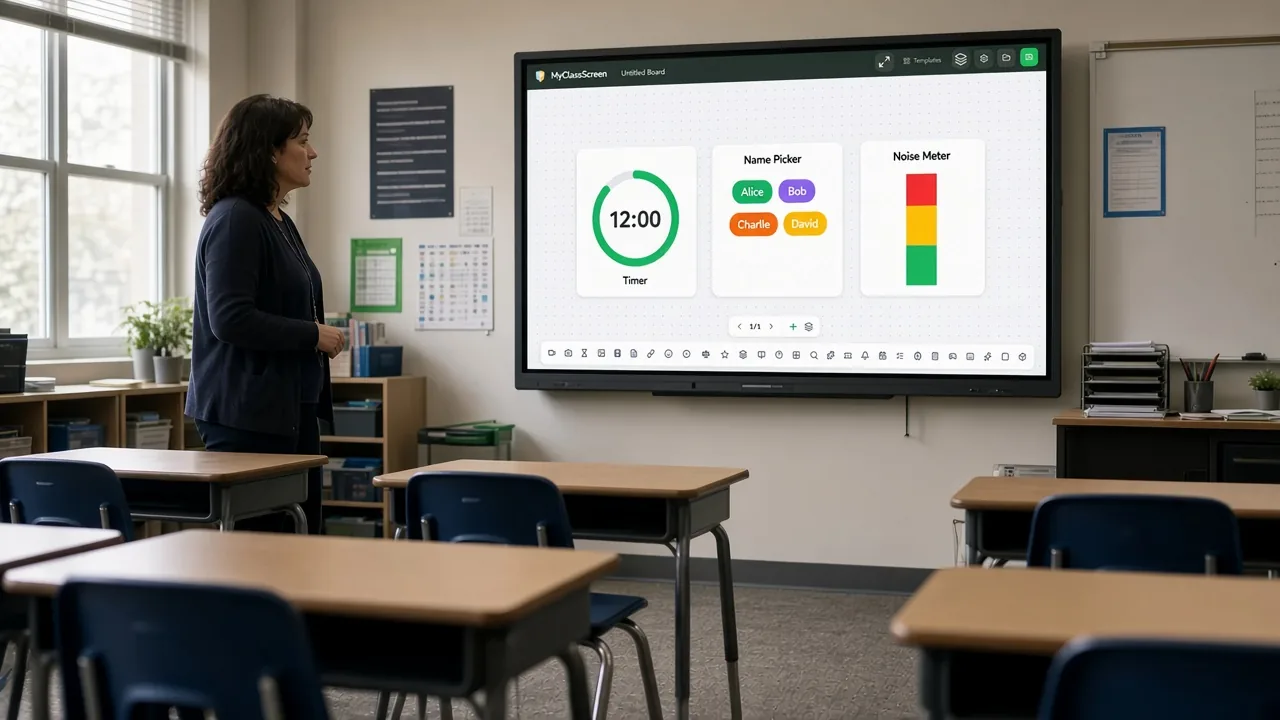
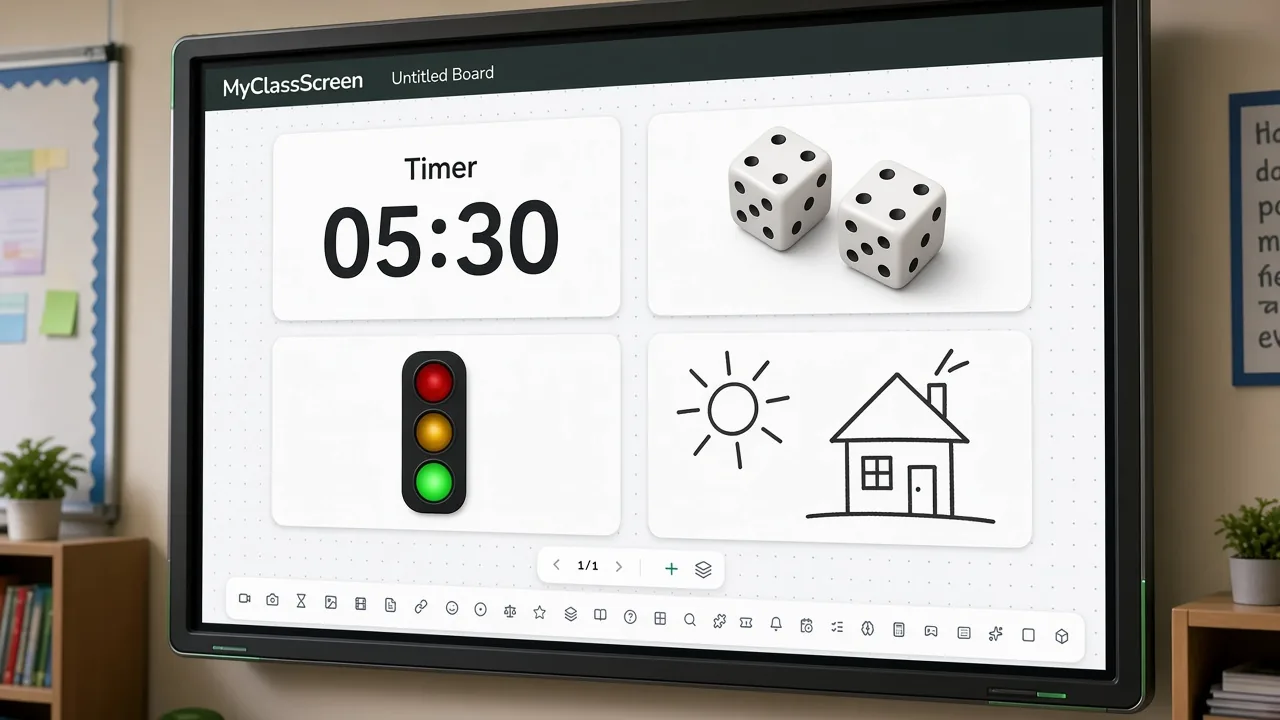
Classroom screen widgets are tiles on a single canvas. You drag them, resize them, and leave them up until you close them. They are not slides you advance to hide the timer. Every widget on the tools list works this way.
Twelve core features still share one job: keep the period visible — time, names, volume, and one piece of the lesson.
Save, load, and local storage
Widgets can live in the tab without an account. Optional save exists so period 3 does not inherit period 1’s names. Step-by-step: saving boards.
Clearing browser data clears unsaved widgets. Treat a borrowed laptop as disposable. Sign in only on a machine you control.
PWA, full-screen, and the panel
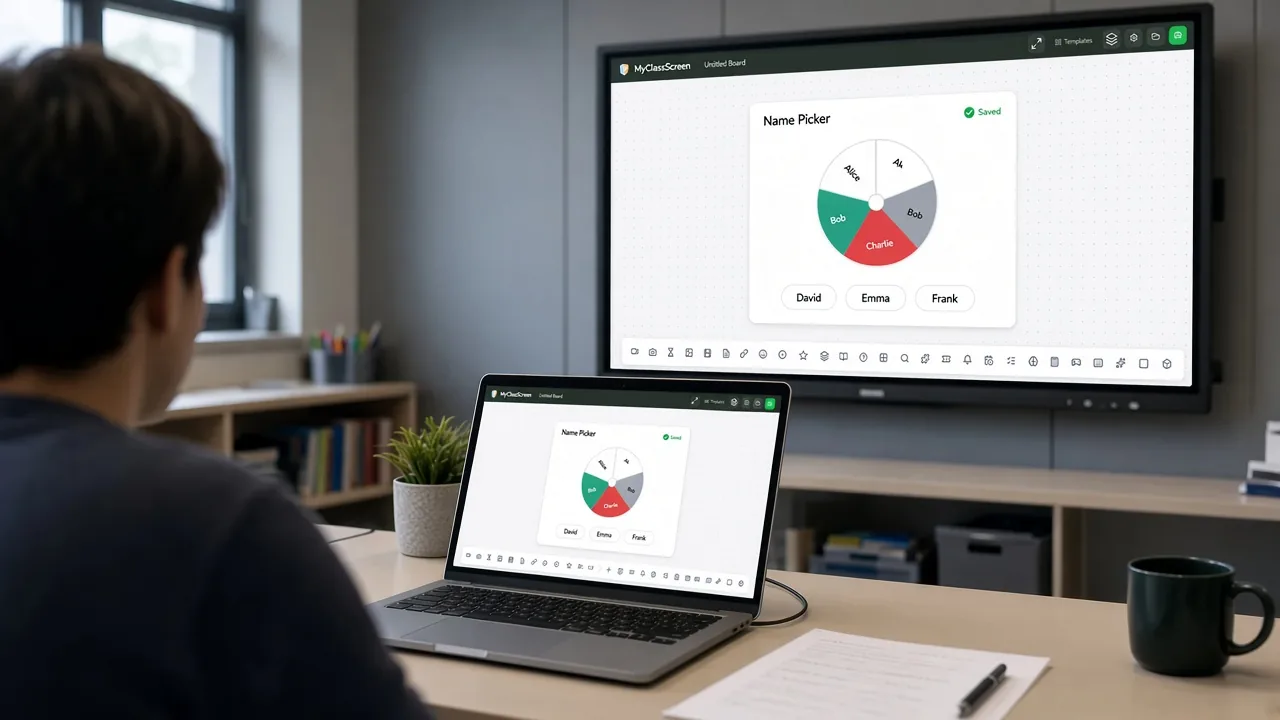
Classroom screen widgets run in a browser. Install as a PWA from Chrome or Edge when you want a full-screen shortcut. Projection is HDMI or the panel’s own browser. Full-screen hides the OS chrome students like to poke.
No student accounts by design
You operate the board. Students do not log in. A QR or poll may send them to another site you chose; that site has its own policy.
Names you type are for projection. They are not student profiles, emails, or IDs. Do not paste confidential data into a text widget.
Limits of these classroom screen widgets
Not an LMS. Not a gradebook. Not device monitoring. Not an AI tutor. If you need Pear Deck-style student devices, that is a different category — see vs Pear Deck.
Open the board and put widgets on glass before the tardy bell. Large type, traffic lights, and visible timers help; they do not replace captioning or an FM system. Too many animated widgets on an old panel will stutter — close the ones you are not using.
Operating classroom screen widgets without chaos
Build the board on a laptop, then project. Typing a roster on a panel keyboard while 28 people watch is miserable. If the board is at kid height, drive it from your laptop so a lean does not edit a widget.
Backgrounds are scenery; widgets are the actors. If the scenery is louder than the timer, change it. Name each save like a period (“P2-biology-lab”), not “final-final2.” Copy link is how you share — there is no PowerPoint export, because this is not a slide deck.
Students look at the largest rectangle. If the name picker is huge and the timer is tiny, you have stated the wrong priority. Prefer solid tiles; glass effects look like fog on a washed-out projector. One person clicks. A guest speaker needs a clock and their name, not a tour of the dock.
Widget updates are listed on the what’s-new post. If the panel’s touch is unreliable, stop fighting it and use the laptop.
What classroom screen widgets store — and what they do not
Local storage is convenient on a machine you own. It is not a backup. Save to an account if the laptop is communal. We do not store student emails, because we do not ask for them.
The microphone is only for a live volume bar. Unplug it and the bar should stop meaning anything. Do not paste an exported SIS sheet with IDs into a name list. Screenshots of the wall may include names — think before you share them.
Browser zoom (125%) can save a fuzzy panel. If Escape dropped you out of full-screen, press it again. Two tabs of the same board will fight — close the extra one.
Classroom Timer
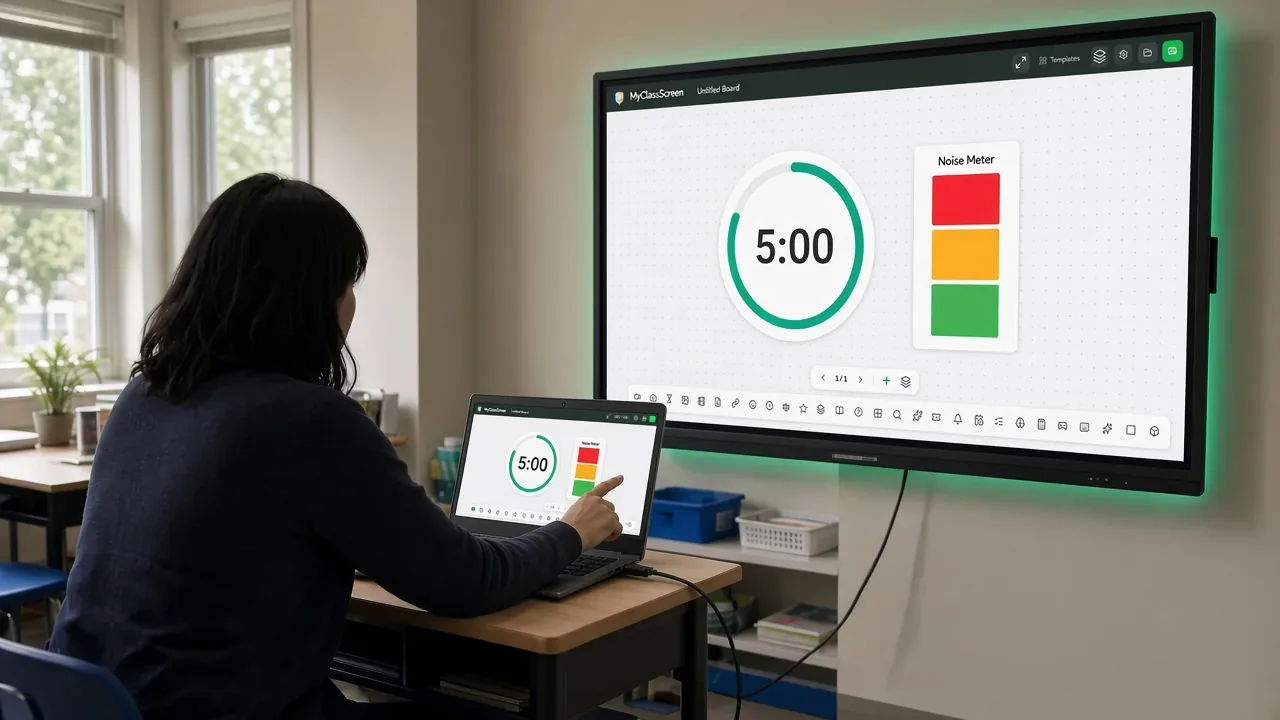
Set countdown timers for activities, tests, and transitions. Visual cues help students manage their time without constant verbal reminders from you.
Try the classroom screen timerLive Clock Display
A clean digital clock that keeps everyone aware of the current time. Toggle between 12-hour and 24-hour formats to match your classroom preference.
Try the classroom clock displayRandom Name Picker
Fairly select students for answering questions, choosing activities, or assigning roles. No more accusations of favoritism — the picker does the work.
Try the random name pickerDice Roller
Roll up to four virtual dice with customizable sides. Perfect for math games, probability lessons, and quick classroom decision-making.
Try the classroom screen diceSound Level Monitor
Monitor classroom volume in real-time with a visual sound meter. Students self-regulate when they see the bar creeping into the red zone.
Try the noise meter for classroomTraffic Light
A simple red-yellow-green system for managing classroom behavior, discussion volume, or activity transitions with a single click.
Try the traffic light for classroomDrawing Board
Sketch diagrams, annotate over content, or let students illustrate concepts. Multiple brush sizes and colors with full eraser support.
Try the classroom whiteboardText Widget
Display instructions, learning objectives, or motivational messages. Adjustable fonts, sizes, and alignment for maximum readability.
Try the classroom screen text displayQR Code Generator
Instantly create QR codes that students scan to access websites, forms, or digital resources. No typing long URLs on tiny screens.
Try the classroom QR codeLive Polling
Run quick polls and see results update in real-time. Gauge understanding, collect opinions, or vote on classroom decisions together.
Try the classroom pollingGroup Maker
Randomly split your class into groups of any size. Paste your roster, set the group size, and shuffle until the arrangement feels right.
Try the random group generator classroomSave & Load Boards
Build the perfect layout once, save it, and load it again tomorrow. Organize boards by subject, class period, or activity type.
Try the save classroom screen layoutNew August 2026 widgets
TeacherScreen-style tools for a projected board — no student accounts. See what shipped or compare vs TeacherScreen.
Wheel Spinner
Spin a customizable wheel to pick students, prizes, or review prompts. Add names, spin, and project the result.
This or That
Two big buttons for quick opinion votes — icebreakers, debate warm-ups, or brain-break choices.
Class Points
Award table or student points live on the board. Simple +/− tracking the whole class can see.
Flashcards
Flip front/back study cards on the projector. Add your own terms for any subject.
Vocabulary Builder
Word + definition flip cards for literacy blocks, ELD, and content vocabulary.
Classroom Quiz
Teacher-led multiple choice with reveal. Check understanding without another app.
Classroom Wordle
Set a 5-letter secret word and guess as a class. Green/yellow feedback just like Wordle.
Word Search
Paste words, generate a grid, and check off finds as the class spots them.
Crossword
Clue list with fill-in answers and a check button — quick vocabulary puzzles.
Exit Ticket
End-of-lesson check-in with live vote counts. Customize the prompt and options.
Attention Signal
One tap plays a chime, bell, or clap so you do not have to raise your voice.
Visual Timetable
Time + activity list that highlights the current block so students know what is next.
Learning Objectives
Post I-can statements and check them off as the lesson progresses.
Memory Match
Flip emoji pairs as a whole-class brain break or early-finisher game.
Math Blaster
Rapid-fire math facts on the board. Reveal, score, next — no worksheets.
Snake
Classic Snake on the projector. Use arrow keys during brain breaks.
Typing Race
Type the projected sentence and watch WPM. Great for keyboarding warm-ups.
Trivia
Question then reveal. Add your own Q&A pairs for any subject review.
Tetris
Block puzzle brain break. Arrow keys to move and rotate.
Breakout
Paddle and bricks on the projector. Move the mouse to keep the ball in play.
Hangman
Guess letters as a class. Set a secret word for spelling, vocab, or content review.
Classroom Bingo
Whole-class bingo on the projector. Call numbers and mark the card as a group.
Tic-Tac-Toe
Classic 3×3 on the board. Use it as a brain break or a review challenge.
Connect Four
Drop discs as two teams. First to four in a row wins.
Jeopardy
Category grid with point values. Click a clue, discuss, then reveal the answer.
Word Scramble
Show scrambled letters and guess the word together. Great for vocab and spelling.
Spelling Bee
Flash a word, hide it, and spell it as a class. Instant check on the board.
2048
Slide tiles with arrow keys. A quiet math-flavored brain break on the projector.
Simon
Watch the colors, then tap the sequence. Builds attention for a one-minute break.
Rock Paper Scissors
Teacher picks, the board plays the class. Fast brain break with no setup.
Ready to build your first board?
Start with a template or build from scratch. It takes less than a minute to set up a classroom screen your students will actually pay attention to.