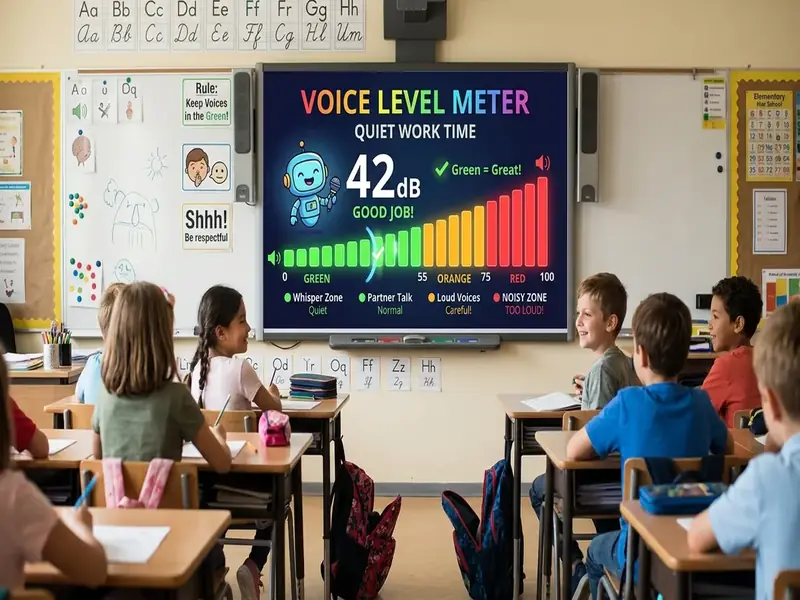
Noise meter strategies work when students understand the goal and the meter gives them honest feedback. A bar that jumps at every pencil drop teaches students to ignore it. A bar that is calibrated for the activity, paired with a clear routine, becomes something the whole class checks without being asked.
Below are five noise meter strategies you can run this week, a short routine to start with, and the technical setup that keeps the microphone working on school devices. Everything uses the noise meter on the free classroom screen, which runs in the browser and does not record audio.
A starter routine to copy
Use this sequence the first time you introduce a meter, then shorten it as students learn it.
- Add the noise meter and a traffic light to your board.
- Name the voice level for the next activity and set the light to match.
- Ask students to talk at that level for thirty seconds while you adjust the Move the microphone closer to or farther from the class, or lower the computer's input level in system settings.
- Explain that yellow means "adjust now" and red means "stop and reset."
- Start the activity and a timer. Check in at the end: how did the room do?
For a deeper version with seven ingredients and room setup, see our quiet monitor recipe.
1. The green zone challenge
Set a timer for a work period and challenge the class to keep the bar out of red until it ends. If they succeed, the class earns a point toward a shared reward. If they slip, reset the timer calmly and try again. Start with short challenges of three to five minutes and extend them as the class improves. Success early builds confidence in the routine.
A noise meter goal works well as part of a simple class reward system.
2. Whisper practice
Many students have never practiced a true whisper. Give the class a short, structured task, such as explaining a vocabulary word to a partner, and ask them to keep the bar in the low green range. Raise the sensitivity for this activity so the difference between a whisper and a normal voice is obvious. A few minutes of practice makes "use a whisper" a skill rather than a vague request.
3. The volume bank
Give the class a bank of "reward minutes" at the start of the week, such as ten minutes of free choice on Friday. Each time the bar stays in red for more than a few seconds during a work period, remove one minute. Track the balance in a text box or on the scoreboard. The system turns volume into a shared account the class protects together. Keep deductions small and predictable so the bank never feels hopeless.
4. Student voice monitors
Rotate a student job: the voice monitor watches the meter during group work and gives a silent signal, such as a raised hand, when the bar turns yellow. Choose monitors with the name picker so the role is shared. Students often respond faster to a peer's signal than to the teacher's voice, and the monitor practices noticing the room.
5. The activity volume matrix
Post a matrix that matches each activity to a voice level. Students check it whenever the task changes.
| Activity | Voice level | Traffic light |
|---|---|---|
| Direct instruction | 0, silent | Red |
| Independent practice | 1, whisper | Yellow |
| Partner work | 2, partner voice | Yellow |
| Group work and labs | 3, table voice | Green |
| Outdoor or gym activities | 4, outside voice | Not used |
Keep the matrix in a text box on your saved board. When you change activities, point to the row, set the light, and adjust the meter.
Adapting the strategies by grade band
- Early elementary: keep challenges short, celebrate every success, and pair the meter with hand signals for each voice level.
- Upper elementary: introduce the volume bank and student voice monitors, and let students suggest rewards.
- Middle school: frame the meter as a fair referee and let students set the class goal for the week.
- High school: treat the meter as data. Ask which parts of a lab or discussion got loud and what would help.
If noise is a problem, try one of these desk arrangement ideas before changing rules.
Why classroom noise wears everyone down
Constant noise tires students and teachers alike. Students lose parts of instructions, conversations get louder to be heard over other conversations, and teachers raise their voices for hours at a time. A meter will not solve every cause, but it makes volume a shared, visible issue instead of a personal battle between you and the class.
Edutopia's collection of 34 ways to quiet a rambunctious class offers many attention signals and routines that pair well with a visual meter.
Microphone permissions on school devices
The meter needs microphone access. School devices add a few extra steps, so check them before your first lesson.
Chromebooks and the Chrome browser
The first time you add the meter, Chrome asks whether to allow the microphone. Choose Allow. If you blocked it, click the site icon at the left of the address bar and change the microphone setting. Google's help page on how to use your camera and microphone in Chrome walks through the settings.
iPads and Safari
On an iPad, Safari asks for permission when the meter starts. If the prompt does not appear, check the microphone permission for Safari in the iPad Settings app, then reload the page.
Managed devices and school networks
On district-managed devices, an administrator may control microphone access. If the permission option is greyed out, ask your IT team to allow microphone use for myclassscreen.org. If the board does not load at all, the site may need to be allowed on the school's content filter.
How to calibrate your noise meter
Calibrate for each activity rather than once for the whole day.
- Ask the class to work at the target volume.
- Move the Move the microphone closer to or farther from the class, or lower the computer's input level in system settings.
- Test a spike: a louder voice should push the bar into yellow or red.
- Check silence: with no talking, the bar should stay low.
Recalibrate when you change rooms, rearrange desks, or notice heating and ventilation noise moving the bar. The noise meter tool page has a live demo you can use to practice.
Troubleshooting common issues
- The bar does not move. The microphone may be blocked, in use by a video-call app, or set to the wrong input device.
- The bar is always high. Lower the sensitivity, or move the laptop away from fans and vents.
- The bar jumps at small sounds. Sensitivity is too high for the activity; move the slider down a little.
- Nothing works inside an embedded page. Browsers often restrict microphone access inside embedded frames, so open the board in its own tab.
For more fixes, the troubleshooting help page covers permissions, full-screen, and projection issues.
Prefer a simpler signal than a meter? Try a traffic light behavior system.