On this page
- Why districts use it
- What leaves the device
- IT allow-list and device setup
- Rollout plan for a school
- Accessibility statement
- FAQ
Why districts use it
A classroom screen for schools has to pass two tests: teachers need to find it useful on Monday morning, and IT and privacy staff need to be able to explain what it does. MyClassScreen is built to make the second test short.
- Nothing to provision. There are no teacher accounts, no student accounts and no rosters. A teacher opens the board and starts working. There is nothing to sync with your student information system and nothing to deprovision when staff leave.
- No student devices. Students look at the projected board. They never sign in, join with a code or open the board on their own device.
- No licence to manage. The board is free, with no per-seat pricing and no premium tier. Ads appear on articles and guides on the marketing site, never on the board itself.
- Runs in a browser. It works in a modern browser on Chromebooks, Windows and Mac computers and most interactive panels, with an optional install as a web app.
- The same tools in every room. Timers, a noise meter, name pickers, groups, polls and ready templates look the same in every classroom. That consistency helps substitutes, co-teachers and specialists who move between rooms.
- Data stays local by default. Saved boards are stored in the browser on the teacher's device. The table below lists the few features that contact another server.
What it is not: a learning management system, an assessment platform or a gradebook. Polls and quizzes show results on screen but do not collect individual student responses. Keep graded work in the systems your district already approves.
What leaves the device
This table describes what each widget does with information, based on the board's current code. "Device" means the computer running the board, usually the one connected to the projector or panel.
| Widget or feature | What it uses | What leaves the device | Guidance for staff |
|---|---|---|---|
| Sound (noise meter) | The microphone, only after the teacher presses the microphone button and the browser grants permission | Nothing. The browser turns the signal into a loudness level about ten times a second and draws a bar. No audio is recorded, saved or uploaded | Tell students what the meter does. Removing the widget or pressing stop releases the microphone |
| Webcam | The camera (video only), after browser permission | Nothing. The live picture is shown on the board and not recorded or sent | Point it at the document camera area, not at students, unless your policy allows it |
| Poll, This or That, exit ticket poll | Votes the teacher adds by tapping an option on the board | Nothing. Totals stay on the screen and in the saved board | Totals are visible to the whole room, so avoid sensitive questions |
| QR code | The link or text the teacher types | The text is sent to an outside QR image service (api.qrserver.com) to draw the code. That operator states it does not store QR contents; its server logs keep standard request details such as IP address and browser [1] | Use QR codes for links only. Never encode student names or personal information |
| Save Board | The whole layout, including typed names and text | Nothing. Boards are saved in the browser's local storage on that device [2]. There is no account and no cloud copy | Clearing site data, private windows and guest or ephemeral sessions remove saved boards |
| Copy link | The layout of the screen currently showing | The layout is packed into the link itself. Anyone with the link can open it, and like any web address it reaches the site's server when opened | Clear name lists before sharing a link outside the class |
| Random Name, Group Maker, Wheel, Text, Scoreboard | Names and text the teacher types | Nothing, unless the teacher shares a link | First names or initials only |
| Image | A file the teacher picks, or a pasted image address | An uploaded file is read in the browser and saved with the board. A pasted address loads from that website | Prefer uploaded files for classroom photos |
| Video Player, Embed Media | A YouTube, Vimeo or other web address | The content loads from that service, under its own terms | Follow your district's rules for video sites |
Beyond the widgets:
- No ads or analytics on the board. The board page loads no advertising or analytics scripts. Marketing pages may load a third-party script, as described in the privacy policy. The board never does.
- Standard web requests. As with any website, the server that delivers the board's files receives ordinary request information such as IP address and browser type.
- Microphone details. The noise meter guide explains in more depth how the bar is calculated and why it shows a relative score rather than decibels.
Student privacy laws
Because typical use involves no student accounts and no student records sent to MyClassScreen, many schools find the review straightforward. Your district still decides how laws such as FERPA in the United States apply to the way your staff use the board [3]. If teachers type student names into widgets, those names stay on the classroom computer unless a teacher shares a link. For children under 13, the U.S. Federal Trade Commission's COPPA guidance is the reference for online services aimed at children [4]; the board is designed to be operated by teachers, not by children.
Questions about data can go through the contact page.
IT allow-list and device setup
Hosts to allow
| Host | Needed for | Required |
|---|---|---|
myclassscreen.org (HTTPS) | The board at /board/, its scripts, styles, templates and web app manifest | Yes |
api.qrserver.com | Drawing QR codes | Only if teachers use the QR widget |
www.youtube.com, player.vimeo.com | The Video Player widget | Only if your policy allows these services |
| Sites teachers paste into Embed Media or Image | That content | Optional, follows your existing web filter |
The board's own files are served from myclassscreen.org, so filtering ad networks on the marketing pages does not affect the board.
Browsers and devices
- Use a current version of Chrome, Edge, Safari or Firefox. Older built-in browsers on some panels may not support every widget; if a panel's browser struggles, connect a laptop or Chromebook instead.
- Full-screen mode uses the browser's standard full-screen feature. Pressing Esc exits it.
- The board can be installed as a web app from Chrome or Edge. It then opens in its own window. The getting started guide covers installation on each platform.
Microphone and camera permissions on managed devices
The noise meter and webcam ask for permission through the browser the first time they are used. On managed Chrome and ChromeOS devices, administrators can pre-approve https://myclassscreen.org with the AudioCaptureAllowedUrls and VideoCaptureAllowedUrls policies, or leave the per-user prompt in place [5]. If microphone or camera access is blocked by policy, the noise meter falls back to a manual slider and the webcam shows a permission message.
Saved boards on shared and managed computers
Saved boards live in the browser profile on one device. That has three practical consequences for IT:
- Ephemeral or guest sessions erase boards when the session ends. Teachers on those devices should keep Copy link addresses in their planning documents.
- Clearing browsing data for myclassscreen.org removes saved boards. Exclude it from scheduled clean-ups if your policy allows.
- Boards do not follow a teacher between devices through Chrome sign-in, because local storage is not part of browser sync. Copy link is the supported way to move a layout.
Embedding
The board can be framed only by myclassscreen.org itself. On Google Sites, Canvas, Schoology or other platforms, add a link or button that opens the board in a new tab. The embedding guide has the steps.
Rollout plan for a school
This is a sample plan for one school. Stretch or compress it to fit your calendar.
| Week | Who | What happens |
|---|---|---|
| 0 | IT and data privacy lead | Read this page and the privacy policy. Add the hosts above to the allow-list. Open the board on one device of each type and test the noise meter and webcam |
| 1–2 | Three to five pilot teachers across grade levels | Each builds and saves one board for a real routine, such as a morning meeting, a bell ringer or stations |
| 3 | All staff, 20 minutes at a staff meeting | A pilot teacher demonstrates their board. Share template links and the getting started guide |
| 4 | Teachers and the substitute coordinator | Each teacher adds a board link to the substitute folder, with one line on what each screen is for |
| 5–6 | Leadership with pilot teachers | Collect feedback. Agree simple norms and decide whether to pre-approve microphone access |
Starter template links to share with staff
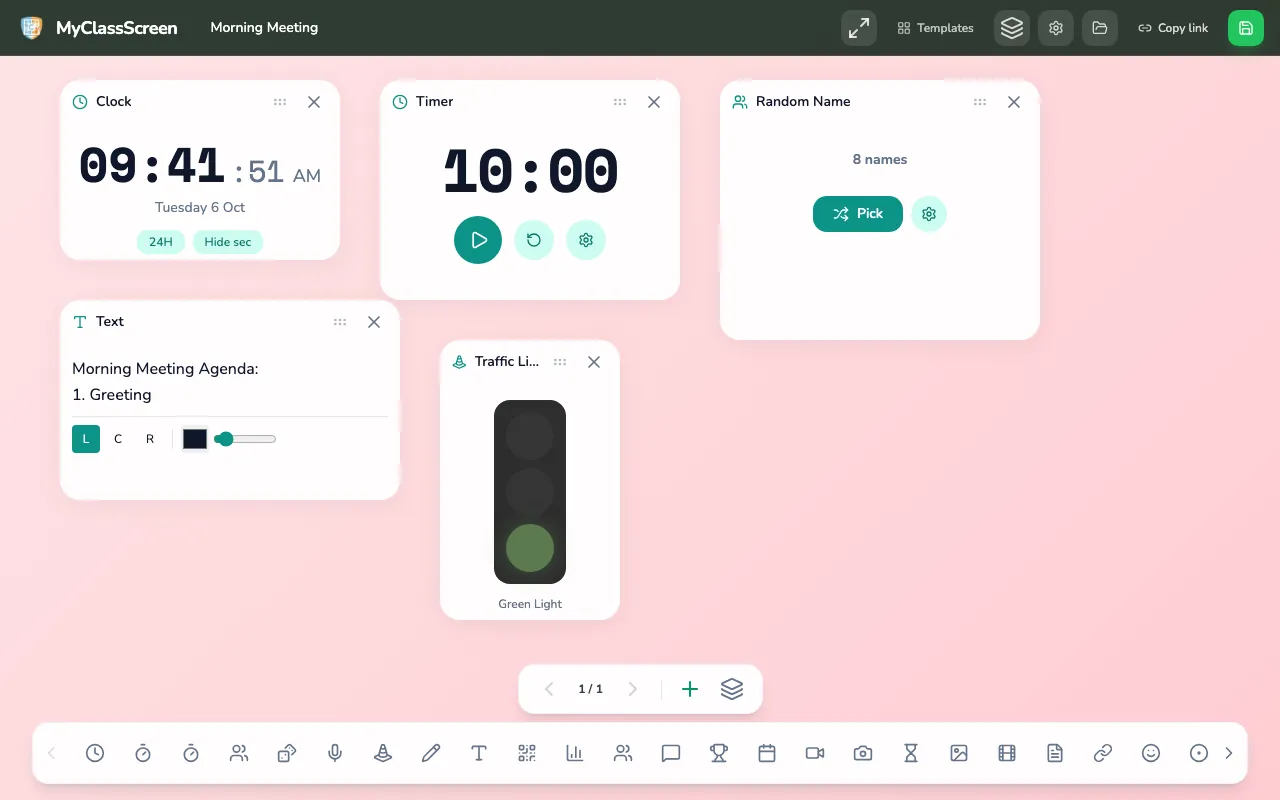
- Elementary mornings: Morning Meeting
- Secondary openers: Bell Ringer
- Centers and stations: Station Rotation
- End of lesson: Exit Ticket. Teachers must replace the sample QR link with their own form before use.
Norms worth agreeing as a staff
- First names or initials only in name pickers and groups.
- No student information in QR codes or shared links.
- Tell students when the microphone or camera is on, and switch them off when not needed.
- Keep graded work and records in district systems, not on the board.
A note for families
Some schools send a short message home. A sample: "Your child's teacher may use MyClassScreen, a free display on the classroom projector. Students do not create accounts. A noise meter may use the classroom computer's microphone to show a volume bar; it does not record sound. Questions are welcome."
Accessibility statement
MyClassScreen wants the board and this website to be usable by everyone in a school, including students and staff with disabilities. This statement describes the current state honestly; it is not a claim of formal conformance with any standard. We use the Web Content Accessibility Guidelines (WCAG) 2.2 as our reference [6].
What helps today
- Widgets can be resized, so text can be made large enough to read from the back of a room.
- Several widgets carry meaning in more than one way: Work Symbols show words as well as colour, and the noise meter shows a face and a number alongside the coloured bar.
- The plain Timer finishes without sound, for rooms where a chime would be a problem.
- The noise meter makes no sound of its own and does not flash.
Known limitations
- Moving and resizing widgets relies on dragging with a mouse, touchpad or touch screen.
- The Traffic light and some backgrounds rely on colour; teachers should pair them with words or signals.
- The Countdown Timer plays a chime and shows confetti at zero, which may distract or startle some students.
- The board is a visual projection tool. Students who are blind or have low vision need the same information spoken aloud or provided in another format.
Tips for staff: keep contrast high, use few widgets, read key information aloud and warn students before sounds. WCAG's contrast guidance asks for at least 4.5 to 1 for normal text [7].
Report a barrier. If something on the board or this site does not work for you or a student, tell us through the contact page. Please include the device, the browser and the widget involved.
This statement was last reviewed on October 5, 2026.
Related articles
Sources
- goQR.me, "Privacy, safety and security": https://goqr.me/privacy-safety-security/
- MDN Web Docs, "Window: localStorage property": https://developer.mozilla.org/en-US/docs/Web/API/Window/localStorage
- U.S. Department of Education, Student Privacy Policy Office, "FERPA": https://studentprivacy.ed.gov/ferpa
- Federal Trade Commission, "Children's Privacy": https://www.ftc.gov/business-guidance/privacy-security/childrens-privacy
- Chrome Enterprise, "Chrome Enterprise policy list" (AudioCaptureAllowedUrls, VideoCaptureAllowedUrls): https://chromeenterprise.google/policies/
- W3C, "WCAG 2 Overview": https://www.w3.org/WAI/standards-guidelines/wcag/
- W3C, "Understanding Success Criterion 1.4.3: Contrast (Minimum)": https://www.w3.org/WAI/WCAG22/Understanding/contrast-minimum.html
Run the IT check in five minutes. Open the board on a school device, add the noise meter and a QR code, and confirm both work behind your filter.