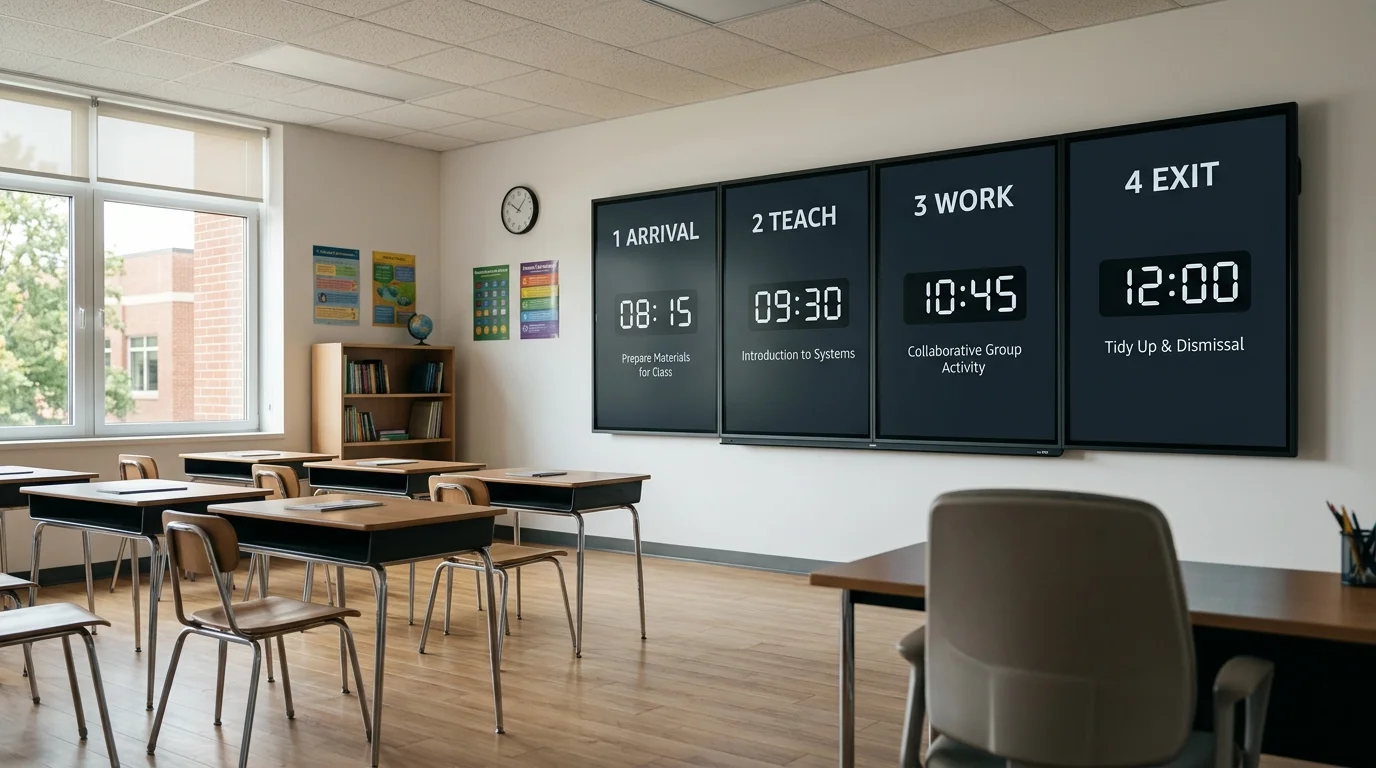
A classroom screen deck is the set of boards you move through in one lesson, in order. Arrival, teaching, work time, then the exit. Each board does one job, and you switch when the activity changes. That is calmer than rebuilding the screen in front of the class, and clearer than leaving one crowded layout up all period. Below is a four-screen plan, what to copy onto every board, how to save the set, and what to do if you got here because an app labeled the file "Untitled screen deck".
You can build the whole set on the free classroom screen. Neither teachers nor students need an account — your boards save directly in your local browser on your classroom computer so they are ready tomorrow.
What a classroom screen deck is
Teachers use the words in three different ways. It helps to know which one you mean before you start clicking.
- A teaching pattern. Three to five screens for one period, opened in the same order whenever that kind of lesson runs.
- A feature inside Classroomscreen. On classroomscreen.com, a screen deck is one or more screens you flip through. Their dashboard guide (help center, last updated 24 September 2026) says you can pin a widget so it stays in the same place on every screen in that deck, and that many teachers keep one deck for the day so they are not jumping back to the dashboard mid-lesson.
- A default file name. "Untitled screen deck" is what their app shows before you rename a deck. It is not a template pack, and it is not a MyClassScreen page. If that exact phrase is what you typed, use the section further down.
MyClassScreen does not bundle those screens into one flick-through deck with a shared pin. You get the same classroom pattern by saving separate boards and opening them from your list in order. The click-path for saving lives in the help article on how to save a board layout. This article is the plan for which boards are worth saving.
A classroom screen deck is not your slides or a screensaver
These three things get mixed up because they can all be on the projector in the same hour. They are not substitutes.
| Feature | Classroom screen deck | Slide deck | Screensaver |
|---|---|---|---|
| Job | The live routine for this period | The content you are teaching | What the board shows when you are not teaching |
| How it moves | You open the next saved board | You advance to the next slide | It stays until you take the screen back |
| Timer, names, voice level | On the board, and you can change them live | Usually a picture of a timer, which you cannot pause | A clock and, at most, one calm task |
| Best moment | The switch from one activity to the next | Mini-lesson, examples, a text | Arrival hold, quiet work, a test |
Use slides for the explanation and the classroom screen deck for the tools around it. Which job belongs where, including a QR code or a second browser tab when the slides and the board need to share one display, is already covered in the guide to classroom slide templates. This page does not repeat that comparison.
A calm picture and a clock while students walk in is a classroom screensaver. It can sit on the board before screen 1. Turn it off when teaching starts. A screensaver that stays up through the mini-lesson is just a distraction with a nice photo.
Four screens is a full classroom screen deck
Four boards cover a normal secondary period or a primary lesson block. Three is plenty while the class is still learning where to look. Past five, you spend the lesson hunting for the right file.
| Order | Name to save | What students should see | Leave off this board |
|---|---|---|---|
| 1 | P3 1 arrival | Greeting, one first task, a short timer, the clock | The whole day's agenda, games, yesterday's work |
| 2 | P3 2 teach | Today's objective in one line. A timer only if the input itself is timed | A full worksheet. That belongs on a slide or on paper |
| 3 | P3 3 work | The task in one line, a timer, the voice level you expect | A second block of instructions no one can read from the back row |
| 4 | P3 4 exit | The exit question, or a short pack-up list, plus the clock | A new lesson |
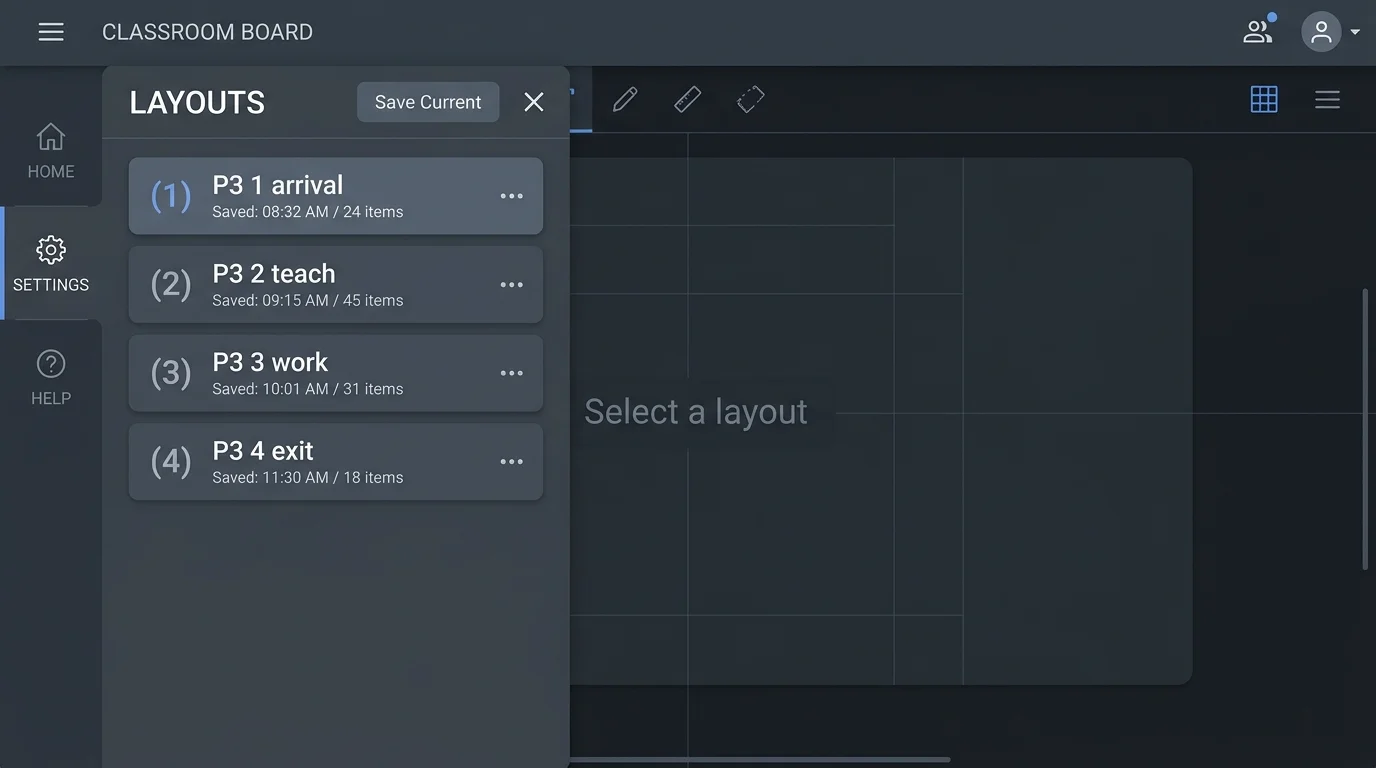
Put the class or period first, then a number, then the job. MyClassScreen opens saved boards from a list, not with a next arrow, so the name is what keeps the order obvious when you are standing across the room.
If the day starts with morning meeting, that meeting is screen 1, not a fifth design. Build it from the morning meeting screen template and save it under the arrival name for that class. For the other screens, open a starting layout from the classroom screen templates library, change the words, and save your own copy. The library is a menu of starters. Your deck is the named set you actually teach from.
A 50-minute shape that fits the four names: arrival about 4 minutes, teach about 12, work about 25, exit about 5. Put those lengths on the timers. You should not have to announce them.
What stays put, and what changes
Repeat the furniture. Change the job.
Keep the clock in the same corner on every board. Keep the timer in the same corner on every board that has one. Students should not have to relearn the screen at each switch.
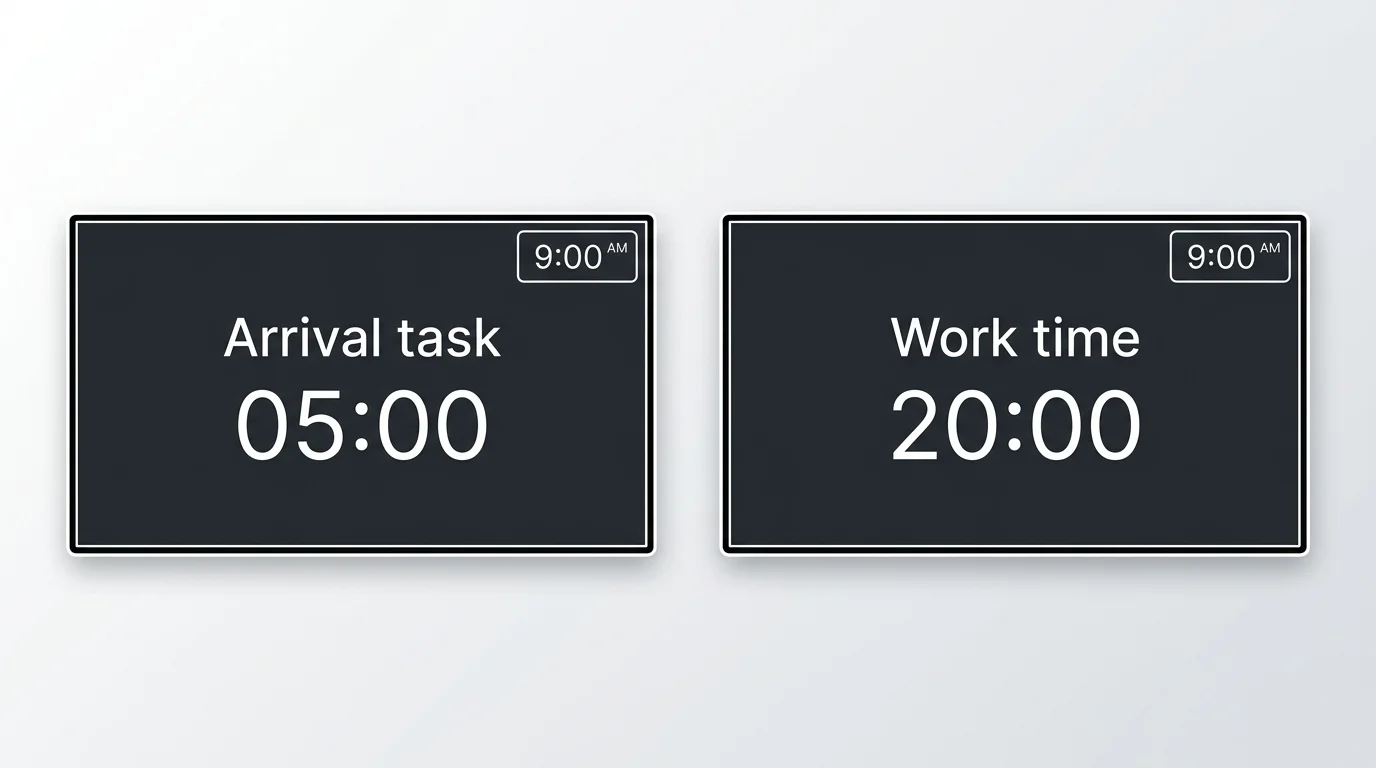
Change the sentence in the text box, the timer's label, and the voice-level line. Arrival might say "Voice: quiet. Notebooks open." Work time might say "Voice: partner." Those lines are the routine. A paragraph is not a line.
On Classroomscreen, pin does this inside one deck: pin the clock once and it stays in the same location on every screen in that deck. On MyClassScreen you place the clock on each saved board yourself. That is a few minutes the first afternoon, and no minutes after that, because you reopen the saved board instead of rebuilding it.
Do not copy a widget onto every board "just in case." A name picker belongs on the board where someone is about to be called. It does not belong on the exit board. Extra widgets are how a deck turns back into one crowded screen.
Build the set once, then stop designing
- Open myclassscreen.org/board in the browser on the computer that feeds the projector or panel.
- Build the arrival board. One clock, one text box, one timer. Read it from the doorway.
- Save it before you build the next one. Click the green Save button at the top right; it saves directly to your browser storage on that machine without needing an account or signup. Use the numbered name.
- Build teach, work, and exit the same way. Save each board before you start the next, so a closed laptop lid does not take the set with it.
- Open them in order from the saved list once, with no students in the room. If you cannot tell the boards apart at a glance, the names or the text are too similar.
- Go full screen when you teach. On many Windows computers that is F11, or Control-Command-F on a Mac.
You do not need a board for every minute. If two activities share a layout, they are one screen. A station rotation that loops on one timer is one board, not one board per station.
Conference week works the same way with a different set of screens. Here is a five-screen conference plan.
If the screen says "Untitled screen deck"
You are probably inside Classroomscreen, looking at a deck that has never been renamed. That app is at classroomscreen.com. MyClassScreen is a different product. We cannot open, rename, or recover a deck stored on their side.

Their own dashboard guide, as updated on 24 September 2026, says the following. Treat it as their policy, not ours, and re-check it if you are about to tell a colleague they have lost work:
- If you are logged out, or on their Basic plan, you can start a screen, but those screens are not kept. The next visit shows an empty dashboard.
- On Pro, screens save automatically. Their help says you do not press a separate save button for that.
- A deck you deleted can be brought back from Recently deleted for up to 30 days.
Rename a deck as soon as it is worth keeping. "Untitled screen deck" will not help you find it next week, and searching that phrase is how people end up on explainers instead of on their own file.
If you want the teaching pattern without those save rules, build the four named boards above on MyClassScreen. Everything saves directly in your local browser on your teaching machine, with no accounts or logins needed for teachers or students.
Mistakes that make the deck louder than the lesson
- One board for the whole period. The arrival task is still on the wall during the exit, and someone follows the stale line.
- A new design at every switch. Same widgets, same corners. Only the words and the timer change.
- Names with no numbers. "Work", "work 2", and "work final" are how a substitute opens the wrong board.
- A slide pasted into the text box. If it is a paragraph, it is a slide. Shrinking the font does not fix the back row.
- Editing your only copy at the bell. Change the message after school, save again, and leave. There is no duplicate-board button, so plan your changes before the bell rings.
- Leaving a screensaver up through the lesson. Switch to the arrival or teach board when you start talking.
Open the next board, not a bigger one
Write four names. Save them once. Open them in that order. The classroom screen deck is done when a colleague can run the period from the list without asking which layout is "the" board.